
Mute a video, or swap its sound for music
Background noise, a private conversation or copyrighted music in a clip you want to share. How to remove the sound from a video completely, or replace it with your own track, in seconds and without re-encoding the picture.
Nitiksh4 min readKinoFlux Editor
On this page
Sometimes the sound is the problem. The clip has wind noise, someone talking in the background, a private conversation, or music that a platform will block. You want to send the video without it, or put your own music under it instead.
KinoFlux Editor has two tools for this:
- Video - Remove audio takes the sound out. Nothing else changes.
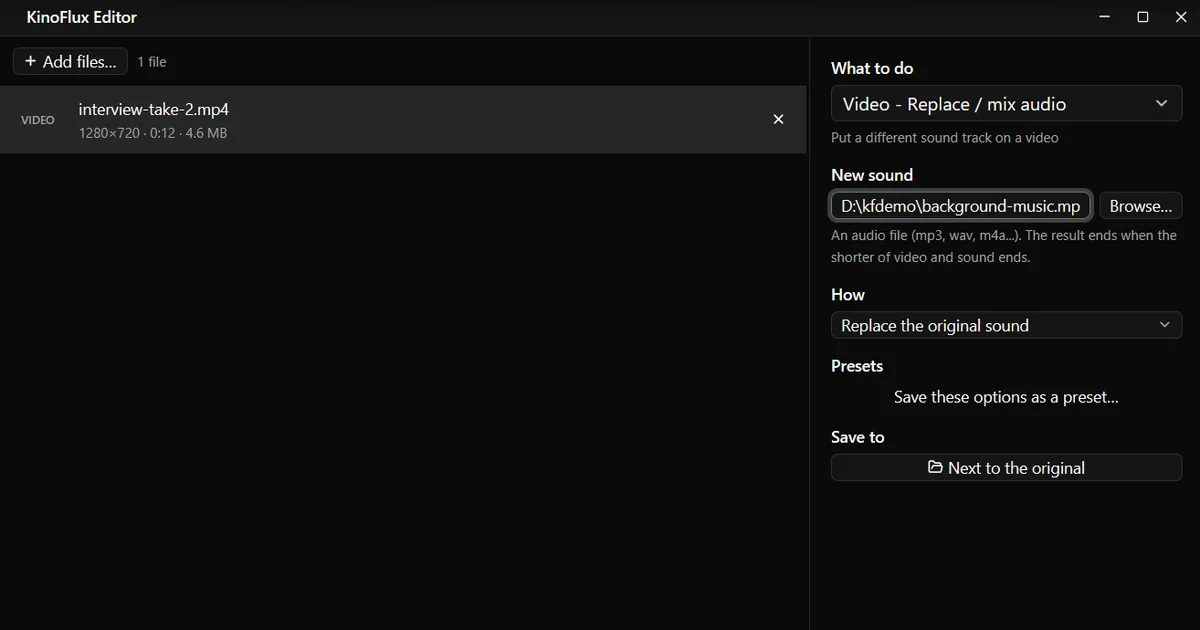
- Video - Replace / mix audio puts an audio file you choose under the video, either instead of the original sound or mixed with it.
Both copy the picture as it is, without encoding it again. That is why they finish in seconds even for long videos, and why the picture quality stays exactly the same.
How to remove or replace the sound#
- Add the video. Drag one or more videos onto the KinoFlux Editor window.
- Pick the tool. Press Ctrl+K (Cmd+K on a Mac), type "audio" and choose Video - Remove audio or Video - Replace / mix audio.
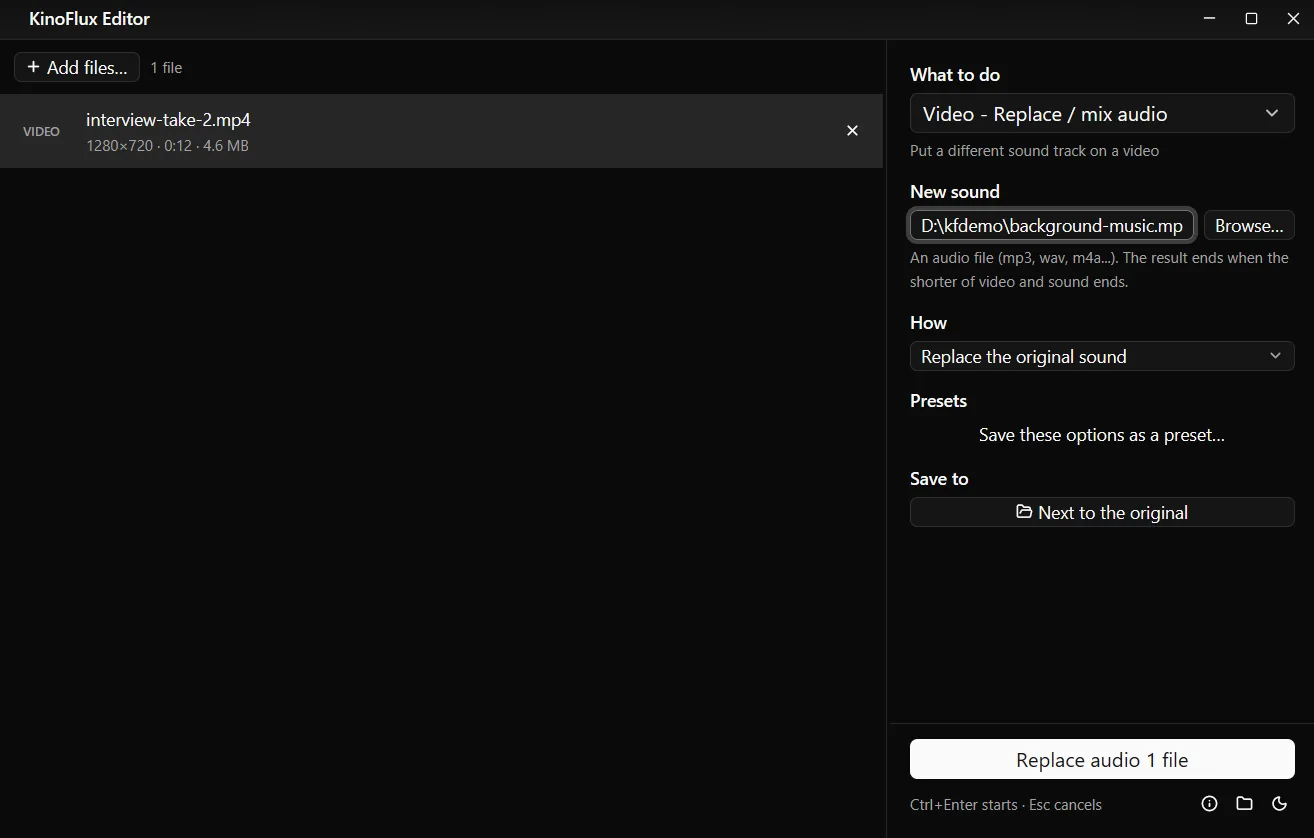
- For replace or mix, choose the new sound. Click Browse... next to New sound and pick the audio file, or type its full path into the box. Then choose Replace the original sound or Mix with the original sound.
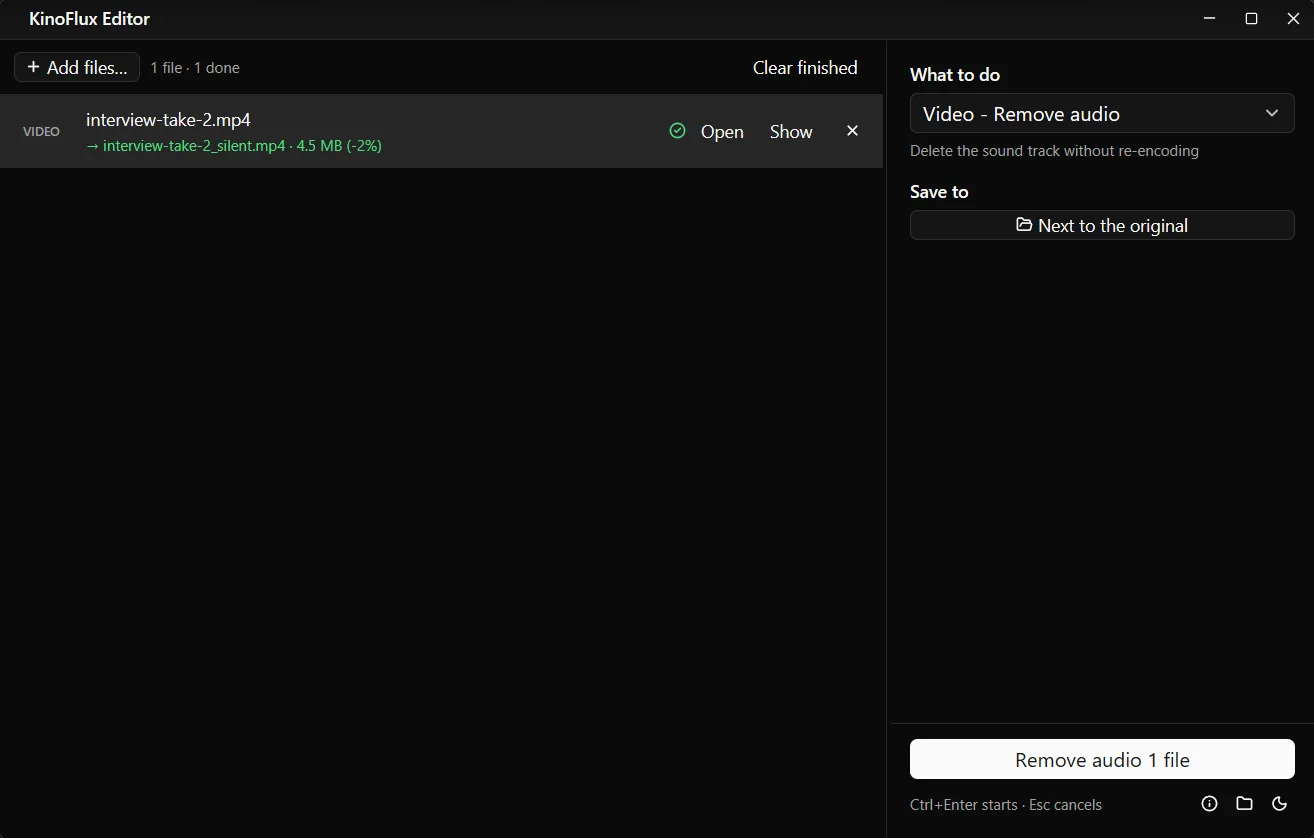
- Start. Press Ctrl+Enter. The result is saved next to the original, as
name_silent.mp4orname_newaudio.mp4.
Remove audio: what you get#
Remove audio has no options. It keeps the first video stream and drops all sound tracks, subtitle tracks and data tracks. The file type stays the same when it can: an MP4 stays MP4, an MKV stays MKV. Other types become MP4.
On a 12 second, 720p test clip of 4.6 MB, the silent copy was 4.5 MB. The small difference is the sound track that is gone.
If a video has no sound at all, the tool says so and skips it.
Replace or mix: how it behaves#
| Option | Choices | Default |
|---|---|---|
| New sound | An audio file: MP3, M4A, AAC, WAV, FLAC, OGG, OGA, Opus, WMA, AIFF, AIF | none |
| How | Replace the original sound, or Mix with the original sound | Replace |
- The picture is copied without changes. Only the sound is encoded, as AAC at 192 kbps, and the result is an MP4.
- The length follows the shorter one. If the music is shorter than the video, the video is cut where the music ends. If the music is longer, it stops when the video ends.
- Mix keeps both at full volume. If the music drowns out speech, lower the music first with Audio - Volume and mix again.
- Several videos, one track. If you add several videos, each gets the same new sound.
Tips#
- Fade the music. A song that stops suddenly at the end of the clip sounds cut off. Give it a fade out first with Audio - Fade in / out.
- Cut the music to the right part. Use Audio - Trim to start the song at the chorus before you add it.
- Join first, then add music. If you are combining clips, join them first and add one music track to the result.
Limits#
- No volume slider for the mix. Change the music volume beforehand with the Audio tools.
- Only the first sound track of the video is used for mixing. Extra language tracks are not kept.
- No offset. The new sound always starts at 0:00 of the video. Trim the audio file to line it up.
- Remove audio also drops subtitle tracks inside the video. Add them back with Add subtitles if needed.
Related guides#
- Keep only the sound: extract audio from a video.
- Make a video from a song and a picture: turn an MP3 into a video.
- Clean up quiet or uneven sound: normalize volume and remove silence.
All tools are on the KinoFlux Editor page.
Frequently asked questions
Does removing the sound lower the video quality?
No. Video - Remove audio copies the picture as it is and leaves out the sound, so nothing is encoded again. Replace / mix audio also copies the picture untouched and only encodes the new sound.
What happens if the music is shorter than the video?
The result ends when the shorter of the two ends. If your song is 2 minutes and the video is 3, you get a 2 minute video. Join two songs first with Audio - Join audio files, or trim the video.
Can I keep the original sound quietly under the music?
Mix with the original sound plays both at their own volume. To make the music quieter, lower its volume first with Audio - Volume / normalize (for example -10 dB), then mix.
Which audio files can I use as the new sound?
MP3, M4A, AAC, WAV, FLAC, OGG, OGA, Opus, WMA, AIFF and AIF.
Can I keep the sound and drop the picture instead?
Yes, that is Video - Extract audio. See extract the audio from a video.
- remove audio
- mute video
- add music to video
- replace audio