
Join several videos into one file, even if they differ in size
You have a few clips from a phone, a camera and a screen recording and want one video. How to merge them in order with KinoFlux Editor, offline, and what happens when the clips have different sizes.
Nitiksh3 min readKinoFlux Editor
On this page
You filmed a few short clips and want to send them as one video. Or you have an intro, the main recording and an outro as separate files. Most phones and simple players cannot merge them, and online mergers want you to upload everything and often add a watermark.
Video - Join videos in KinoFlux Editor puts the clips one after another in a single file, on your own computer. It works even when the clips come from different devices and have different sizes or codecs.
How to join videos#
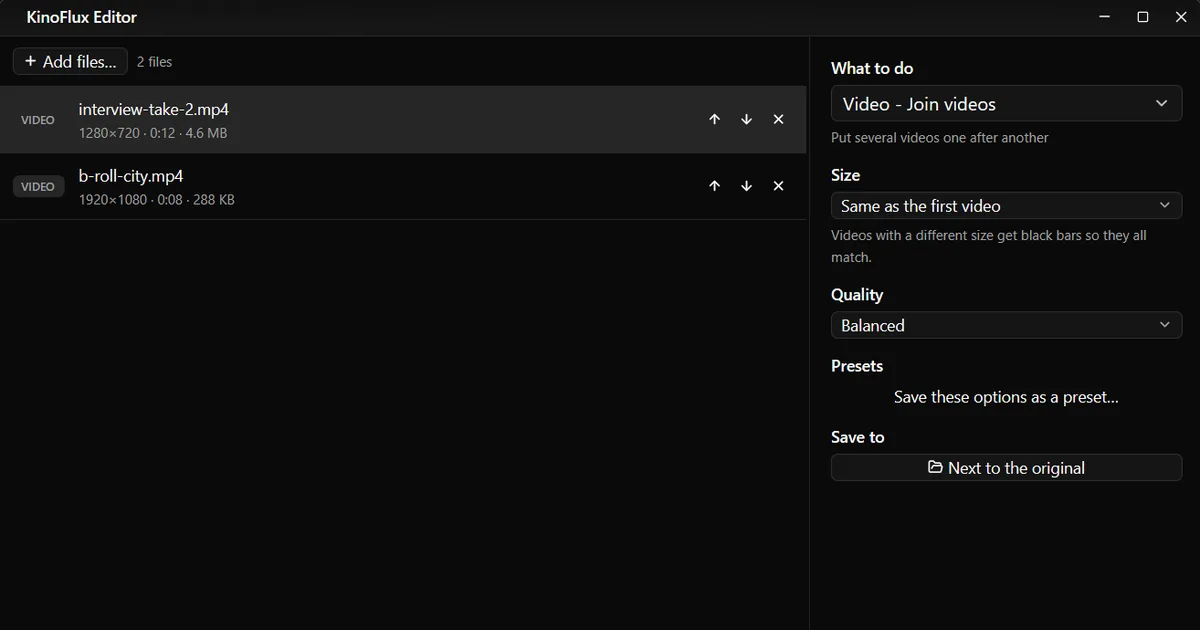
- Add the clips. Drag all of them onto the KinoFlux Editor window.
- Put them in order. The clips are joined top to bottom. Drag a row up or down to move it.
- Pick the tool. Press Ctrl+K (Cmd+K on a Mac), type "join" and choose Video - Join videos.
- Choose the size. Same as the first video is the default. You can also pick 1080p, 720p or 480p.
- Start. Press Ctrl+Enter. You need at least two clips. One MP4 file is created next to the first clip, named after it, for example
interview-take-2_joined.mp4.
What happened in a test#
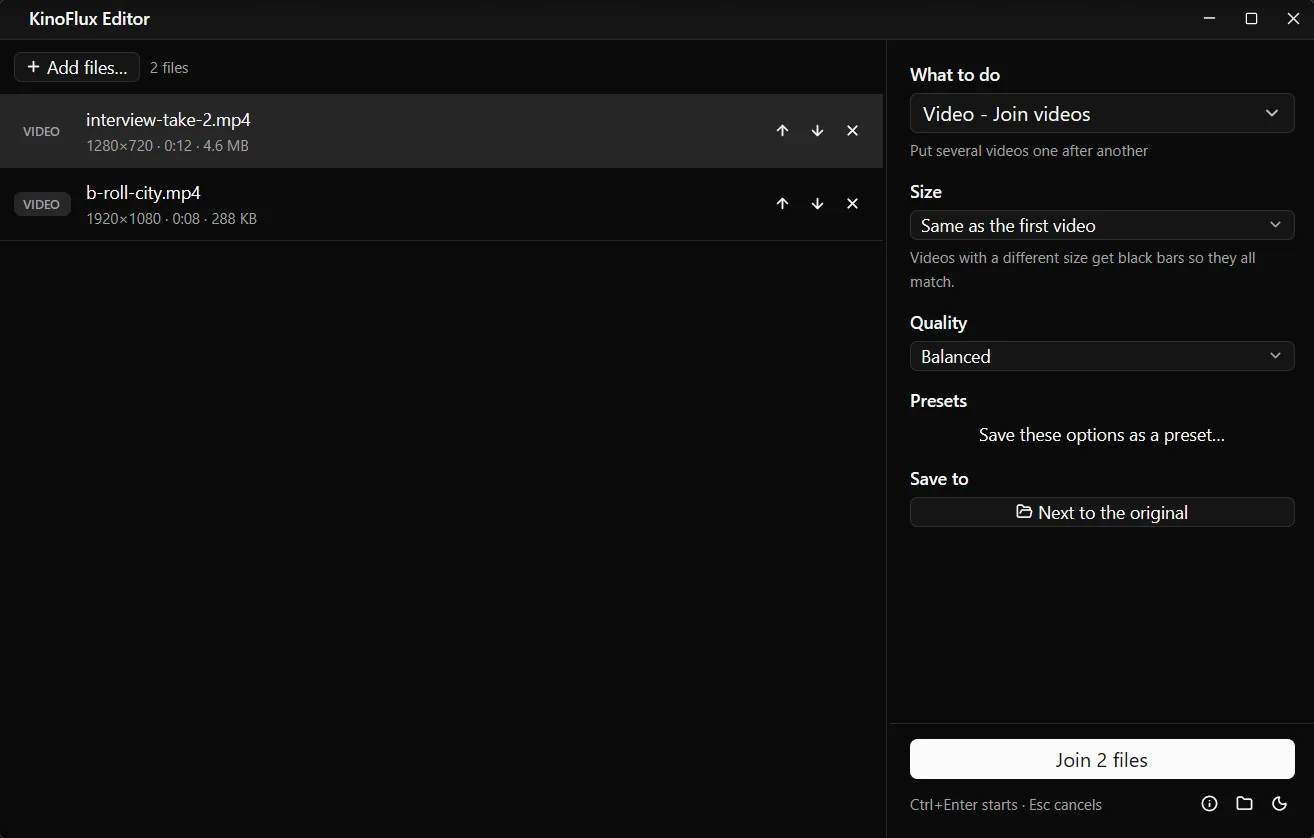
I joined two clips with different sizes:
| Clip | Size | Length |
|---|---|---|
| interview-take-2.mp4 | 1280x720 | 12 s |
| b-roll-city.mp4 | 1920x1080 | 8 s |
| Result: interview-take-2_joined.mp4 | 1280x720 | 20 s, 4.8 MB |
The result took its size from the first clip, so the 1080p clip was scaled down to 720p. Both clips are 16:9, so there are no bars. If one clip were vertical, it would sit in the middle of the frame with black bars on both sides.
Options#
| Option | Choices | Default |
|---|---|---|
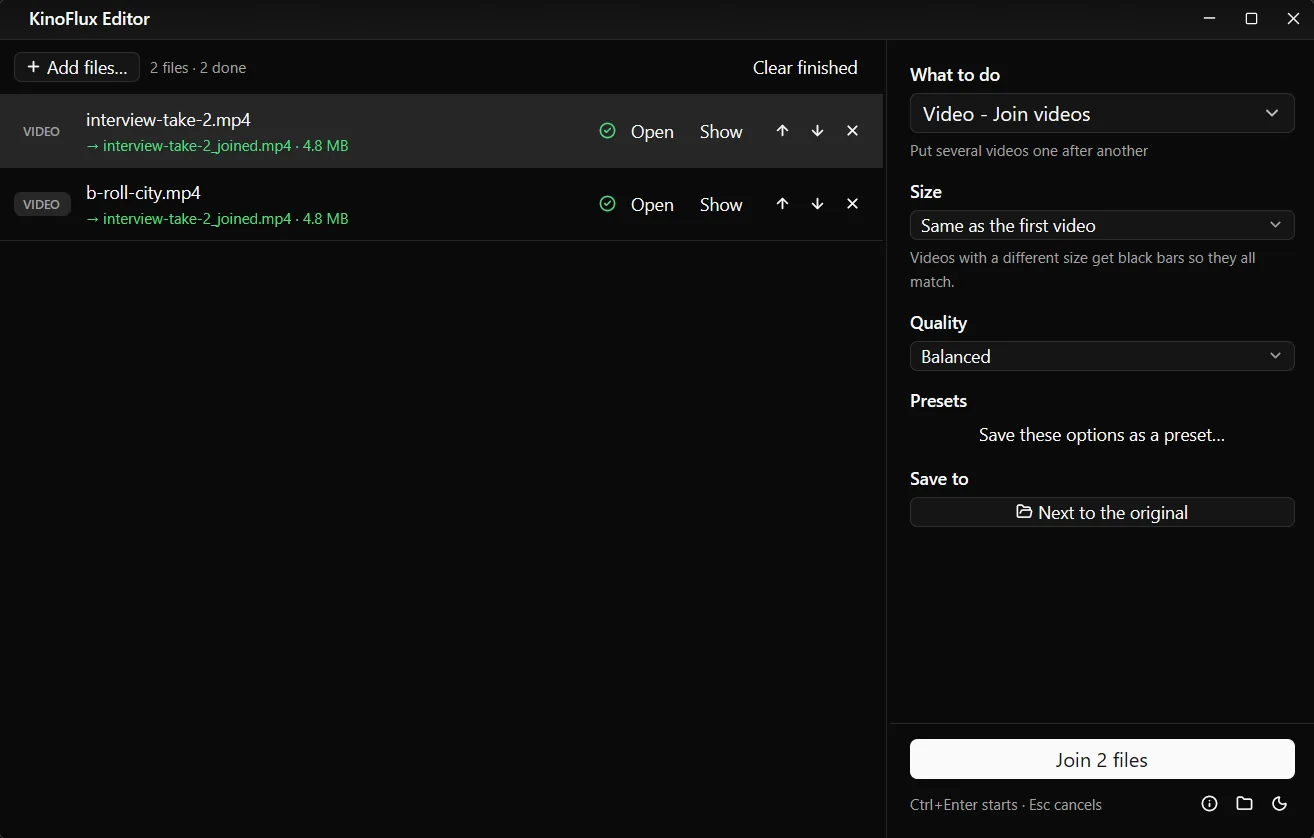
| Size | Same as the first video, 1080p, 720p, 480p | Same as the first video |
| Quality | Smaller file, Balanced, High quality | Balanced |
Size decides the frame of the result. Put your best quality clip first, or pick a size directly. Quality works like in the other video tools: Balanced is right for most uses, High quality makes a bigger file.
Tips for a clean result#
- Trim first. Cut the shaky start and end of each clip with Video - Trim before joining. Joining is the last step.
- Fix sideways clips first. A phone clip that plays sideways will stay sideways. Turn it with Rotate / flip before joining.
- Mix of vertical and horizontal? Decide on one shape first with Change aspect ratio, for example 9:16 with a blurred background, so you do not get black bars.
- Add music last. After joining, replace or mix the sound with a music track.
Limits#
- No transitions or titles. Clips are placed one after another with a hard cut. KinoFlux Editor is a toolbox, not a timeline editor.
- It always re-encodes. This is slower than a plain copy, and the result is a new encode. In return, any mix of files works.
- One result per run. All files in the list go into one video. To make several joined videos, run the tool once per group.
- One silent clip mutes the result. If any clip has no sound track at all, the joined video has no sound. Give that clip a sound track first (for example with Replace / mix audio), or add music to the joined file afterwards.
- The result is always MP4 with H.264 video and AAC sound, at the frame rate of the first clip.
Related guides#
- The reverse job: split a video into parts.
- Result too big to send? Make it smaller.
- Need a different file type for the result? Convert it after joining.
See all tools on the KinoFlux Editor page.
Frequently asked questions
Can I join videos with different sizes or formats?
Yes. Join videos re-encodes everything, so an MOV from a phone, an MP4 from a camera and an MKV screen recording can be combined. Clips with a different shape get black bars so they all fit the same frame.
How do I change the order?
The clips are joined in the order of the file list. Drag the rows up or down before you start.
Is there a watermark?
No. KinoFlux Editor never adds a watermark or logo to your files.
Why does joining take longer than splitting?
Splitting can copy the video without encoding it. Joining encodes every clip again so that different sizes and codecs fit together without glitches. That is slower, but it works for any mix of files.
Can I join audio files the same way?
Yes, with Audio - Join audio files. See cut, join and fade audio files.
- join videos
- merge videos
- combine clips