
Fix a sideways or upside-down video: rotate or flip it
A phone video plays sideways, upside down or mirrored. How to turn it 90 or 180 degrees, or flip it, with KinoFlux Editor on Windows or Mac, so it plays the right way everywhere.
Nitiksh3 min readKinoFlux Editor
On this page
You open a video and it plays sideways. Or upside down. Or a selfie video shows all text mirrored. This happens with phone clips all the time, and you cannot fix it in most players for good: they turn it on screen, but the file stays wrong.
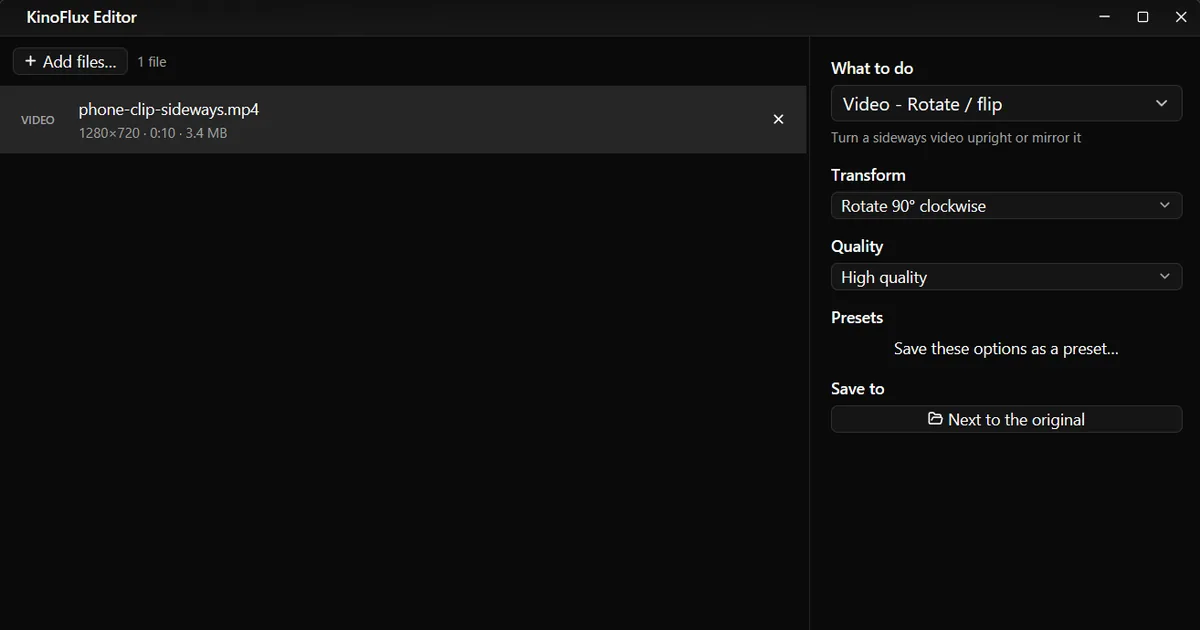
Video - Rotate / flip in KinoFlux Editor turns the picture itself and saves a new file that plays the right way in every player, on every site.
How to rotate a video#
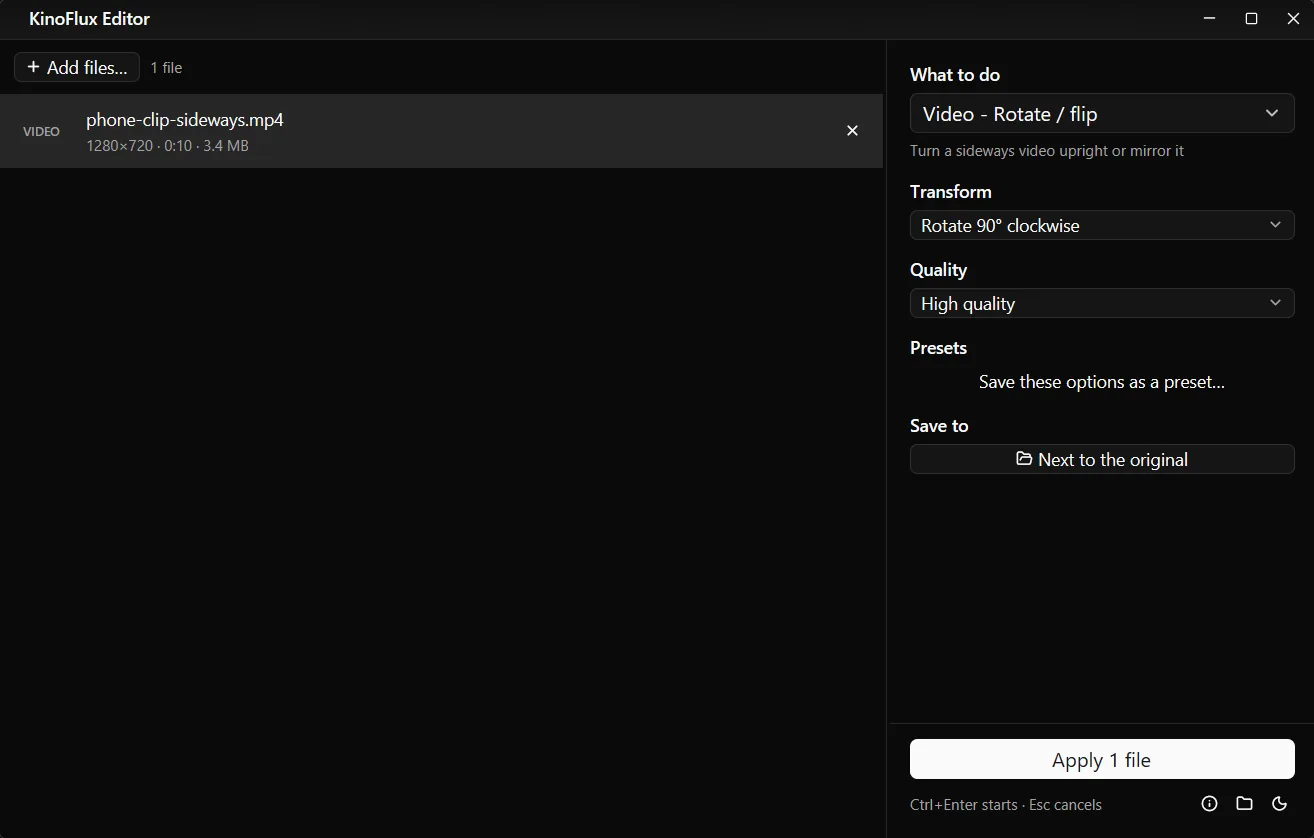
- Add the video. Drag it onto the KinoFlux Editor window. Add several if they all need the same fix.
- Pick the tool. Press Ctrl+K (Cmd+K on a Mac), type "rotate" and choose Video - Rotate / flip.
- Choose the transform. Pick one of five choices under Transform (see the table below).
- Start. Press Ctrl+Enter. The result is saved next to the original as
name_rotated.mp4. - Check it. Click Open next to the result. If it turned the wrong way, run the original again with the other direction.
Which transform to pick#
| The picture looks | Choose |
|---|---|
| Top of the picture points left | Rotate 90° clockwise |
| Top of the picture points right | Rotate 90° counter-clockwise |
| Upside down | Rotate 180° |
| Mirrored, text reads backwards | Flip horizontally (mirror) |
| Upside down and mirrored | Flip vertically |
Result from a test clip#
The test file is a 10 second, 1280x720 demo clip of 3.4 MB. After Rotate 90° clockwise at High quality, the result is 720x1280 and 4.7 MB: the picture is turned a quarter to the right, and the frame changed from landscape to portrait with it.
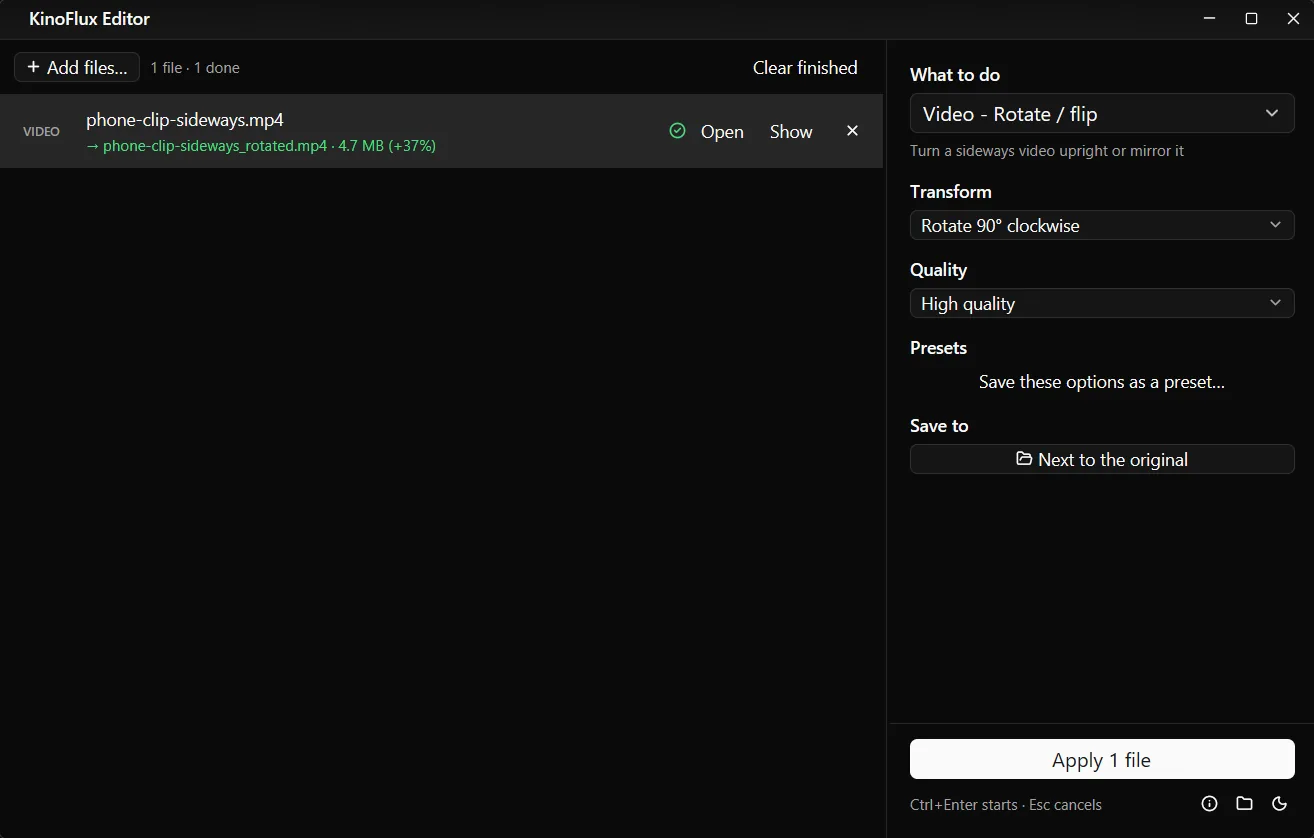
The file got a little bigger because High quality spends more bits than the original encode did. Pick Balanced or Smaller file under Quality if size matters more.
Options#
| Option | Choices | Default |
|---|---|---|
| Transform | Rotate 90° clockwise, Rotate 90° counter-clockwise, Rotate 180°, Flip horizontally (mirror), Flip vertically | Rotate 90° clockwise |
| Quality | Smaller file, Balanced, High quality | High quality |
The result is always an MP4 with H.264 video. The sound is kept.
Limits#
- It re-encodes. Turning the picture means drawing every frame again. This takes a while for long or 4K videos, and the result is a new encode.
- Only quarter turns and flips. There is no option to straighten a slightly tilted video by a few degrees.
- Same turn for every file. If some clips need clockwise and others counter-clockwise, run the tool twice.
- It does not change the frame shape. A sideways 16:9 clip becomes a 9:16 clip. If you need a 16:9 video for YouTube from a vertical clip, use Change aspect ratio after rotating.
Related guides#
- Need vertical 9:16 for Reels or Shorts from a landscape video? Make a video vertical.
- Combining a fixed clip with others? Join videos into one.
- Photos sideways too? The image tool Crop / rotate turns pictures.
All tools are on the KinoFlux Editor page.
Frequently asked questions
Which way should I rotate?
Look at the top of the picture. If it points left, rotate 90° clockwise. If it points right, rotate 90° counter-clockwise. If the picture is upside down, rotate 180°.
Does rotating lower the quality?
The video is encoded again, so there is a small loss. With the default High quality setting it is hard to see. The rotation is drawn into the picture itself, so every player shows it the same way.
How do I un-mirror a selfie video?
Choose Flip horizontally (mirror). Text and signs in the picture read the right way again.
Can I rotate many videos at once?
Yes. Add them all; each one is rotated the same way and saved as its own file.
- rotate video
- flip video
- sideways video