
Cut, join and fade audio files: trim an MP3, merge recordings, smooth the ends
A recording has a long silent start, a podcast came in two parts, or a song stops too abruptly. How to trim, join and fade MP3, WAV and other audio files with KinoFlux Editor, offline.
Nitiksh4 min readKinoFlux Editor
On this page
Most audio fixes are small. The first 10 seconds of a recording are you fumbling with the phone. A lecture was recorded in two files. A background song ends with a hard cut. You do not need a full audio editor for this.
KinoFlux Editor has three audio tools that cover these jobs:
- Audio - Trim keeps one part of a file.
- Audio - Join audio files puts several files one after another in a single file.
- Audio - Fade in / out makes the start and end smooth.
How to cut, join and fade audio#
- Add the files. Drag them onto the KinoFlux Editor window.
- Pick the tool. Press Ctrl+K (Cmd+K on a Mac) and type "trim", "join" or "fade".
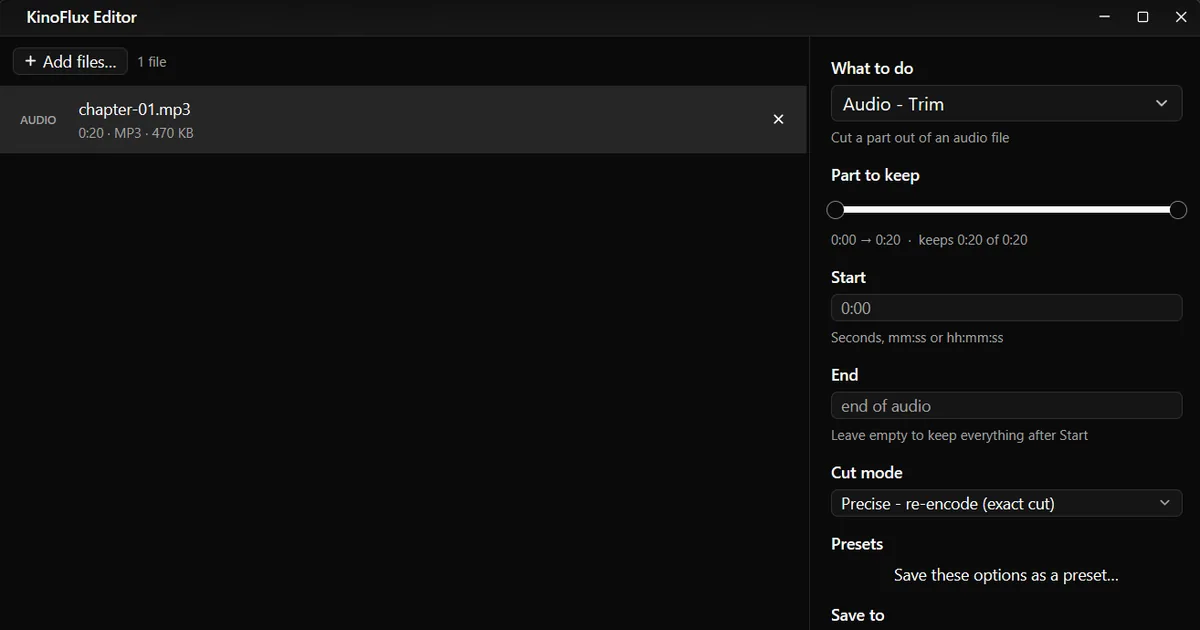
- For Trim, type Start and End as seconds, mm:ss or hh:mm:ss. Leave End empty to keep everything after Start.
- For Join, drag the files into the right order, then choose the format and an optional Silence between files.
- For Fade, set Fade in and Fade out in seconds.
- Start. Press Ctrl+Enter. Results are saved next to the originals as
name_trimmed,name_joinedandname_faded.

Trim#
| Option | Choices | Default |
|---|---|---|
| Start | Seconds, mm:ss or hh:mm:ss | 0:00 |
| End | Same, or empty for the end of the file | empty |
| Cut mode | Fast (no re-encoding) or Precise (re-encode, exact cut) | Fast |
In my test, cutting 0:02 to 0:15 from a 20 second MP3 with Precise mode gave a file of exactly 13 seconds, 306 KB. Fast mode copies the audio as it is: no quality loss and no waiting, and for MP3 the cut lands within a fraction of a second. In Precise mode the result keeps the file type and roughly the bitrate of the original.
Join#
| Option | Choices | Default |
|---|---|---|
| Format | MP3, M4A (AAC), FLAC (lossless), WAV | MP3 |
| Bitrate | 128, 192, 256 or 320 kbps (MP3 and M4A) | 192 kbps |
| Silence between files | 0 to 30 seconds | 0 |
All files in the list go into one result, named after the first file. I joined two 20 second chapters with 1 second of silence between them. The result, chapter-01_joined.mp3, is 41 seconds and 962 KB.

Files with different sample rates or mono and stereo are matched automatically: the result is 44.1 kHz stereo.
Fade in and out#
| Option | Range | Default |
|---|---|---|
| Fade in | 0 to 60 seconds | 2 |
| Fade out | 0 to 60 seconds | 3 |
The fade out ends exactly at the end of the file. A 20 second song with a 2 second fade in and a 3 second fade out came out as background-music_faded.mp3, the same length and size as before. The result keeps the original file type; compressed formats are saved at 192 kbps.
Common jobs#
| You want | Do this |
|---|---|
| Remove a long silent start | Trim with Start at the first sound, End empty |
| Make a ringtone | Trim to 40 seconds or less, fade in and out, then convert to M4R |
| One file from a lecture recorded in parts | Join, in the right order |
| An audiobook with a pause between chapters | Join with 1 or 2 seconds of silence |
| Background music that ends softly | Fade with 3 to 5 seconds of fade out |
| Remove a part in the middle | Trim the part before, trim the part after, join the two |
Limits#
- No waveform view. You type times. Play the file in any player to find the right moments.
- One part per trim. Several cuts need several runs.
- Join re-encodes. The result is a new file in the format you pick, never a lossless copy of MP3 parts.
- Fade and Precise trim re-encode compressed files, which costs a little quality.
- Joining has no crossfade. Files follow each other directly, or with the silence you set.
Related guides#
- Long pauses inside a recording? Remove silence automatically.
- Joined parts sound louder or quieter than each other? Normalize the volume before joining.
- Set the title and track number of the result: edit tags and cover.
All tools are on the KinoFlux Editor page.
Frequently asked questions
Does cutting an MP3 lower its quality?
Not in Fast mode, which copies the audio data without encoding it again. Precise mode re-encodes so the cut is exact to the millisecond.
Can I join files with different formats?
Yes. Join audio files accepts any mix of the supported formats and encodes the result as MP3, M4A, FLAC or WAV.
How do I change the order of the files I join?
Files are joined in the order of the file list. Drag the rows into the order you want before you start.
Can I fade only the end?
Yes. Set Fade in to 0 and choose the length of the fade out.
How do I cut out a part in the middle?
Trim keeps one part. To remove a middle section, trim twice to keep the part before and the part after, then join the two results.
- trim audio
- join audio
- fade audio
- mp3 cutter