
Add an SRT subtitle file to a video, burned in or as a track
You have a video and an .srt file, but the subtitles do not show on Instagram, on the TV or in the messaging app. How to put them into the video for good, or add them as a track viewers can switch on and off, with KinoFlux Editor.
Nitiksh4 min readKinoFlux Editor
On this page
You finally have a subtitle file for your video: written yourself, from a subtitle editor, or from a transcription service. Then the problems start. The TV shows no subtitles, Instagram ignores the .srt, and the person you send it to does not know how to load a separate file. Subtitles that belong in the video should be in the video.
Video - Add subtitles in KinoFlux Editor does it two ways:
- Draw onto the picture (always visible) burns the text into the picture. It shows in every player and app.
- Add as a track (viewers can turn it off) adds the subtitles as a stream inside the file, in seconds, without touching the picture.
How to burn subtitles into a video#
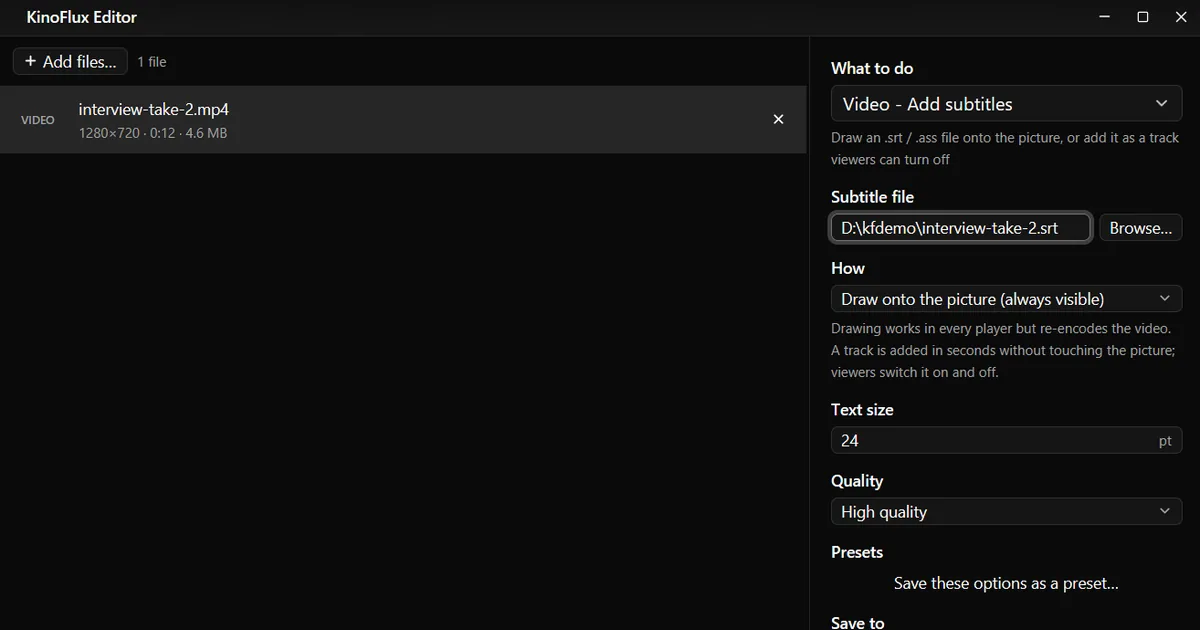
- Add the video. Drag it onto the KinoFlux Editor window.
- Pick the tool. Press Ctrl+K (Cmd+K on a Mac), type "subtitles" and choose Video - Add subtitles.
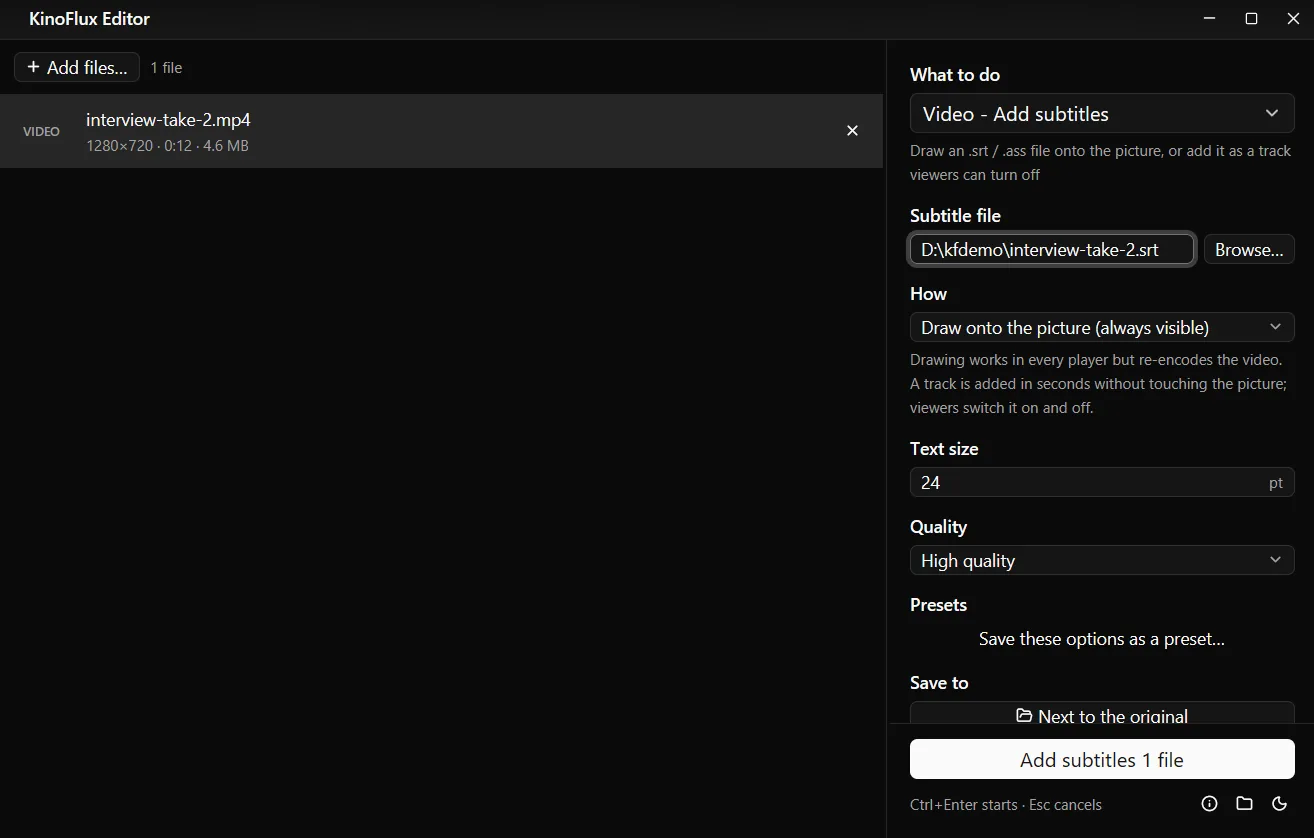
- Choose the subtitle file. Next to Subtitle file, click Browse... and pick the .srt, .ass, .ssa or .vtt file.
- Keep Draw onto the picture. It is the default under How. Adjust Text size if needed (default 24 pt).
- Start. Press Ctrl+Enter. You get
name_subtitled.mp4next to the video.
Result#
| Mode | Output | Size | Time |
|---|---|---|---|
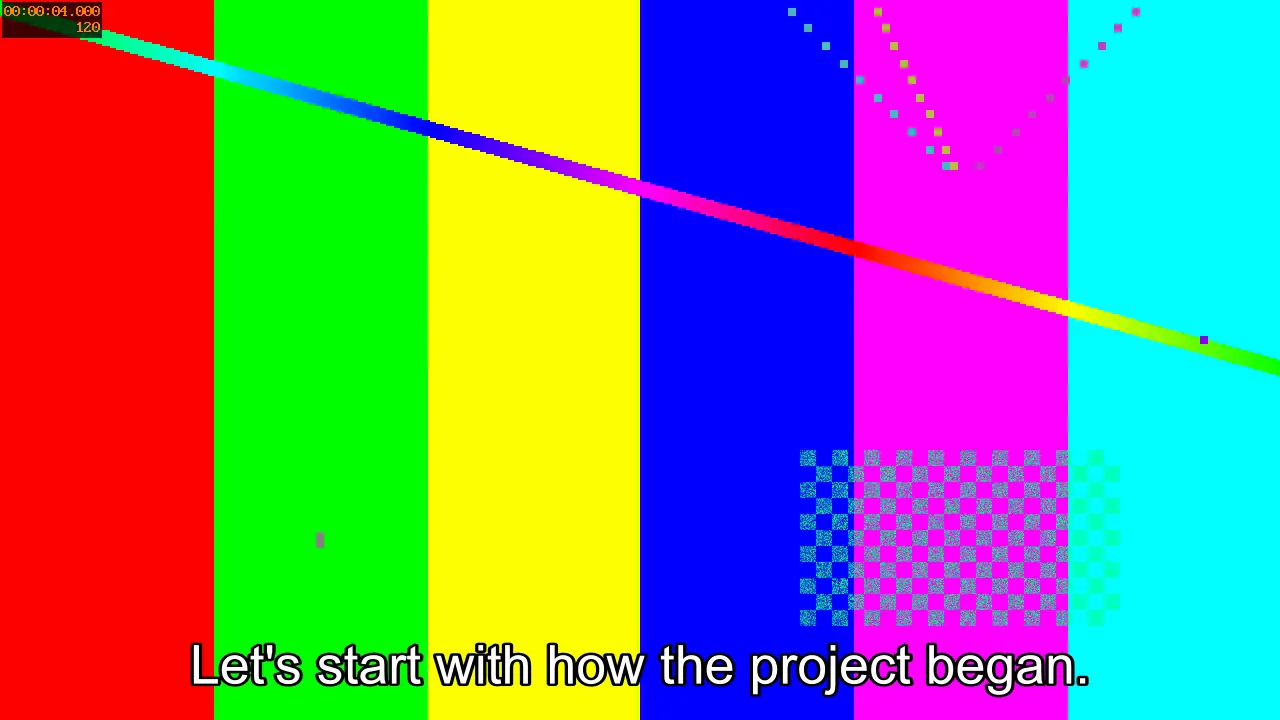
| Draw onto the picture | interview-take-2_subtitled.mp4, H.264 + AAC | 6.5 MB | re-encodes the whole video |
| Add as a track (MP4, English) | interview-take-2_subtitled.mp4, picture and sound copied, plus an English text track | 4.6 MB | a few seconds |
The demo clip and its four-line .srt were made for these guides. The burned-in copy is larger because the whole picture was encoded again at High quality; choose Balanced or Smaller file for a smaller result.
Add subtitles as a track viewers can turn off#
- Choose the subtitle file as above.
- Set How to Add as a track (viewers can turn it off).
- Choose File type: MP4 (plays everywhere, plain text) or MKV (keeps .ass styling and every subtitle track).
- Set Language (for example English or Hindi), and optionally a Track name such as "English (SDH)".
- Press Ctrl+Enter.
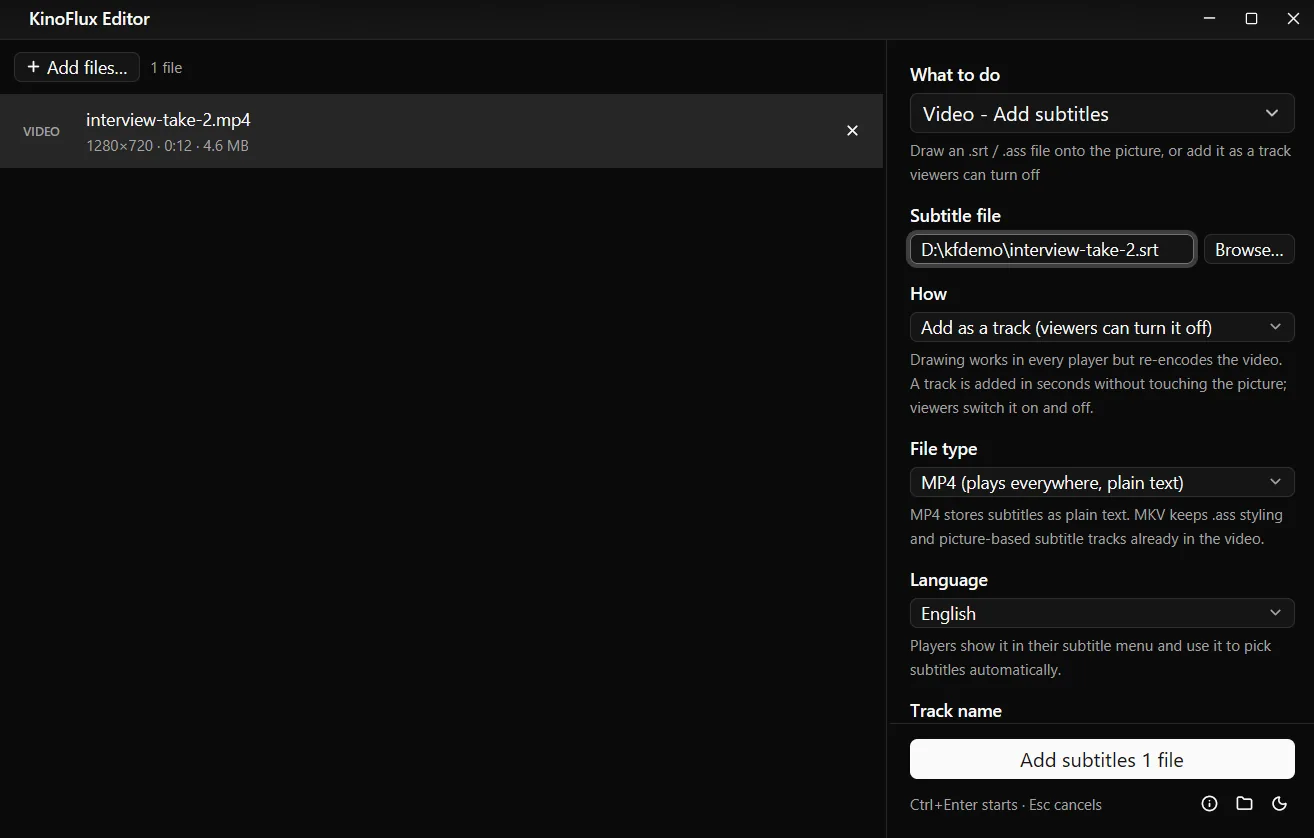
Players such as VLC list the track in their subtitle menu. With Show by default on, they show it as soon as the video starts. Subtitle tracks already in the video are kept when the chosen file type can hold them; Details lists anything that had to be left out.
Options#
| Option | Choices | Default |
|---|---|---|
| Subtitle file | .srt, .ass, .ssa or .vtt | required |
| How | Draw onto the picture (always visible), Add as a track (viewers can turn it off) | Draw onto the picture |
| Text size (burn) | 8 to 72 pt | 24 |
| Quality (burn) | Smaller file, Balanced, High quality | High quality |
| File type (track) | MP4 (plays everywhere, plain text), MKV (keeps .ass styling and every subtitle track) | MP4 |
| Language (track) | Not set, English, Hindi, Spanish, French, German, Arabic, Chinese, Japanese and about 40 more, or Other (type the code) | Not set |
| Track name (track) | text | empty |
| Show by default (track) | on or off | on |
Limits#
- No subtitle editor. Timing and text must be right in the file. Fix them in a subtitle editor or a text editor first.
- Burned subtitles are permanent. Keep the original video if you may need a version without them.
- Burning re-encodes the video, which takes time and loses a little quality. A track does not.
- MP4 tracks are plain text. Colours, fonts and positions from .ass files are only kept in MKV, or when burning.
- File names with an apostrophe ( ' ) in the subtitle path must be renamed before burning.
Related guides#
- A logo in the corner too: add a logo watermark to a video.
- Reels and Shorts: make a video vertical 9:16, then burn the subtitles.
- The video is not MP4 yet: convert video to MP4.
All tools are on the KinoFlux Editor page.
Frequently asked questions
Burn in or add as a track?
Burn in for social media, phones and anywhere you cannot be sure the player shows subtitle tracks; they are always visible. Add as a track when viewers should choose, or for several languages. A track takes seconds because the picture is not re-encoded.
Why do my subtitles not show on Instagram, WhatsApp or TikTok?
Those apps ignore subtitle tracks and separate .srt files. Burn the subtitles into the picture with Draw onto the picture.
My subtitles show strange characters like é. What now?
The app reads subtitle files as UTF-8 and falls back to Windows-1252 for files that are not UTF-8, which covers most Western European files. For other encodings, open the .srt in a text editor and save it as UTF-8 first.
Can I change the font or position?
Only the text size, from 8 to 72 points (default 24). For more styling, use an .ass file made in a subtitle editor; its styles are used when burning, except the size, which Text size sets.
Does it make subtitles for me?
No. It adds an existing subtitle file. You need the .srt, .ass, .ssa or .vtt file.
- subtitles
- srt
- captions
- video tools