
Playback speed, library and picture adjust in KinoFlux Player
What the real UI in KinoFlux Player 1.2.0 gives you for everyday watching: a local library, speed changes, and a compact picture and audio panel, without leaving the player.
Nitiksh2 min readKinoFlux Player
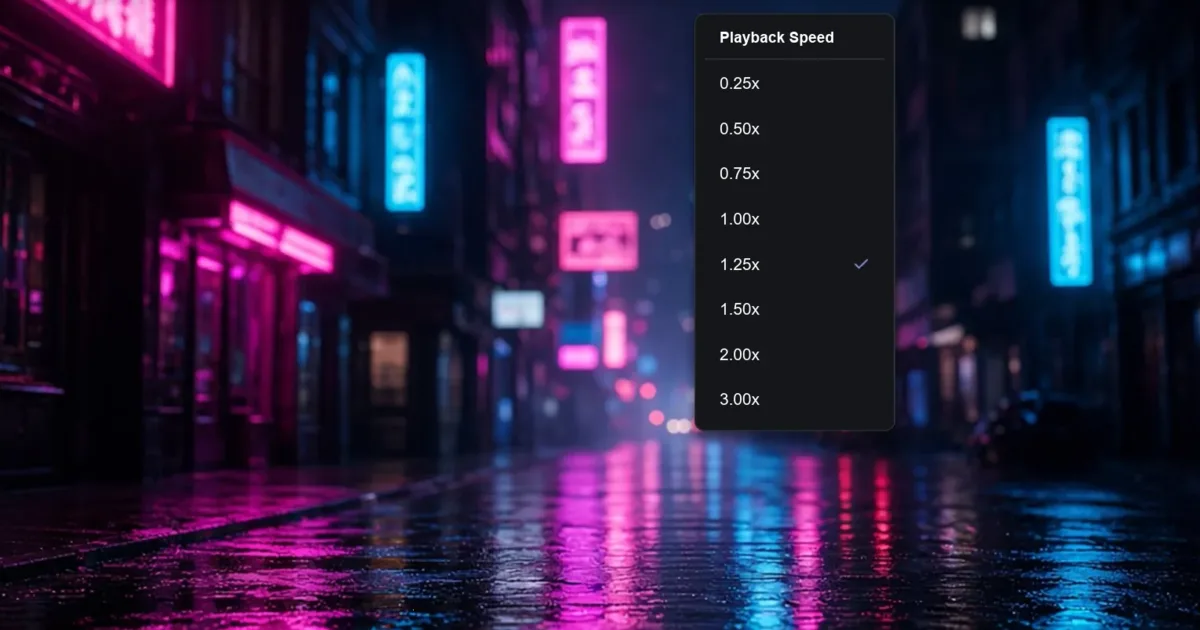
Default players often bury speed behind menus, hide your folders behind a cloud account, or offer no picture controls at all. KinoFlux Player 1.2.0 keeps the everyday controls next to the video: library, speed, and adjust.
This tour matches the screenshots from the app (the same ones on the product page).
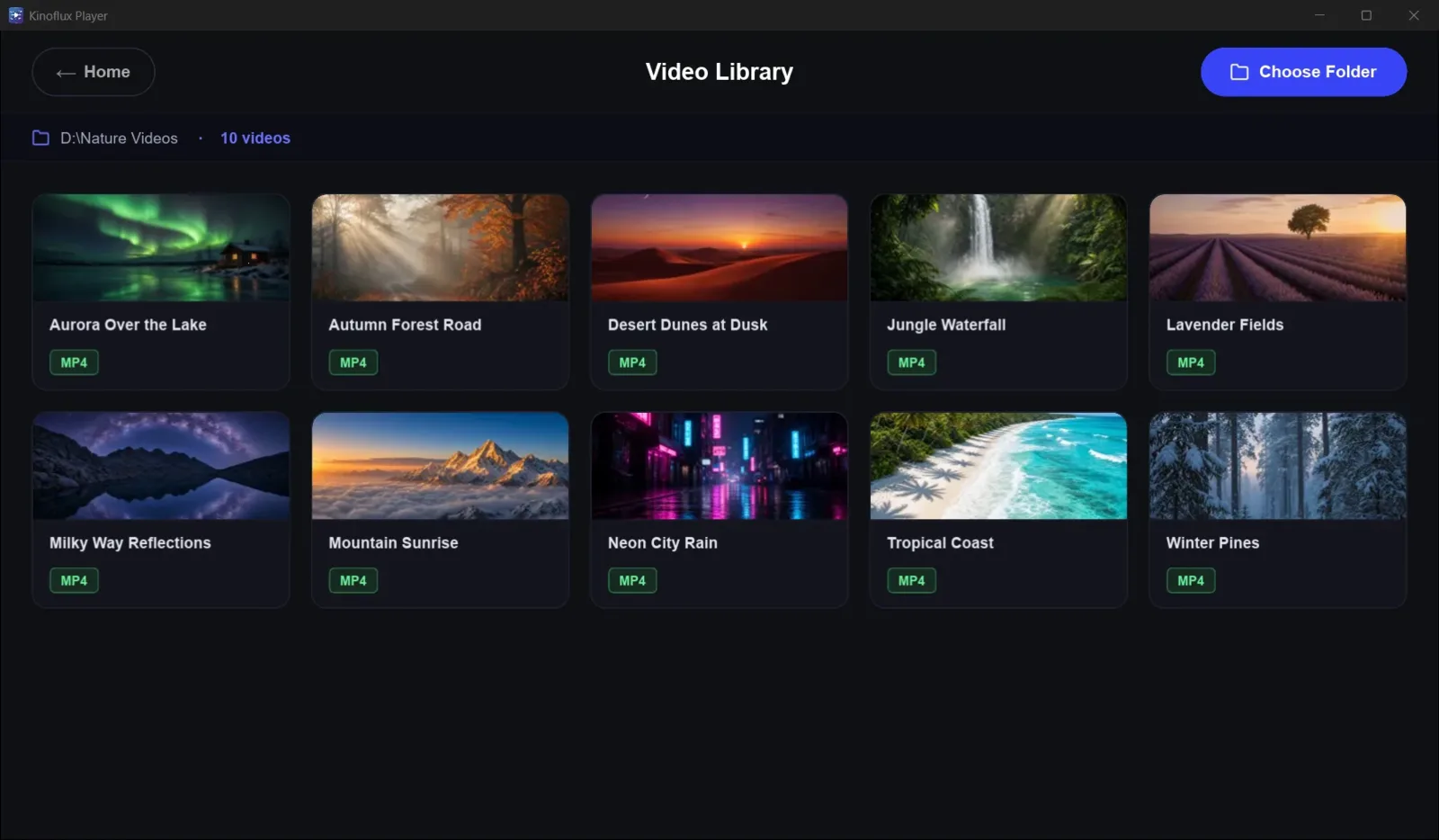
Library#
Open the library to browse videos already on the computer. Nothing is synced to a cloud service for playback. You stay in a local list instead of hunting through Explorer or Finder for every file.
Player#
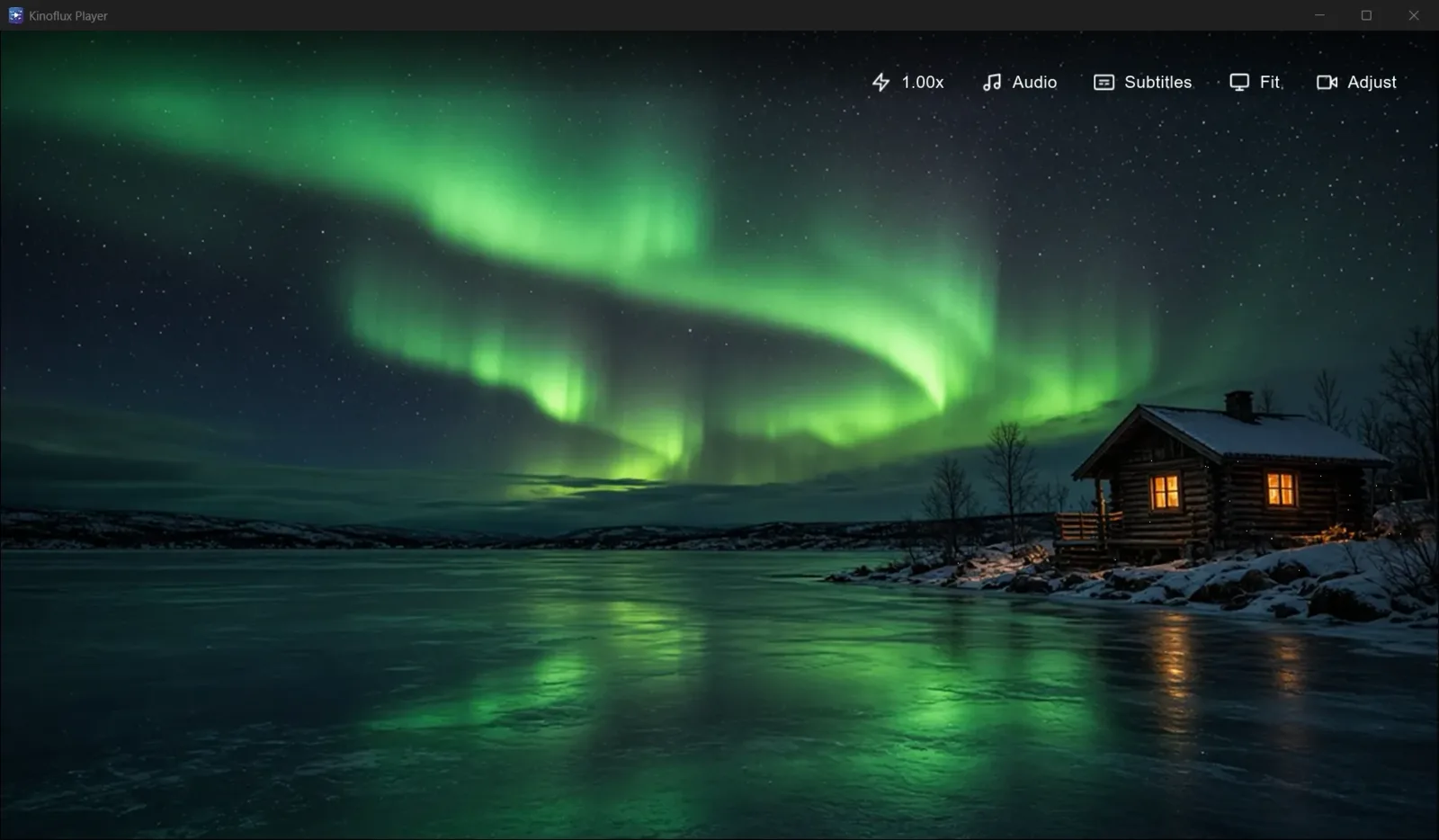
The playback view is dark and quiet. Hardware-accelerated decoding keeps 4K smooth on supported hardware. Controls stay out of the way so the frame remains readable.
Speed#
Change playback speed when you want to skim a lecture, review a cut, or slow a scene. You do this inside the player; you do not re-encode the file.
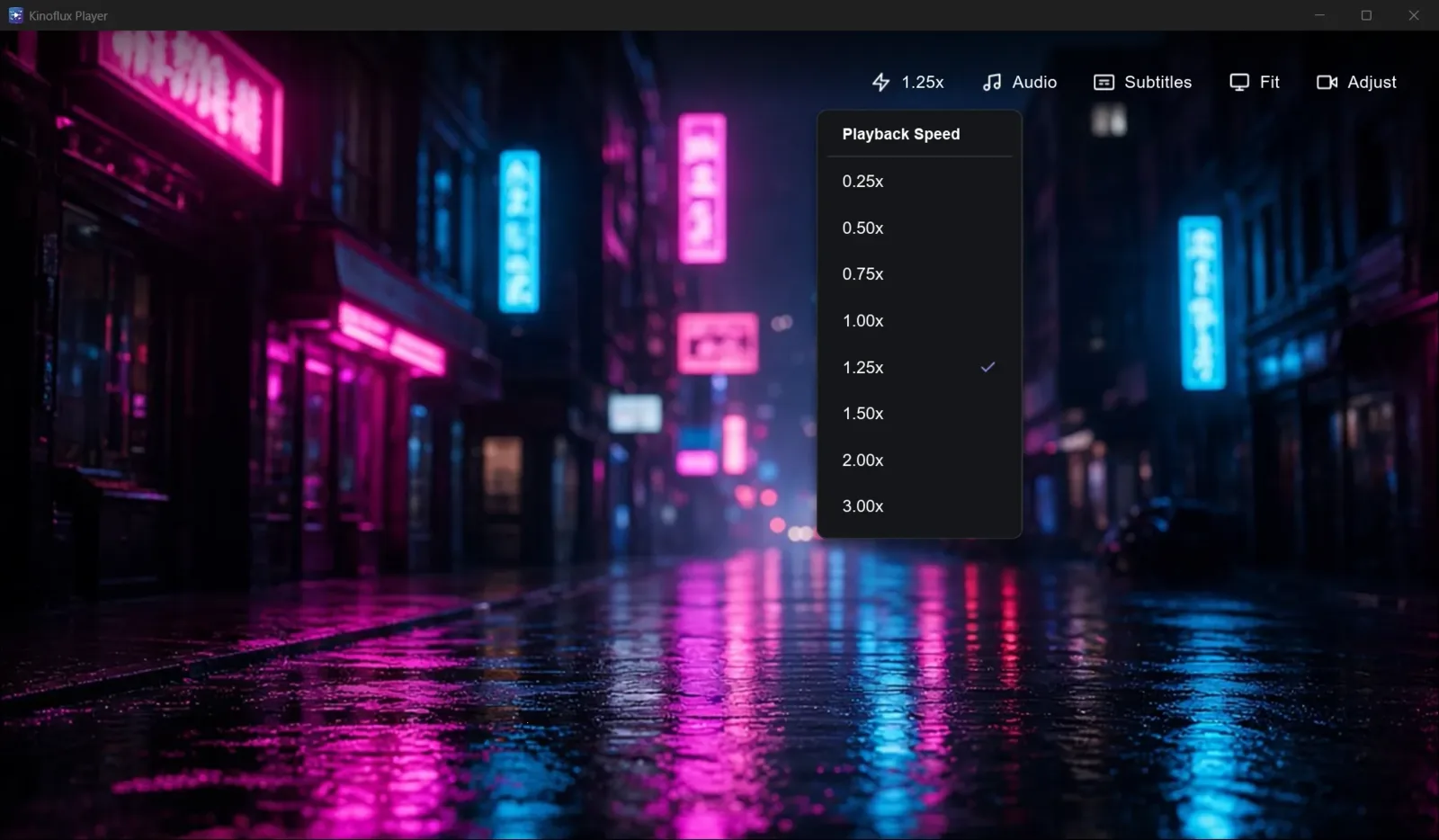
If you need a permanently faster or slower file for upload or edit, that is a different job: use KinoFlux Editor speed tool to write a new file.
Adjust#
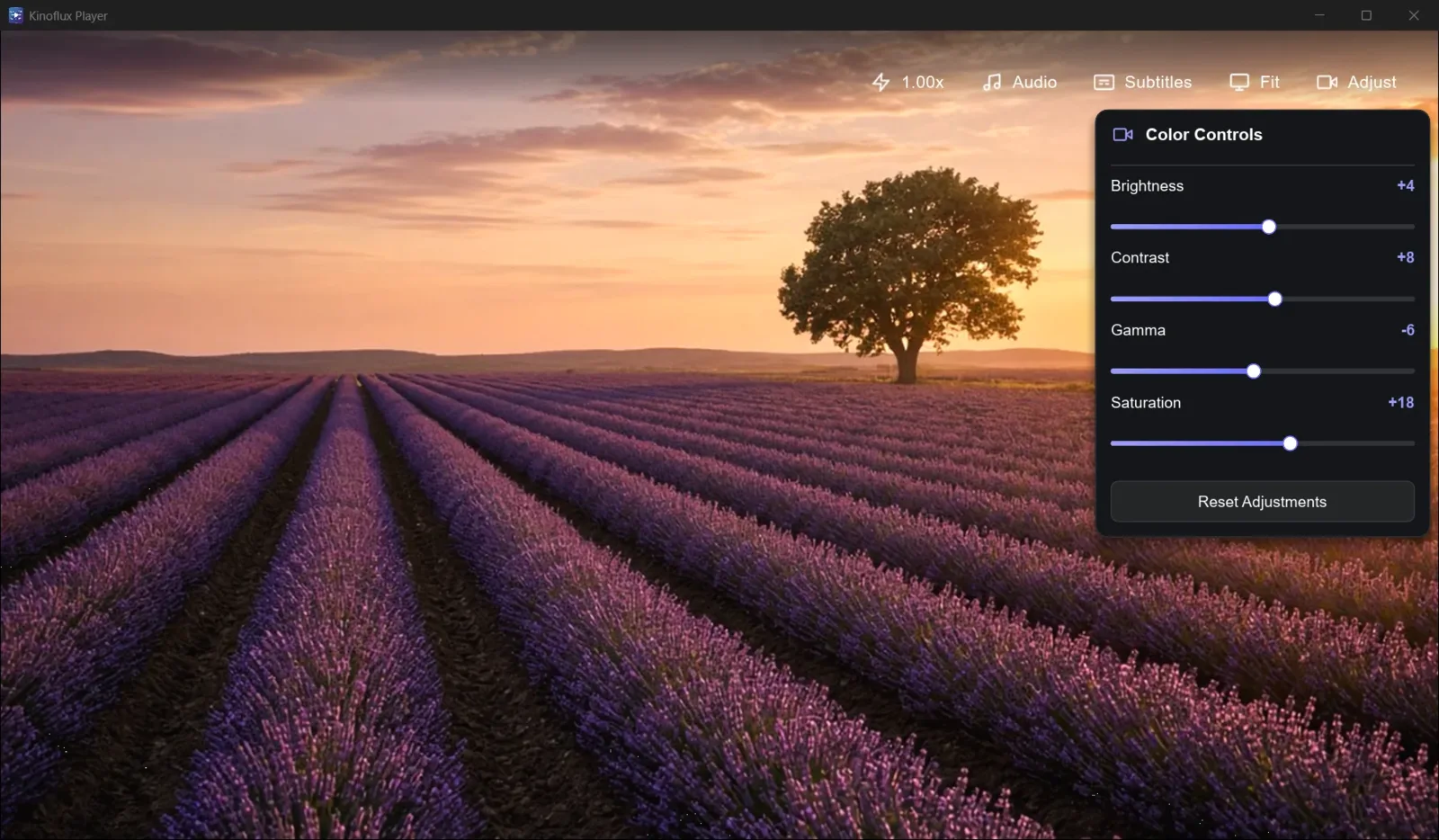
Tune picture and audio without covering the whole screen. The panel stays compact so the video remains the center of attention.
How this fits together#
- Start from Home for recent files, or open Library for the full local list.
- Play in the dark Player view.
- Use Speed when you need a temporary rate change.
- Use Adjust when the source looks too dark, too bright, or the audio needs a nudge.
Install steps for Windows (Store or Setup) and Mac (dmg) are in the install guide. For the privacy angle and download table, read the offline player overview.
Frequently asked questions
Can I change playback speed without another app?
Yes. Speed controls live in the player, so you can skim lectures or slow a scene without exporting a new file.
Does the library sync to the cloud?
No. The library lists videos stored on your computer. Folders and files stay local.
What do the adjust controls change?
Picture and audio to taste (for example brightness and related picture knobs, plus audio), in a compact panel so the video stays centered.
Is this the same on Windows and Mac?
Yes. KinoFlux Player 1.2.0 ships the same dark UI for Windows x64 and macOS Apple Silicon.
- playback speed
- video library
- picture adjust
- kinoflux player