
Add page numbers or a DRAFT stamp to a PDF
A report or a set of court papers needs "Page 2 of 12" at the bottom, or a draft needs DRAFT across every page before it goes out. How to add page numbers and a text watermark to any PDF with KinoFlux Editor, offline.
Nitiksh4 min readKinoFlux Editor
On this page
Long PDFs without page numbers are hard to discuss: "the paragraph on, um, the page after the chart". Courts, schools and clients often require numbers. And a document that is not final should say so on every page before you send it, so nobody prints the draft as the real thing.
KinoFlux Editor has two tools for this:
- PDF - Add page numbers puts numbers on the pages: position, format, roman numerals, font and colour.
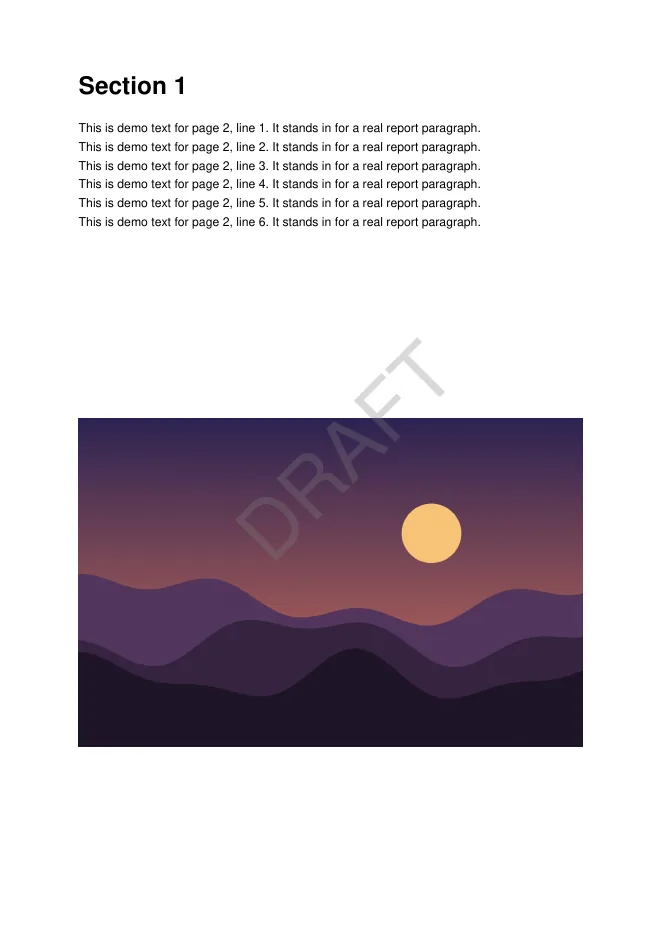
- PDF - Add a text watermark stamps DRAFT, CONFIDENTIAL or your own text on every page.
How to add page numbers to a PDF#
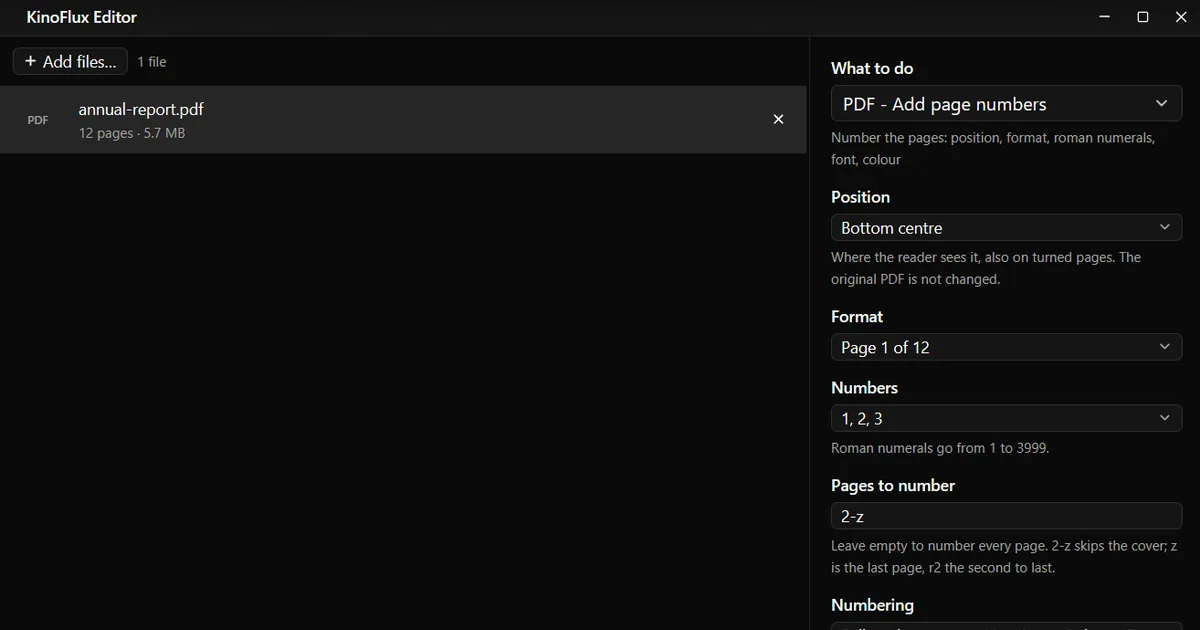
- Add the PDF. Drag it onto the KinoFlux Editor window.
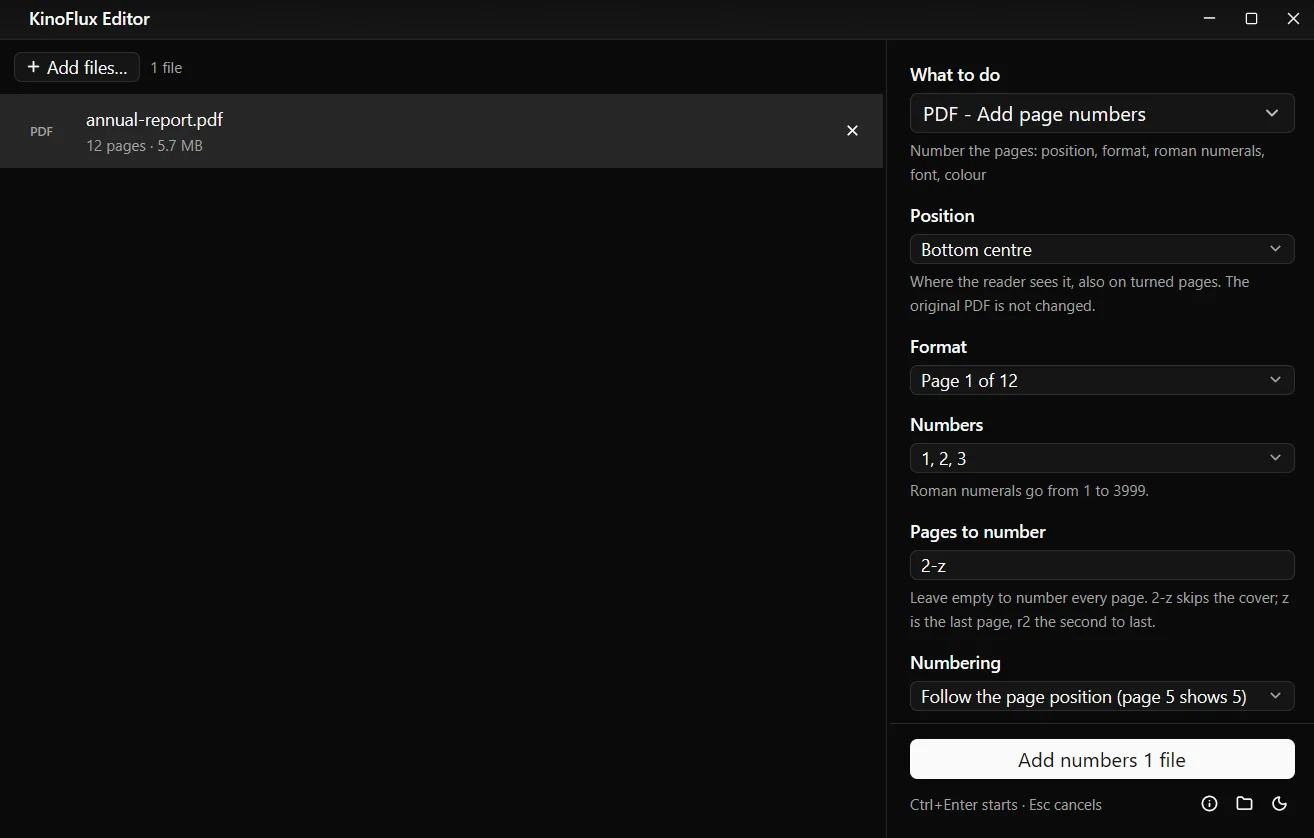
- Pick the tool. Press Ctrl+K (Cmd+K on a Mac), type "page numbers" and choose PDF - Add page numbers.
- Choose the format. For example Page 1 of 12. The default is a plain 1.
- Skip the cover if needed. Type
2-zin Pages to number. Leave it empty to number every page. - Start. Press Ctrl+Enter. You get
name_numbered.pdfnext to the original.
Result#
On the 12-page demo report made for these guides, page 1 stayed clean, page 2 showed "Page 2 of 12" and the last page "Page 12 of 12". The file grew from 5,957,013 to 5,960,115 bytes, so about 3 KB for twelve numbers. The text and pictures are not saved again.

Page number options#
| Option | Choices | Default |
|---|---|---|
| Position | Bottom centre, Bottom right, Bottom left, Top centre, Top right, Top left, Bottom or Top outer edge (odd pages right, even pages left) | Bottom centre |
| Format | 1, Page 1, 1 of 12, Page 1 of 12, 1 / 12, - 1 -, My own text | 1 |
| Numbers | 1, 2, 3 / i, ii, iii / I, II, III | 1, 2, 3 |
| Pages to number | empty for all, or a list like 2-z | all |
| Numbering | Follow the page position (page 5 shows 5), or Count only the numbered pages | Follow the page position |
| Start at | 0 to 100000 | 1 |
| Font | Helvetica, Helvetica Bold, Times, Times Bold, Courier | Helvetica |
| Size | 6 to 72 pt | 10 |
| Colour | Black, Dark gray, Gray, White, Red, Blue, Other colour (code) | Black |
| Opacity | 10 to 100% | 100% |
| Side margin, Top/bottom margin | in points (72 pt = 25.4 mm) | 36 and 24 |
| White box behind the number | on or off | off |
The outer edge positions are for printed booklets: odd pages get the number on the right, even pages on the left. Numbers are placed where the reader sees them, also on pages that are turned sideways.
Stamp DRAFT or CONFIDENTIAL on every page#
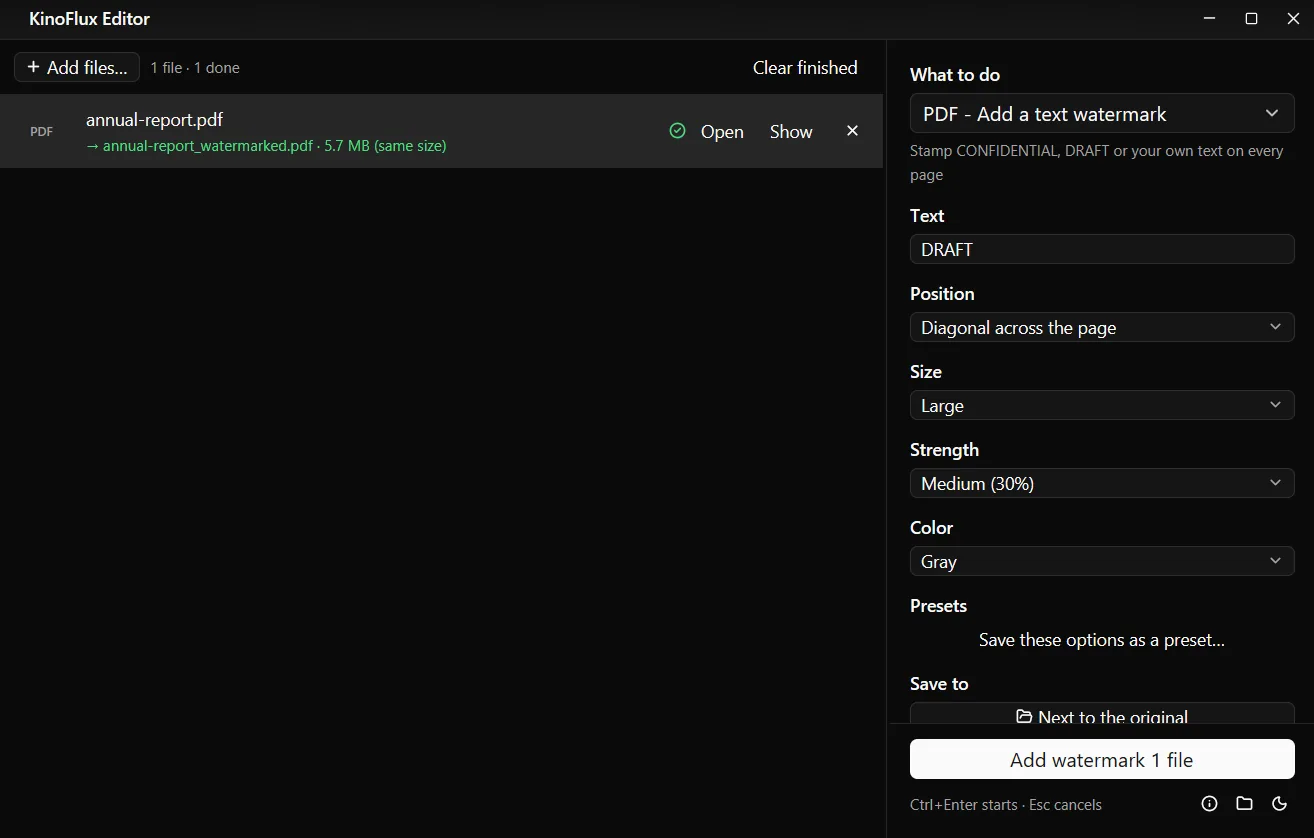
- Add the PDF and choose PDF - Add a text watermark.
- Type the Text. It starts as CONFIDENTIAL.
- Choose Position (Diagonal across the page or Bottom of the page), Size, Strength and Color.
- Press Ctrl+Enter. You get
name_watermarked.pdf.
| Option | Choices | Default |
|---|---|---|
| Text | any text | CONFIDENTIAL |
| Position | Diagonal across the page, Bottom of the page | Diagonal across the page |
| Size | Small, Medium, Large | Large |
| Strength | Strong (50%), Medium (30%), Faint (15%) | Medium (30%) |
| Color | Gray, Black, Light gray | Gray |
Limits#
- Western European letters only. The standard PDF fonts have no other scripts.
- No logo watermark for PDFs. Text only. For pictures, see add a watermark to photos.
- A watermark is not protection. Anyone with a PDF editor can remove it. To stop people opening the file, add a password.
- Existing numbers are not detected. If the pages already have numbers, you get two.
- Locked PDFs must be unlocked first.
Related guides#
- Pages in the wrong order? Rearrange and rotate PDF pages before numbering.
- Joining several PDFs first: merge, split and compress PDFs.
- Removing your name from the file info: remove hidden metadata.
All tools are on the KinoFlux Editor page.
Frequently asked questions
How do I skip the cover page?
Type 2-z in Pages to number. Page 1 gets no number. With Follow the page position, page 2 still shows 2; choose Count only the numbered pages if page 2 should show 1.
Can I use my own wording, like "Exhibit A - page 3"?
Yes. Set Format to My own text and type it, using {n} for the page number and {total} for the number of the last page.
Can I add numbers to a scanned PDF?
Yes. Switch on White box behind the number (for dark or scanned pages) so the number stays readable on grey or dark scans.
Can the watermark be removed again?
Not with KinoFlux Editor. Keep the original file; the tool always writes a new file named name_watermarked.pdf and leaves the original as it was.
Can I write in Hindi, Chinese or other scripts?
No. Both tools use the standard PDF fonts, which only have letters of Western European languages.
- page numbers
- pdf watermark
- confidential
- pdf tools