See what your photos and PDFs reveal, then remove it
A phone photo can carry the exact place it was taken. A PDF can carry your name and your company's. How to check what a file reveals with KinoFlux Editor, and remove GPS, camera data and author info before you share it.
Nitiksh4 min readKinoFlux Editor
On this page
Phones save the GPS position inside every photo by default, along with the phone model and the exact time. Post that photo on a forum or send it to a stranger, and anyone with the file can see where it was taken, sometimes to the house. PDFs do the same with names: the author field often holds your full name or your company, even when the document is meant to be anonymous.
KinoFlux Editor has three tools for this:
- Info - File info shows what a file contains and lists everything that could identify you.
- Image - Remove metadata deletes EXIF, GPS and camera info from pictures.
- PDF - Remove document info deletes the author, title and creation info from PDFs.
How to check what a file reveals#
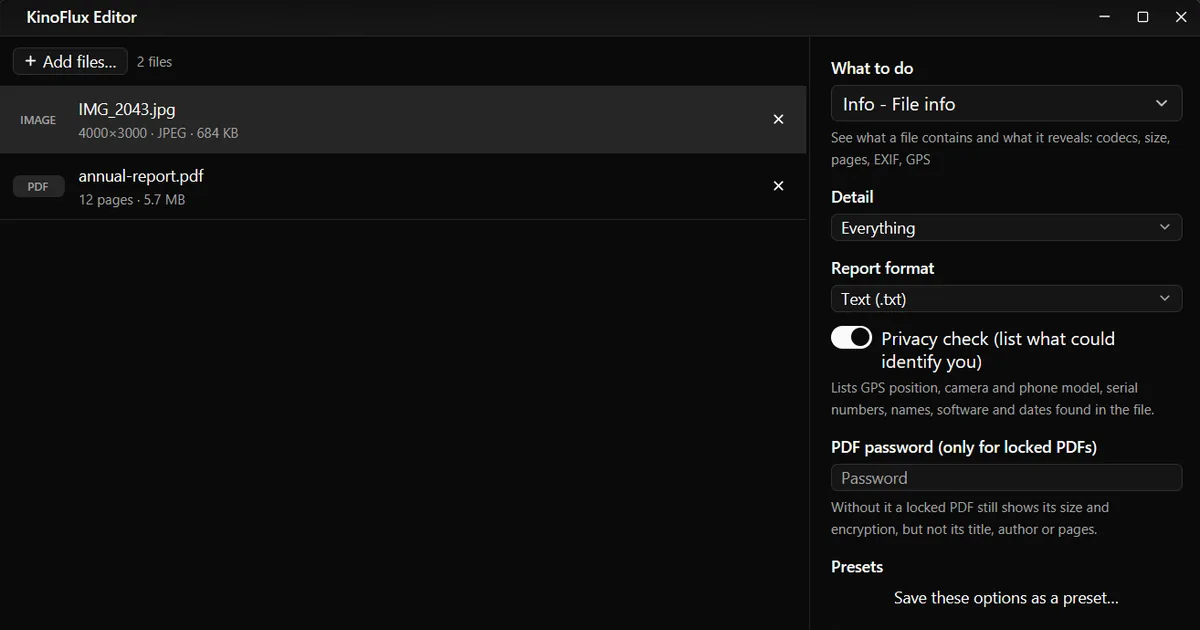
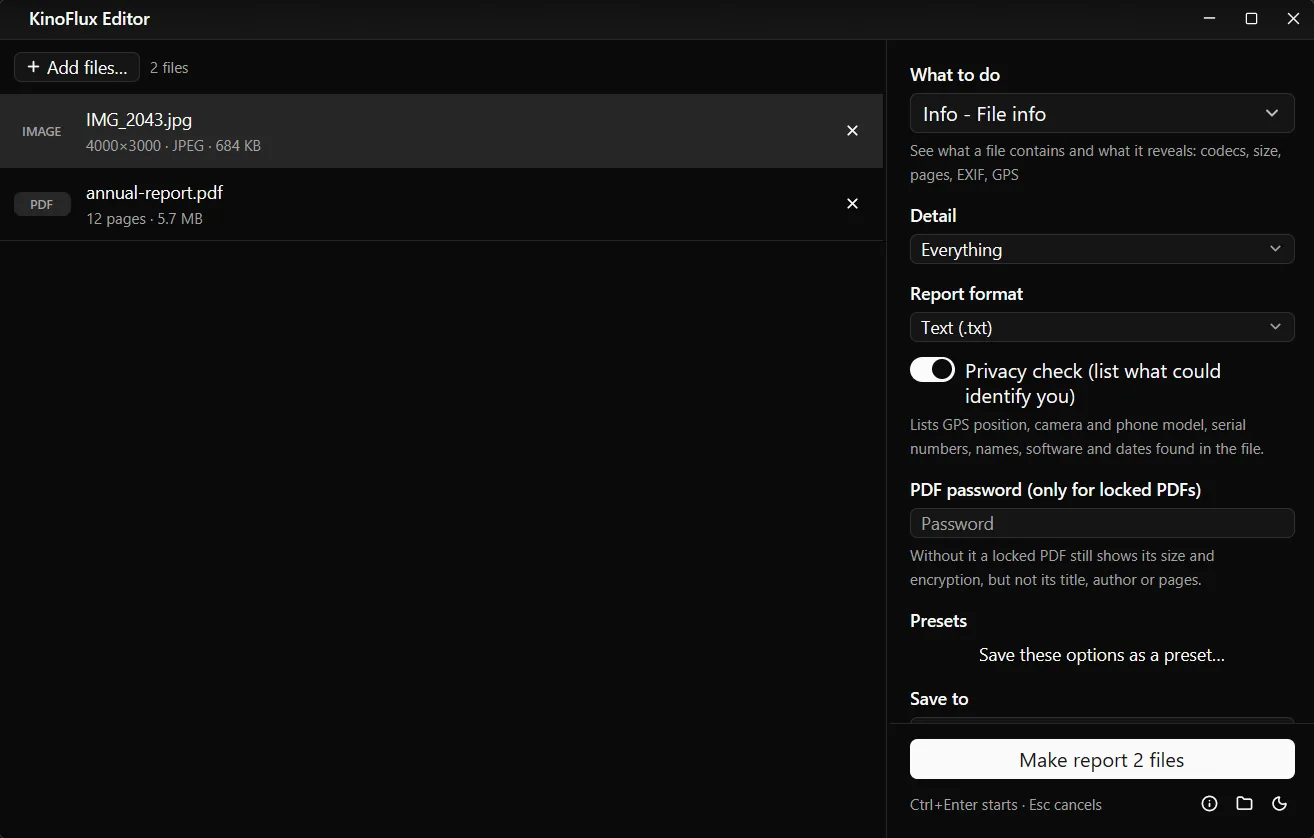
- Add the file. Drag a photo, video, audio file, PDF or office file onto the KinoFlux Editor window. You can add several.
- Pick the tool. Press Ctrl+K (Cmd+K on a Mac), type "info" and choose Info - File info.
- Keep the privacy check on. Privacy check (list what could identify you) is on by default.
- Make the report. Press Ctrl+Enter. A report like
IMG_2043_info.txtappears next to each file. Click Open to read it.
What the report found#
This is the privacy section of the report for a demo photo made for these guides. The demo phone wrote the same kind of data a real phone does:
Privacy check
-------------
  GPS position           51.500700, -0.124600 (latitude, longitude - any map app finds this place)
  exif:DateTime          2026:09:20 20:11:03
  exif:LensModel         Demo lens 26mm f/1.8
  exif:Make              DemoPhone
  exif:Model             Demo 12 Pro
  exif:Software          Demo Camera App 2.1
  To remove these: Image - Remove metadata.
For the demo PDF, the report showed the title "Annual Report 2026", the author "Demo Company Ltd", the subject, keywords, the program that made it and the creation date.
The report also lists the useful technical facts: pixel size and quality for pictures, codecs, length and bitrate for video and audio, page count, page size and encryption for PDFs.
Remove GPS and camera data from photos#
- Add the photos.
- Choose Image - Remove metadata. It has no options.
- Press Ctrl+Enter. You get
name_cleannext to each photo.
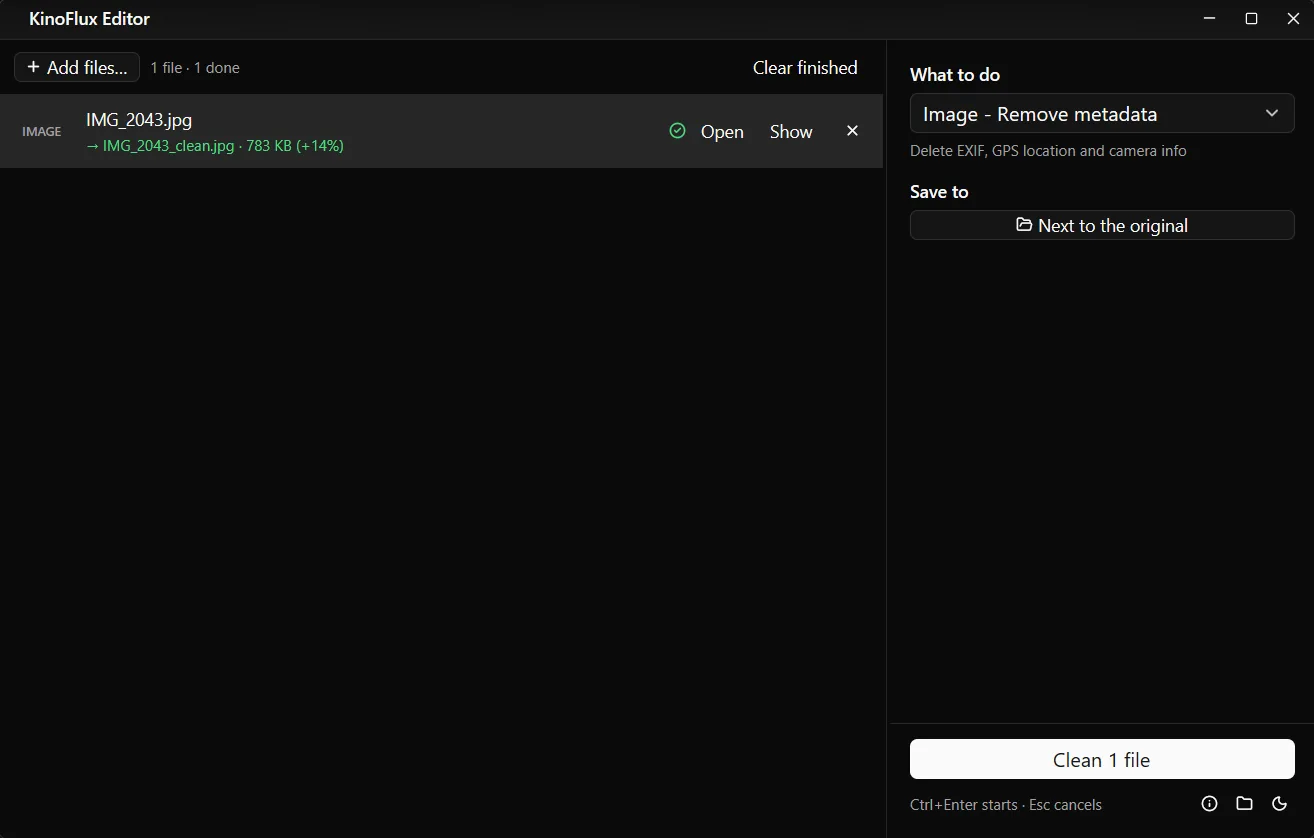
Before removing, the photo is turned upright using its rotation flag, so it does not show up sideways once the flag is gone. Checked afterwards, the clean copy had no EXIF and no GPS data left, at the same 4000 x 3000 pixels.
If you are also converting or shrinking the photos, you do not need a separate step: Image - Convert / compress and Image - Compress remove metadata by default.
Remove author and title from PDFs#
- Add the PDFs.
- Choose PDF - Remove document info. It has no options.
- Press Ctrl+Enter. You get
name_clean.pdf.
The demo PDF stayed 5.7 MB, and afterwards it had no title, author, subject, keywords, creator, producer or dates left.
Results#
| File | Before | After | Removed |
|---|---|---|---|
| IMG_2043.jpg | 684 KB | 783 KB | GPS, date, phone make and model, lens, software |
| annual-report.pdf | 5.7 MB | 5.7 MB | Title, author, subject, keywords, creator, producer, dates, XMP |
File info options#
| Option | Choices | Default |
|---|---|---|
| Detail | Summary - the main facts, Everything, Everything + the raw program output | Everything |
| Report format | Text (.txt), Markdown (.md), JSON (.json, for scripts) | Text (.txt) |
| Privacy check (list what could identify you) | on or off | on |
| PDF password (only for locked PDFs) | typed, never saved | empty |
Limits#
- What you can see stays. Removing metadata does not blur a street sign, a face or a house number in the picture itself.
- No video cleaner. Videos can be checked, not cleaned.
- Office files (Word, Excel, PowerPoint) can be checked but not cleaned. Convert to PDF first, then remove the document info.
- The photo is saved again. That is why the size changes. Quality 95 keeps it visually the same.
- Text inside a PDF is not touched. A name in the page footer or in comments stays.
Related guides#
- What the app itself stores about you: what KinoFlux Editor does with your files.
- Removing metadata while converting iPhone photos: convert HEIC to JPG.
- Putting your name on photos instead: add a watermark to photos.
- Locking a PDF: password protect a PDF.
All tools are on the KinoFlux Editor page.
Frequently asked questions
Does WhatsApp or email remove the location from photos?
Some apps and sites remove it, many do not, and sending a photo as a file or attachment usually keeps everything. Removing it yourself before sending is the only way to be sure.
Does the File info tool change my file?
No. It only reads the file and writes a separate report next to it, for example IMG_2043_info.txt.
Why is the cleaned photo bigger than the original?
Removing metadata means saving the picture again. It is saved at high quality (95), which can make the file a little larger. In the test it went from 684 KB to 783 KB. The picture looks the same.
Can I remove metadata from videos?
No. File info shows what a video contains, including any GPS position, but there is no tool to clean videos.
What does Remove document info delete from a PDF?
The title, author, subject, keywords, creator program and dates, and the XMP metadata block. The pages, text and pictures stay the same.
- privacy
- exif
- metadata
- gps