
PDF too big to upload or email? Split it into parts under a size limit
The portal says "maximum 2 MB", the email bounces at 25 MB, and your PDF is bigger. How to split a PDF into parts that each stay under a size you choose, and how to shrink a PDF without losing quality, with KinoFlux Editor.
Nitiksh3 min readKinoFlux Editor
On this page
Job portals, government forms and university systems have upload limits like 2 MB or 5 MB. Email stops at 20 or 25 MB. Your scanned contract or portfolio is 6 MB, and the site does not care why. Splitting by page ranges means guessing and checking file sizes over and over.
PDF - Split by file size in KinoFlux Editor does the guessing for you: you type the limit, it makes as few parts as possible, each under the limit, with whole pages in order. PDF - Optimize (lossless) can shrink a PDF first without touching the quality.
How to split a PDF by file size#
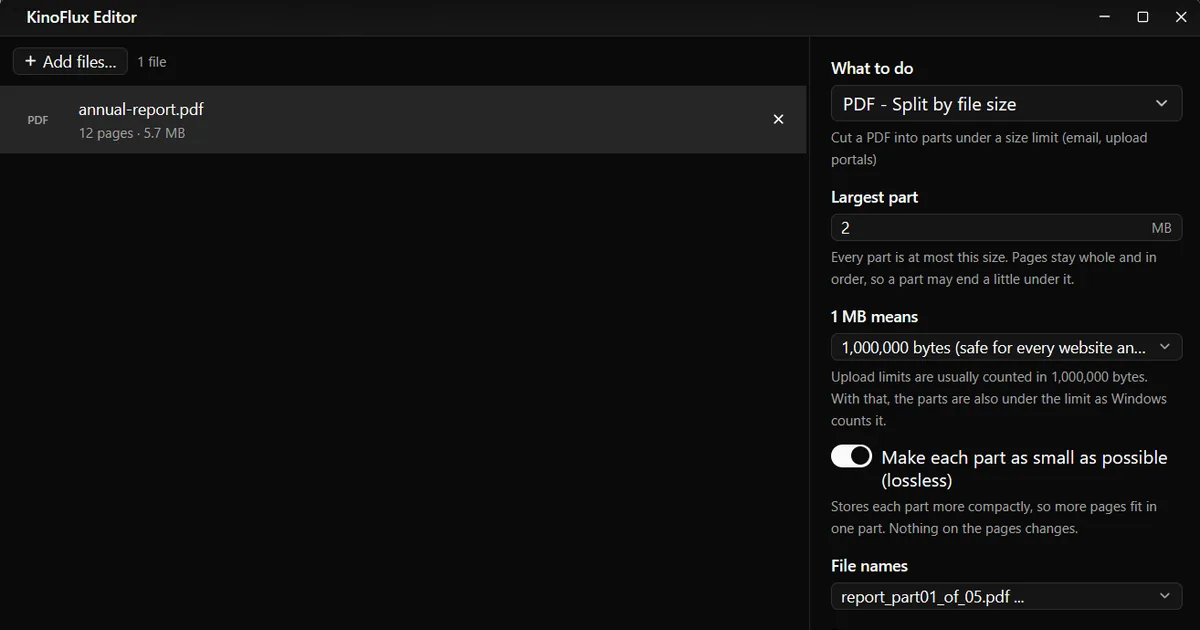
- Add the PDF. Drag it onto the KinoFlux Editor window.
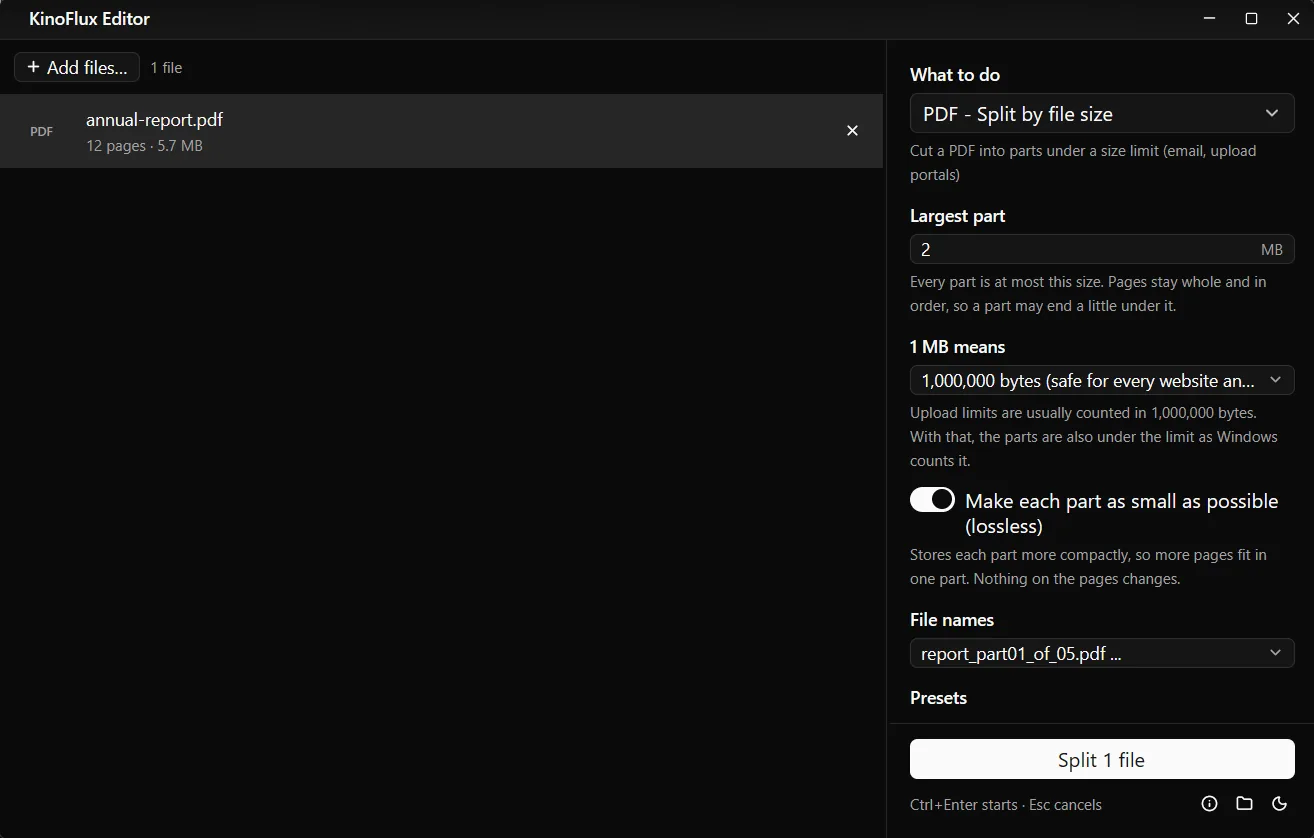
- Pick the tool. Press Ctrl+K (Cmd+K on a Mac), type "split by" and choose PDF - Split by file size.
- Type the limit. In Largest part, for example 2 MB. The default is 10.
- Choose the names. Under File names,
report_part01_of_05.pdftells the receiver how many parts there are. - Start. Press Ctrl+Enter. You get a folder
name_partswith the parts.
Result#
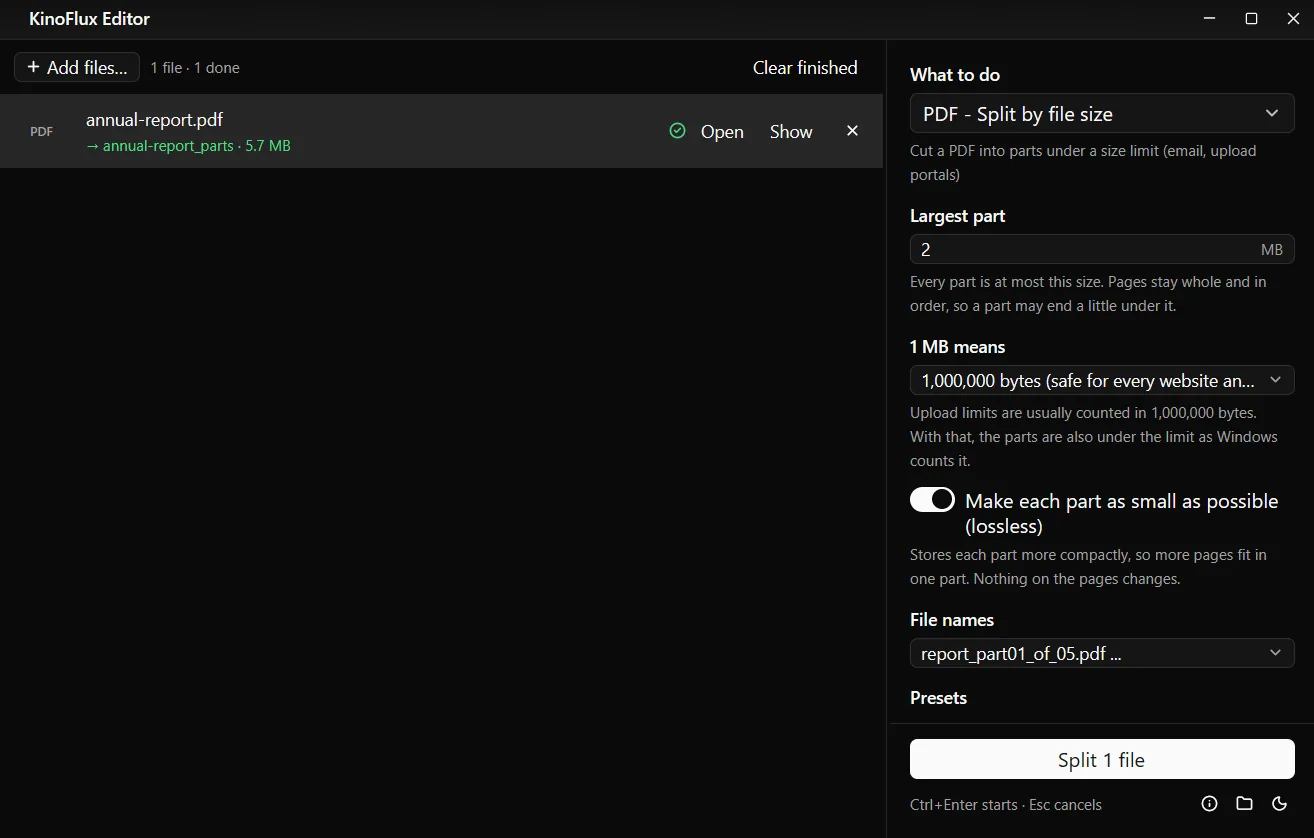
The 12-page demo report made for these guides is 5,957,013 bytes. With a 2 MB limit, the tool made three parts:
| Part | Pages | Size |
|---|---|---|
| annual-report_part01_of_03.pdf | 1 to 4 | 1,985,301 bytes |
| annual-report_part02_of_03.pdf | 5 to 8 | 1,985,331 bytes |
| annual-report_part03_of_03.pdf | 9 to 12 | 1,982,716 bytes |
Every part is under 2,000,000 bytes, so it passes a "2 MB" check however the website counts.
Options#
| Option | Choices | Default |
|---|---|---|
| Largest part | 0.1 to 10000 MB | 10 |
| 1 MB means | 1,000,000 bytes (safe for every website and email service), 1,048,576 bytes (what Windows shows) | 1,000,000 bytes |
| Make each part as small as possible (lossless) | on or off | on |
| File names | report_part01.pdf ...; report_part01_of_05.pdf ...; report_pages_01-12.pdf ... (the pages in each part) | report_part01.pdf |
If the PDF is already under the limit, the tool says so and makes nothing.
Shrink a PDF without losing quality#
PDF - Optimize (lossless) rewrites the PDF more compactly. Nothing on the pages changes. Two switches:
- Fast web view (linearize) lets browsers show the first page before the whole file has downloaded. Useful for PDFs on a website.
- Repair a damaged PDF rebuilds a broken file's structure. Damaged PDFs are marked "damaged" in the file list, and Details lists what was fixed.
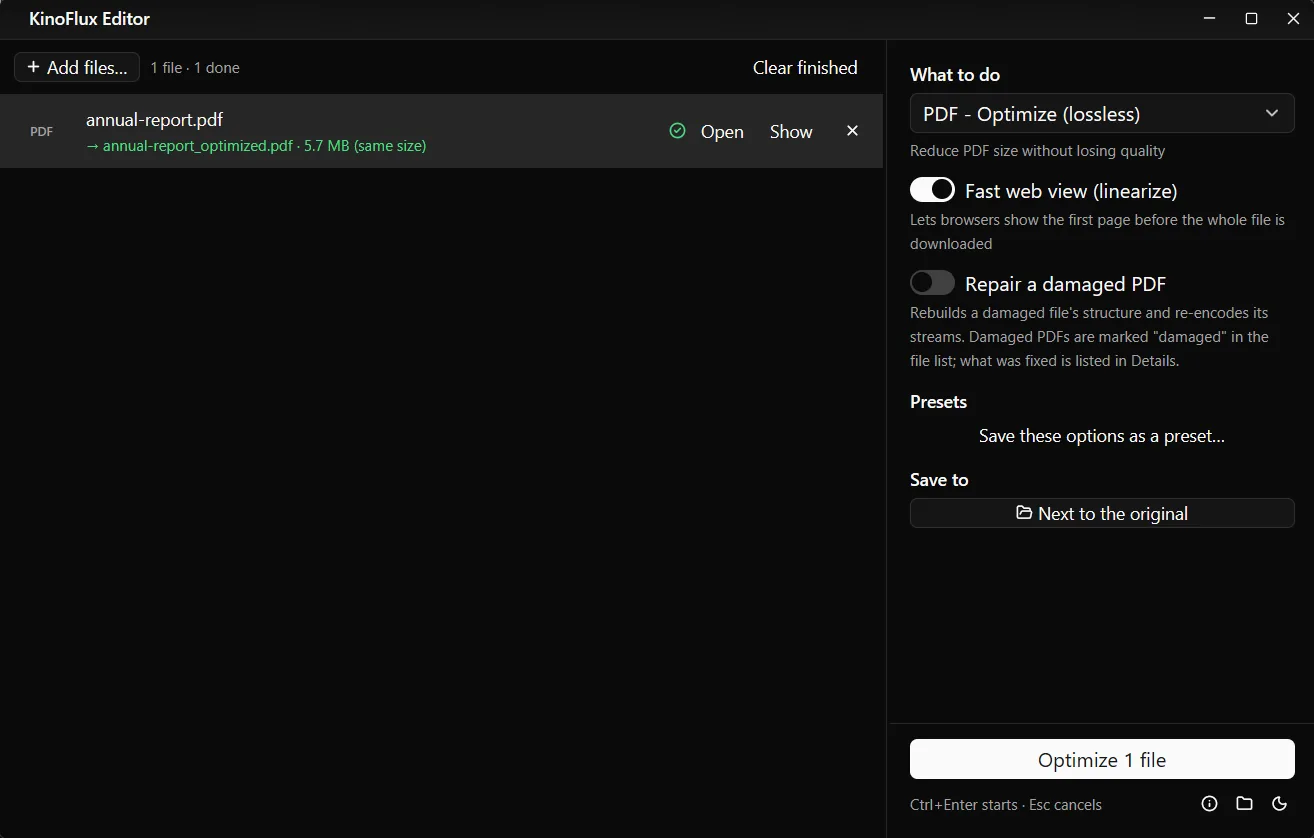
On the demo report the saving was 1,301 bytes (5,957,013 to 5,955,712), because almost all of it is photos that are already compressed. Optimize helps most with PDFs from scanners and old office programs that store things wastefully. When the photos are the problem, PDF - Compress shrinks them, with some loss.
Limits#
- A page bigger than the limit stays bigger. It becomes its own part and is reported. Compress it first.
- Parts are separate PDFs. Links that point to a page in another part no longer work.
- Locked PDFs must be unlocked first with PDF - Remove the password.
- It takes several passes. Each part is measured, so it is slower than splitting by page numbers on big files.
Related guides#
- Split by pages, merge, or compress: merge, split and compress PDFs.
- Videos too big for a limit: split a video into parts or compress a video to a target size.
- Sending something private: password protect the PDF.
All tools are on the KinoFlux Editor page.
Frequently asked questions
Should I compress or split?
Try PDF - Compress first if the PDF is full of scans or photos and a little quality loss is fine. Split when the quality must stay exactly the same, or when even the compressed file is too big.
What does 1 MB means do?
Websites and mail services usually count 1 MB as 1,000,000 bytes, while Windows shows 1 MB as 1,048,576 bytes. The default, 1,000,000 bytes, keeps parts under the limit either way.
Can a page be split across two parts?
No. Pages stay whole and in order. That is why a part can end a little under the limit. A single page that is bigger than the limit on its own becomes a part by itself, and the app tells you which one.
Will the parts look different from the original?
No. Make each part as small as possible stores the parts more compactly, but nothing on the pages changes.
What does Optimize (lossless) actually save?
It removes waste in how the PDF is stored. Files from some scanners and older programs shrink a lot; files that are mostly photos, like the demo report here, barely change.
- split pdf
- file size limit
- upload
- pdf tools