
Get pictures and text out of a PDF: pages to JPG, photos, plain text
You need a PDF page as a picture for a slide or a website, the photos inside a PDF report, or the text without copying it page by page. How to do all three with KinoFlux Editor, offline.
Nitiksh4 min readKinoFlux Editor
On this page
A PDF locks its content in. You want page 3 as a picture for a presentation or a website. You want the photos from a report in full size, not a blurry screenshot. Or you want the text of a long PDF in a plain file you can search, edit or paste into something else. Copying page by page is slow, and online converters want your file.
KinoFlux Editor has three tools for this:
- PDF - Pages to pictures saves pages as PNG or JPG.
- PDF - Extract images saves the pictures stored inside the PDF.
- PDF - Extract text saves the text as a .txt file.
How to convert PDF pages to JPG#
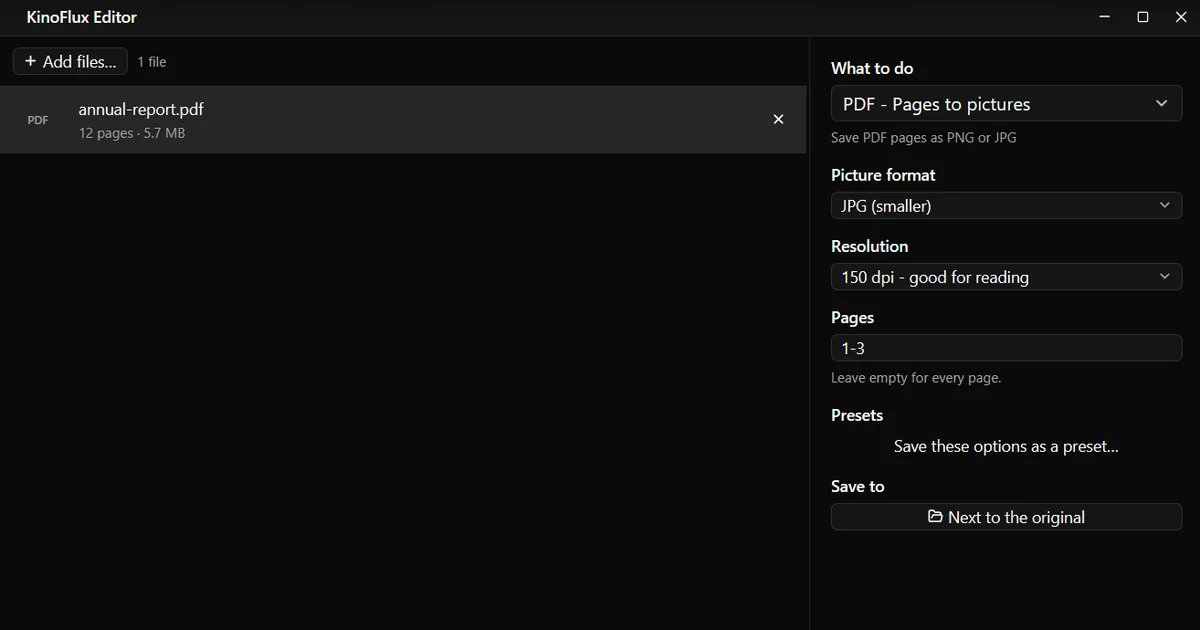
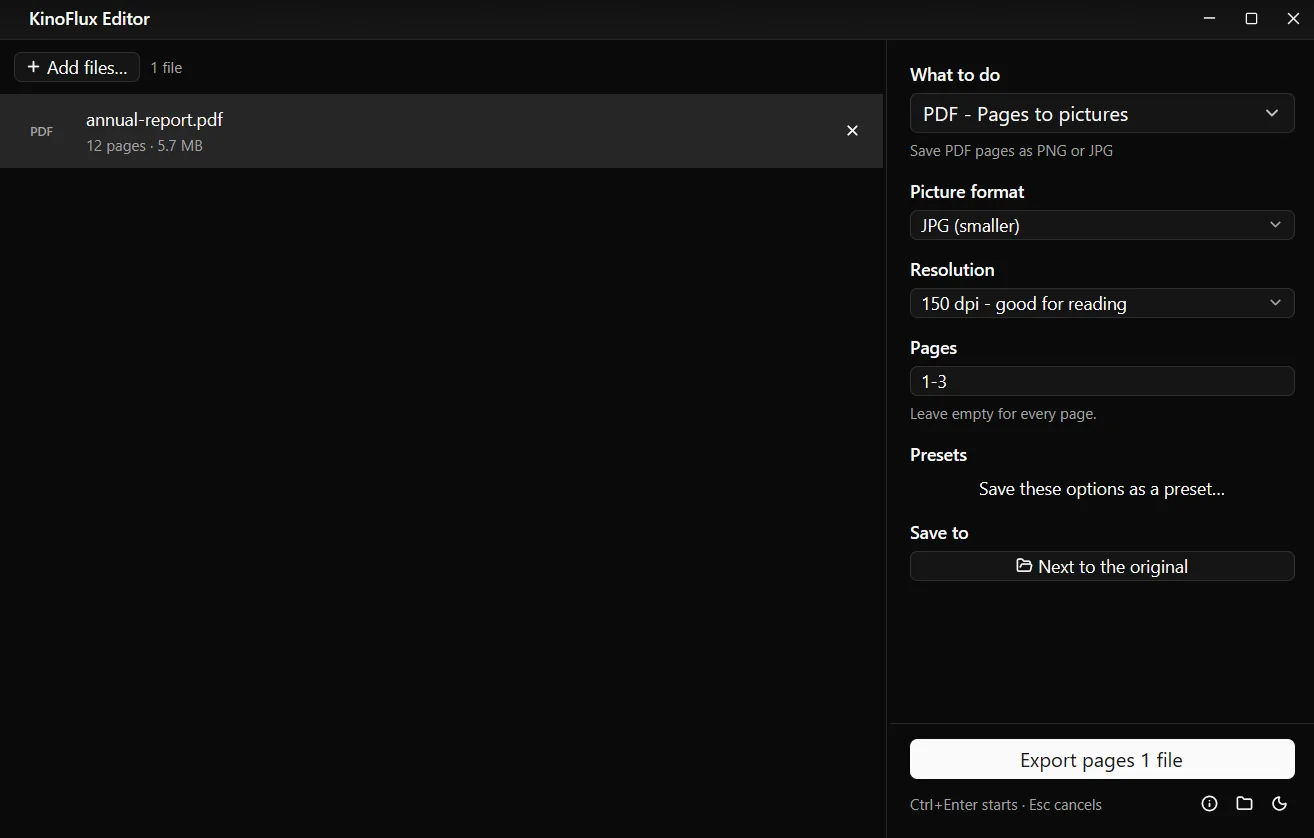
- Add the PDF. Drag it onto the KinoFlux Editor window.
- Pick the tool. Press Ctrl+K (Cmd+K on a Mac), type "pages to pictures" and choose PDF - Pages to pictures.
- Choose the format. PNG (sharp, larger) is the default; pick JPG (smaller) for photo pages.
- Choose the resolution and pages. 150 dpi - good for reading is the default. Type
1-3in Pages for the first three pages, or leave it empty for all. - Start. Press Ctrl+Enter. You get a folder
name_pageswithpage-01.jpg,page-02.jpgand so on.
Results#
These come from demo files made for these guides.
| Tool | Input | Output |
|---|---|---|
| Pages to pictures, JPG, 150 dpi, pages 1-3 | annual-report.pdf, 12 A4 pages | folder annual-report_pages: 3 JPGs of 1241 x 1754 px, about 125 KB each |
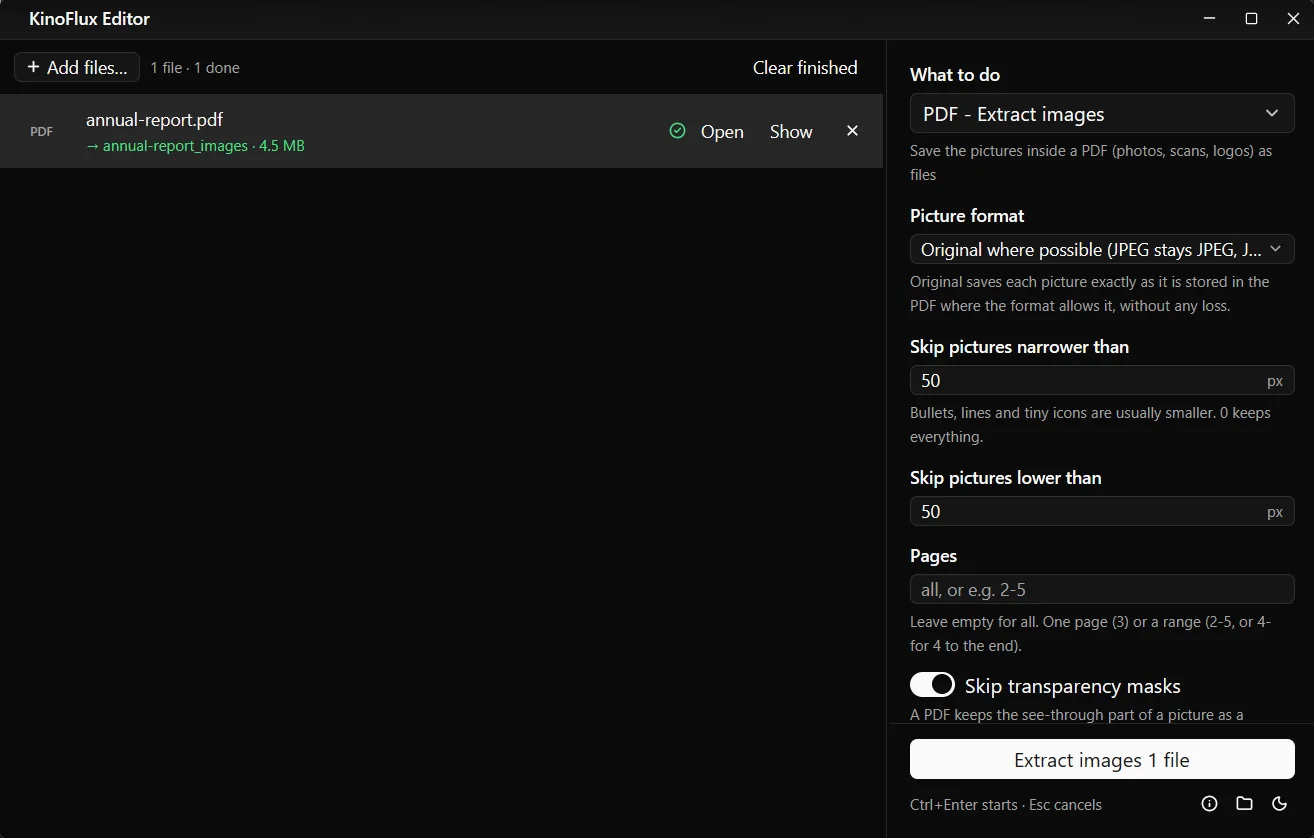
| Extract images, original format | annual-report.pdf | folder annual-report_images: 12 JPGs, one per page, annual-report_p001_01.jpg to annual-report_p012_01.jpg, about 390 KB each, 4.5 MB in total |
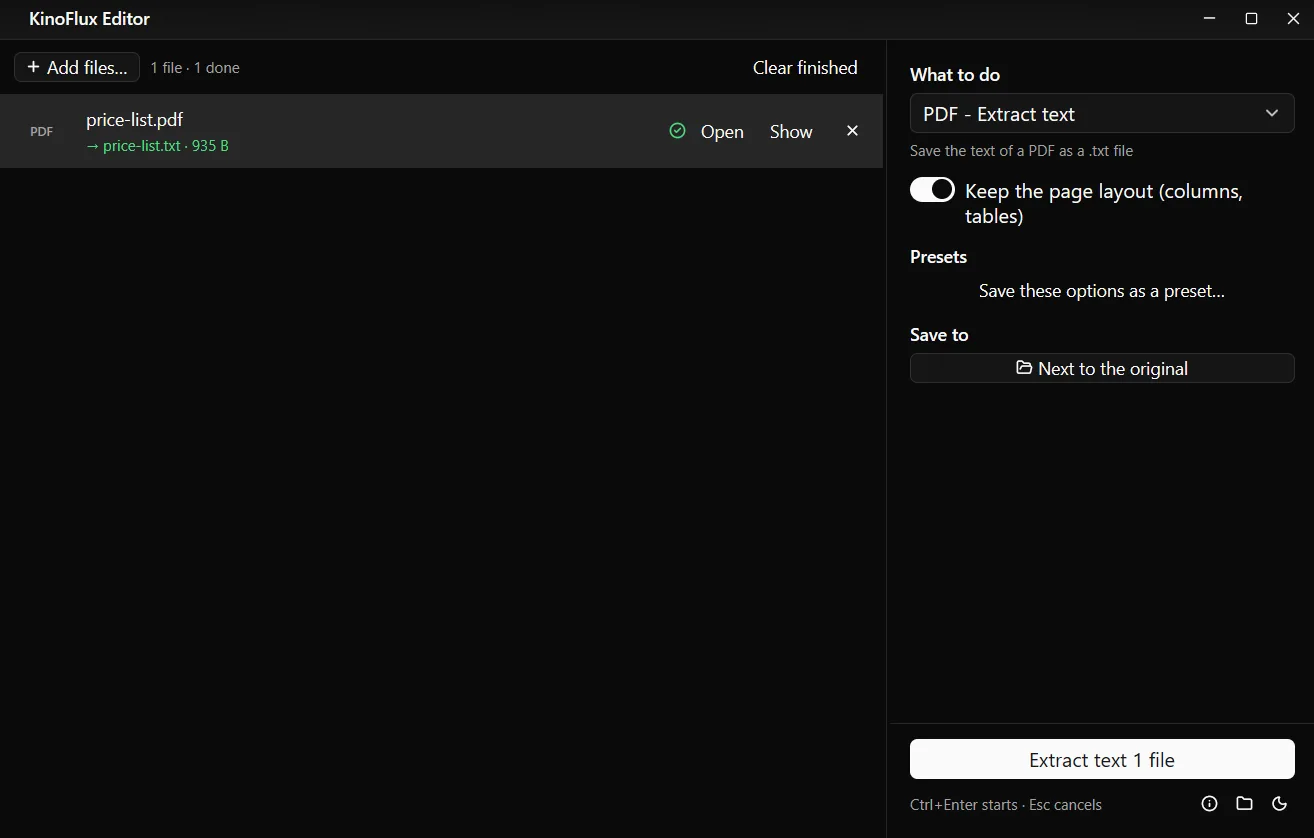
| Extract text, keep the layout | price-list.pdf, 1 page | price-list.txt, 935 bytes, with the four columns still lined up |
Pull out the photos inside a PDF#
PDF - Extract images finds every picture stored in the PDF and saves it as a file in a folder name_images. File names show the page: report_p003_01.png is the first picture on page 3.
| Option | Choices | Default |
|---|---|---|
| Picture format | Original where possible (JPEG stays JPEG, JPEG 2000 stays JP2, others PNG), All PNG (lossless), All JPG (smaller), All TIFF | Original where possible |
| JPG quality (All JPG) | 50 to 100 | 92 |
| Skip pictures narrower than / lower than | 0 to 10000 px | 50 px each |
| Pages | empty for all, or a range | all |
| Skip transparency masks | on or off | on |
| Save a picture used on many pages only once | on or off | on |
| Page number in file names | on or off | on |
The size filters skip bullets, lines and tiny icons. A logo that repeats on every page is saved once.
Save the text of a PDF#
PDF - Extract text writes name.txt next to the PDF, in UTF-8. With Keep the page layout (columns, tables) on (the default), columns and tables stay lined up with spaces, as in this real output from the demo price list:
Price list, autumn 2026

Item                Code      Price    In stock

Desk lamp           DM-1000   29.32    69
Office chair        DM-1007   16.52    77
Notebook A5         DM-1014   57.41    74
Ballpoint pens      DM-1021   8.80     1
Monitor stand       DM-1028   109.15   60
...
Switch the layout off when you want running text without the spacing, for example to paste into a document.
Pages to pictures options#
| Option | Choices | Default |
|---|---|---|
| Picture format | PNG (sharp, larger), JPG (smaller) | PNG |
| Resolution | 72 dpi - small, for screens; 150 dpi - good for reading; 200 dpi; 300 dpi - for printing | 150 dpi |
| Pages | empty for all, one page, or one range like 2-5 or 4- | all |
Limits#
- No text recognition (OCR). Scanned PDFs give empty or almost empty text files.
- Pages takes one range, not a list. For pages 1 and 5 only, run it twice.
- Extracted pictures are as stored. If the PDF holds a small or heavily compressed picture, that is what you get. Cropped pictures come out uncropped.
- Vector drawings (charts, logos drawn as shapes) are not pictures inside the PDF, so Extract images skips them. Use Pages to pictures for those.
- Locked PDFs must be unlocked first with PDF - Remove the password.
Related guides#
- Editable Word, Excel or PowerPoint instead of pictures: convert PDF to Word, Excel or PowerPoint.
- Slides to pictures directly from PowerPoint: convert PowerPoint slides to images.
- The other way round: combine images into one PDF.
All tools are on the KinoFlux Editor page.
Frequently asked questions
Which resolution should I pick?
150 dpi (the default) is good for reading on screen and for slides. 72 dpi makes small previews. 300 dpi is for printing and gives files about four times as large.
PNG or JPG?
PNG is sharp and larger, best for pages with text and lines. JPG is smaller, best for pages that are mostly photos.
Why is the text from my scanned PDF empty?
A scanned PDF holds pictures of pages, not text. Extract text only reads real text. KinoFlux Editor has no text recognition (OCR).
What is the difference between Pages to pictures and Extract images?
Pages to pictures takes a picture of the whole page, text included. Extract images saves only the photos and graphics stored inside the PDF, at the size they are stored, which is often larger than they appear on the page.
Can I convert only some pages?
Yes. Type a range in Pages, for example 1-3, or 4- for page 4 to the end. Leave it empty for every page.
- pdf to jpg
- extract images
- pdf to text
- pdf tools