
A Desktop Vault for Your Telegram Channels and Saved Messages
Telegram is a chat app that people also use as storage. TGVault is a focused desktop workspace for the channels you own — overview, media filters, streaming, and background transfers — without the rest of the messenger.
Nitiksh Kumar6 min readDesktop Apps
On this page
A Desktop Vault for Your Telegram Channels and Saved Messages#
You know the moment. You're looking for a file you know you sent yourself three weeks ago — a backup, a screen recording, a scanned invoice — and it's buried somewhere in Saved Messages, wedged between a voice note and a meme your friend sent. You scroll. You search. You find it eventually, but not before wondering why you're using a chat app to do a storage app's job.
That's not really Telegram's fault. It's built to be excellent at conversation — fast, reliable, endlessly synced across devices. Storage was never the design goal; it's just something people backed into because the account already existed and the free space was already there. So the files stack up in threads never meant to hold them, videos sit behind a full download before you can even see if they're the right clip, and a large upload quietly disappears into the scroll the moment someone sends a new message.
If you've already made peace with keeping your files in your own Telegram channels and Saved Messages, the fix isn't switching platforms — it's giving that data a better room to live in. That's what TGVault is: a desktop app built around the channels you own, plus Saved Messages, and nothing else. No global chat list, no discovery feed, no messenger pretending to be a file manager.

Why a vault beats a chat window#
The instinct to stash files in Telegram makes sense — the account's already there, the storage is already free. What doesn't make sense is doing it through an interface built for back-and-forth conversation. Here's what actually changes when you move that same data into a dedicated vault:
| In the messenger | In TGVault |
|---|---|
| Dig through chats to find a file | Open a channel and filter by Photos, Videos, Files, or Text |
| Wait for a full download just to check a video | Stream it inline, and download only when you want a local copy |
| Watch a large upload vanish into the scroll | See it on a dedicated Transfers page, with progress, pause, and a persistent dock |
| Re-authenticate like it's a fresh install every time | Sign in once — the session stays on this computer |
Nothing about your setup changes underneath. You're still using your Telegram account and your API app from my.telegram.org/apps. Your credentials and session stay on your machine, full stop. TGVault doesn't have a server sitting between you and your files — there's nothing on ntxm.org that ever sees them.
First launch: no ceremony, no new account#
Open TGVault for the first time and there's nothing to sign up for. A light loading screen shows the TGVault mark, a spinner, and a quiet built by ntxm.org line — no marketplace branding, no "create your account" wall.
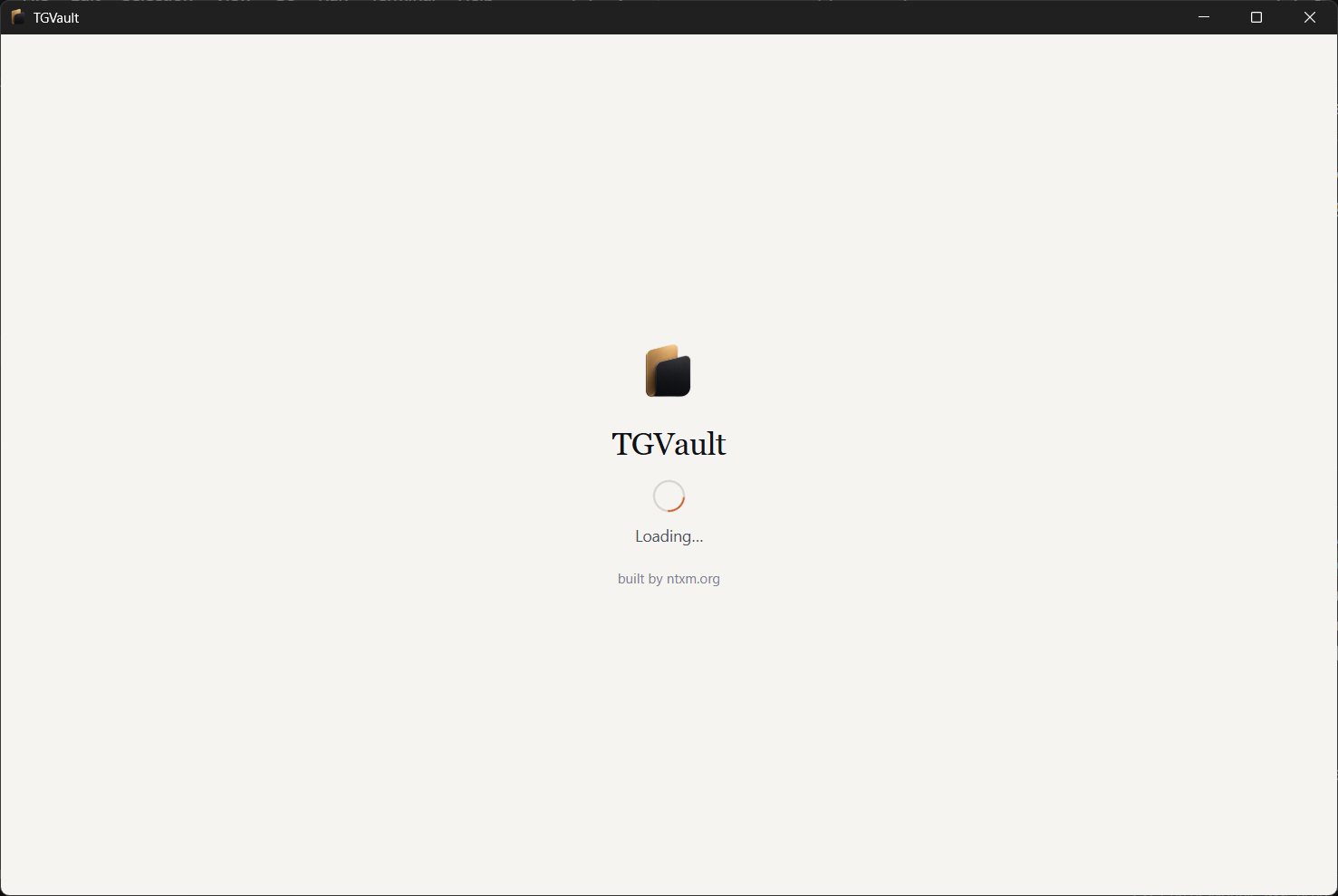
From there, setup is exactly three things: your Telegram API ID and hash, your phone number, and your two-factor password if you've turned that on. Once that's done, TGVault remembers you. Every launch after the first restores your session straight from this computer — no code, no waiting, no ritual.
TGVault runs on Windows and macOS today, with Linux support on the way. Download from the 0.1.0 release or read more on the product page.
Overview: a hub, not an inbox#
Most apps that touch Telegram data default to looking like Telegram — another feed to scroll. TGVault's Overview is deliberately not that. It's a dashboard, not a message stream.
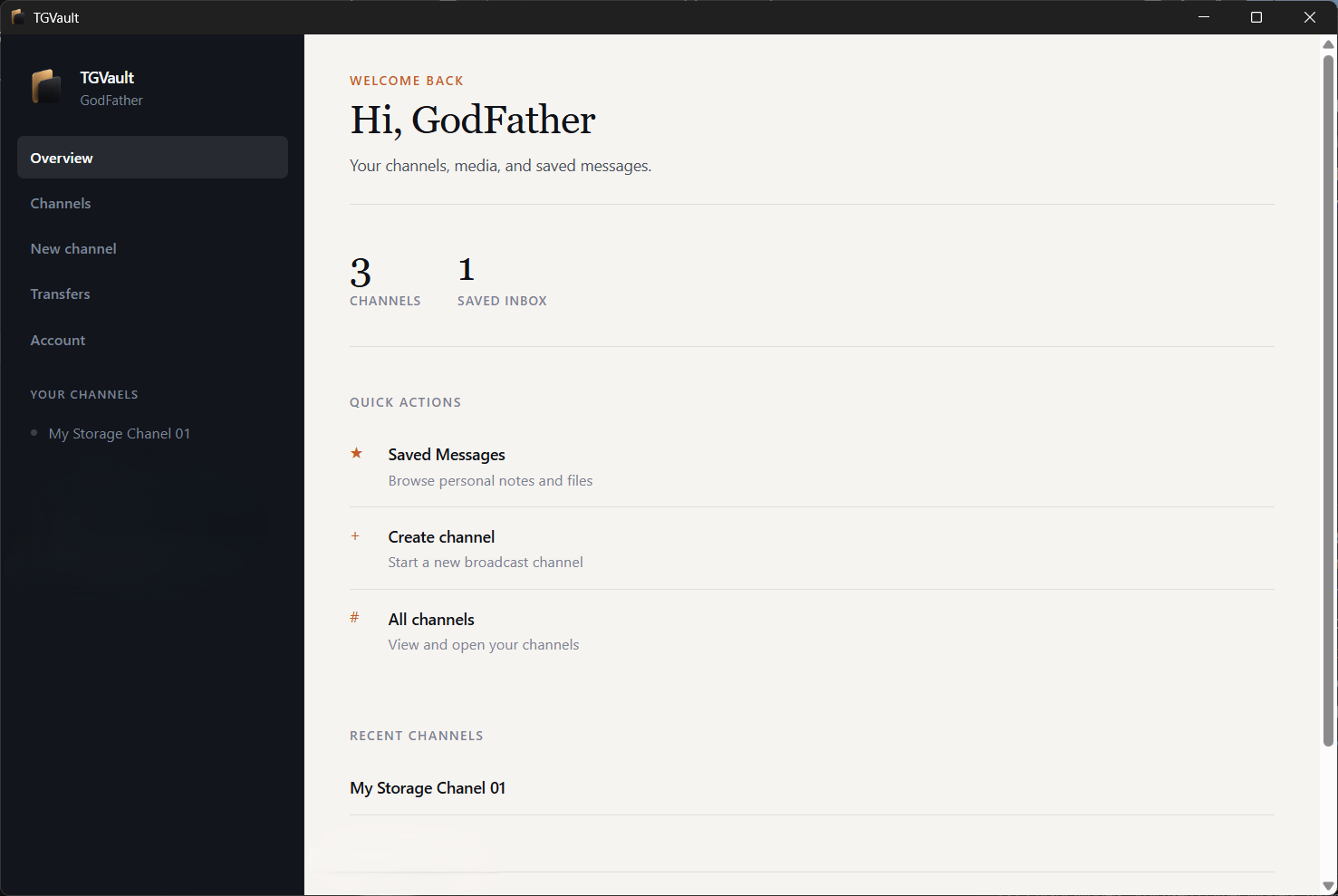
A dark sidebar keeps navigation simple: Overview, Channels, New channel, Transfers, Account, and a running list of Your channels. The main pane, set against a warm cream background, greets you by name and shows:
- Your channel and Saved Messages counts at a glance
- Quick actions to jump into Saved Messages, create a new channel, or browse all channels
- Recent channels, so you land back where you left off
The split is simple in practice: reach for a broadcast channel when something deserves its own titled space — a title, an about line, maybe a public username. Reach for Saved Messages when the file is really just for you.
Inside a channel: filter it, post it, watch it#
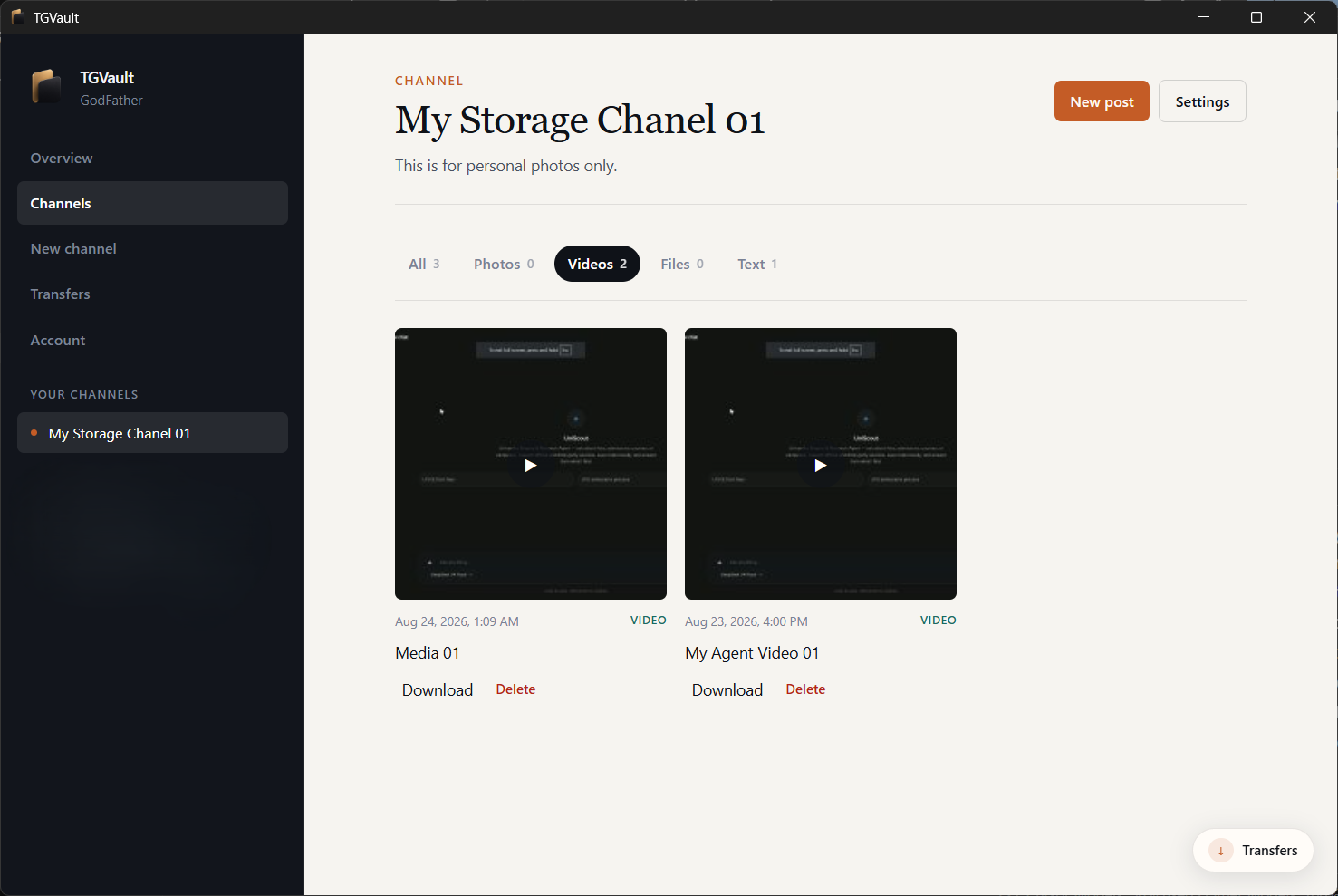
Step into a channel and the same calm structure holds — dark navigation on the side, a light workspace doing the actual work. The header keeps things plain: a Channel label, the channel's title set in serif type, a short about line, and New post / Settings sitting off to the right.
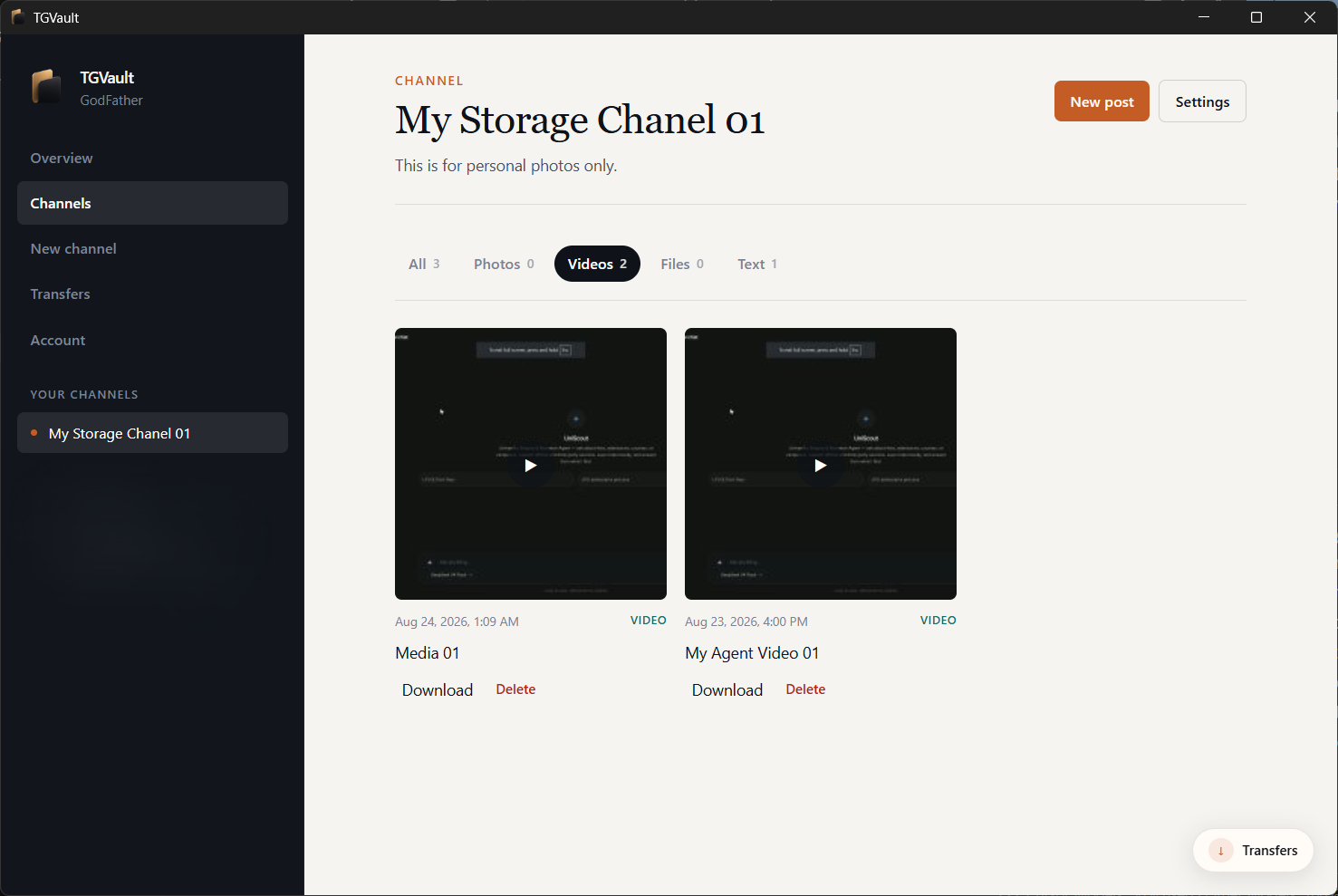
The part that actually saves you time is the filter row: All, Photos, Videos, Files, Text — each with its own count, so you know what you're looking at before you click in. In the screenshot above, the Videos filter is active: two clips sit in a grid with play overlays, timestamps, a VIDEO tag, and Download / Delete controls on each card. A floating Transfers control stays tucked in the corner, so checking on a job never means leaving the channel you're in.
That's the whole idea in one sentence: watch things inline, download only when you actually want a copy on disk, and post without the channel starting to feel like a group chat.
Transfers you can actually see#
A file that vanishes behind a spinner is a file you stop trusting. TGVault's Transfers page — labeled Activity in the app — exists to fix that. The subtitle says plainly what it does: tracks downloads and uploads across your channels, keeps progress even if you close the app, and keeps working in the background.
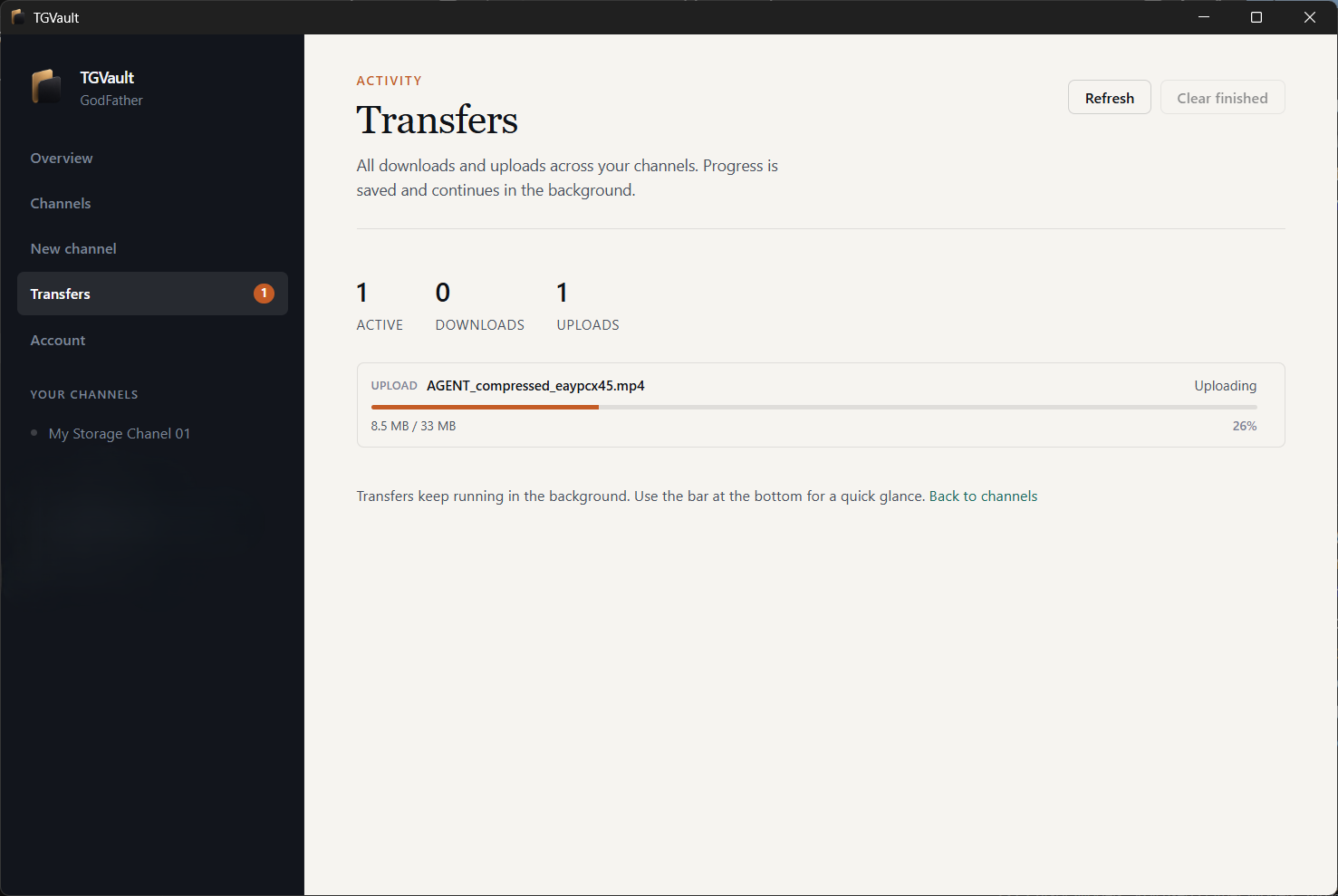
On that page you'll find:
- Live counts for active, downloads, and uploads
- A card per job — filename, status, an orange progress bar, bytes moved, and percent complete
- Refresh and Clear finished controls
- A small reminder that transfers keep running, plus a persistent dock so you can glance at progress from anywhere in the app
Pause a job, resume it, cancel it, or dismiss it once it's done — and keep browsing another channel the whole time a big video is still uploading in the background.
Getting started, step by step#
- Install TGVault for Windows or macOS from the 0.1.0 release (.msi or .dmg).
- Enter your API ID and hash from my.telegram.org/apps — they stay on this device, nowhere else.
- Sign in with your phone number, the login code Telegram sends you, and your 2FA password if it's enabled.
- From Overview, open Saved Messages or hit Create channel.
- Post files, filter by type, stream video without downloading first, and check Transfers whenever something large is moving.
Worth saying plainly: TGVault doesn't invent extra storage out of nowhere. Your file-size and account limits are still set by Telegram. What TGVault changes is how easy those limits are to live with day to day.
Privacy, in plain language#
- Your session and API credentials stay on this computer — not on a server, not in the cloud
- There's no ntxm.org account to create, and no copy of your files sits on our infrastructure
- Sign out or reset your credentials any time from Account, for a clean slate
Frequently asked questions#
Is TGVault a full Telegram messenger?#
No. It shows Saved Messages and the channels you create or manage inside the app. It doesn't pull in the rest of your chats or contacts.
Do I need an internet connection to use it?#
Yes — you need Telegram's network to sign in, post, stream, and move files, the same as you would in Telegram itself. TGVault is a client for your account, not an offline archive of it. Your login data, though, never leaves your machine.
Can I watch a video without downloading it first?#
Yes. Open the post inside the channel and it streams right away. Downloading is optional, available either from the card itself or from Transfers.
Which platforms does TGVault support?#
Windows and macOS are available now, with Linux support coming soon.
Telegram can keep being the place your files actually live — there's no need to migrate anything. TGVault is just the desk you sit down at to use them: an overview that makes sense, filters that find things fast, playback that doesn't make you wait, and transfers you can watch instead of wondering about — all without the rest of a chat app crowding the view.
- telegram
- desktop vault
- saved messages
- media storage
- windows
- macos