
KinoFlux Editor 0.1.2: 53 offline tools for video, audio, images, PDFs and documents
What KinoFlux Editor 0.1.2 is, how a job runs from start to finish, which tools it has, and what it does not try to be.
Nitiksh3 min readKinoFlux Editor
On this page
KinoFlux Editor 0.1.2 is a desktop program for the small jobs that come up all the time: make a video smaller, cut a clip, pull the audio out, convert a picture, merge two PDFs, turn a Word file into a PDF. It has 53 tools in one window, and it does all of them on your own computer. This post explains what is in the box and how a job runs. The other posts in this series go deeper on single tools.
The current release is v0.1.2 on GitHub, and the product page has the download links.
What it is, and what it is not#
The name says "Editor", so a clarification: there is no timeline and no layers. KinoFlux Editor is a set of single-purpose tools. You give it files, pick one action, set a few options and start. Each tool does one job and writes a new file.
The program is written in Rust with the GPUI toolkit. It does not run a web view. It starts the conversion programs it ships with (FFmpeg, ImageMagick, qpdf, Poppler and LibreOffice) as separate processes and hands them local file paths.
The five areas#
| Area | Tools | Examples |
|---|---|---|
| Video | 15 | Compress, trim, change format, join, speed, rotate, GIF, burn in subtitles, extract audio |
| Audio | 6 | Convert, trim, speed, join, volume, fade |
| Image | 7 | Convert, compress, resize, resize to a social preset, crop, watermark, remove metadata |
| 12 | Merge, pages, pages to pictures, text, rotate, compress, watermark, add or remove a password | |
| Documents | 13 | Word, Excel and PowerPoint to PDF, PDF back to Word, Excel or PowerPoint, CSV and HTML conversions |
Every tool and every option is listed in the project's tool reference. The posts in this series cover the ones most people reach for first.
How a job runs#
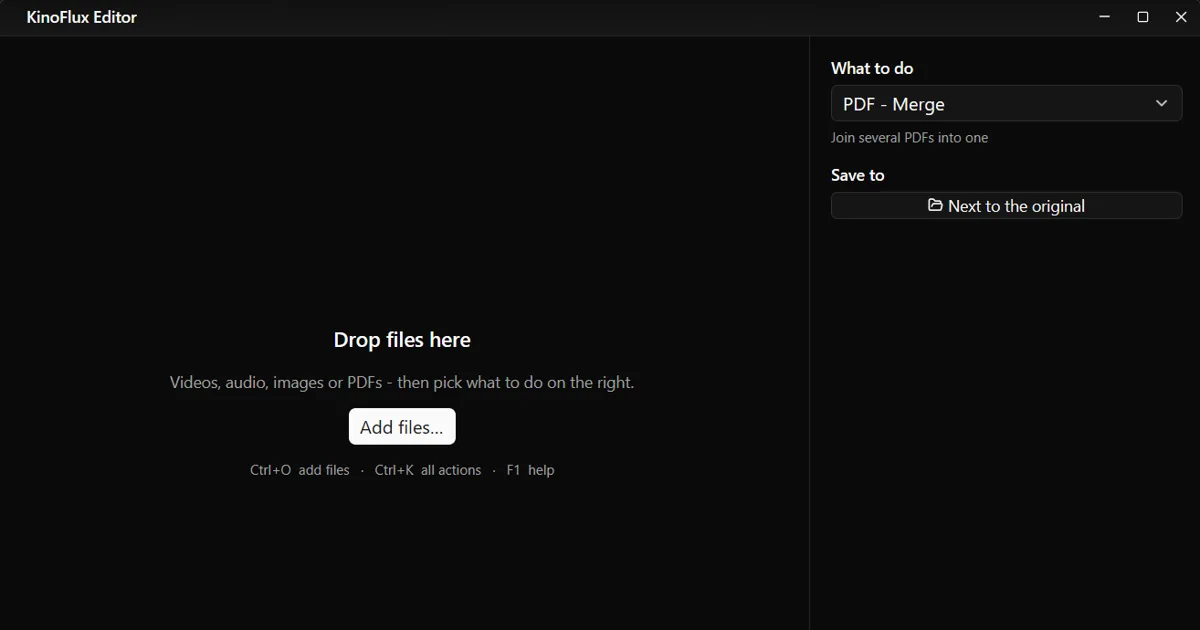
The window has a file list on the left and one panel on the right.
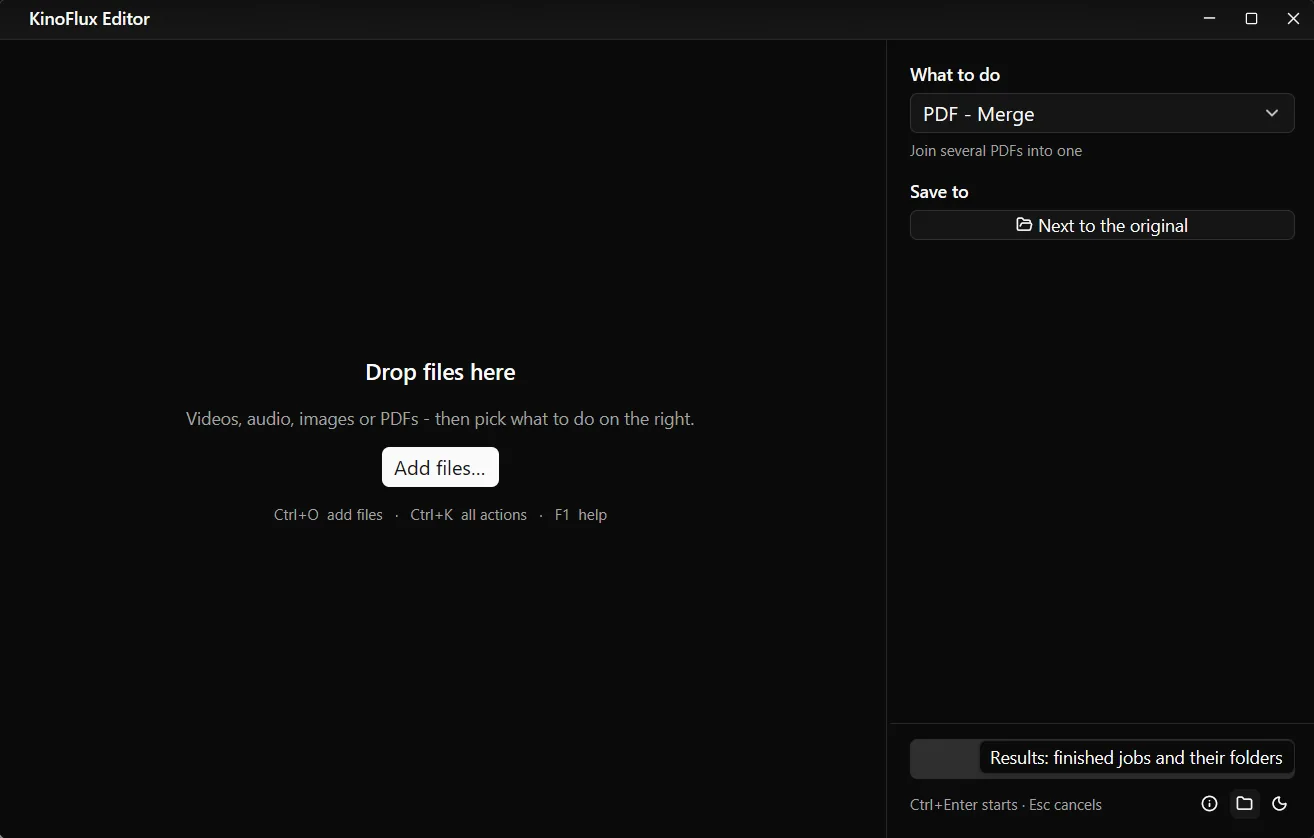
- Add files. Drop them on the window, press Ctrl+O, or start the program with file names as arguments. Folders work too.
- Check the action. The panel preselects a tool that fits the file type, for example a video gets "Video - Convert / compress". You only see the options for that one tool.
- Press Ctrl+Enter, or the big button at the bottom of the panel. Progress shows inside each file row, and Esc cancels.
When a job finishes, the row shows the output name and size, with Open and Show links. The result is always a new file. By default it lands next to the original with a suffix, such as holiday-trip_compressed.mp4 or invoice-march_merged.pdf. If that name is taken, KinoFlux adds " (2)" instead of overwriting. While a job runs the output has a .part name, and it is renamed only when the job succeeds, so a cancelled job does not leave a half-finished file under the final name. You can also choose a folder under "Save to".
Switching tools#
The panel's top dropdown lists every tool. Faster is the action picker: press Ctrl+K and type what you want to do. With files already loaded it puts the tools that fit them at the top.
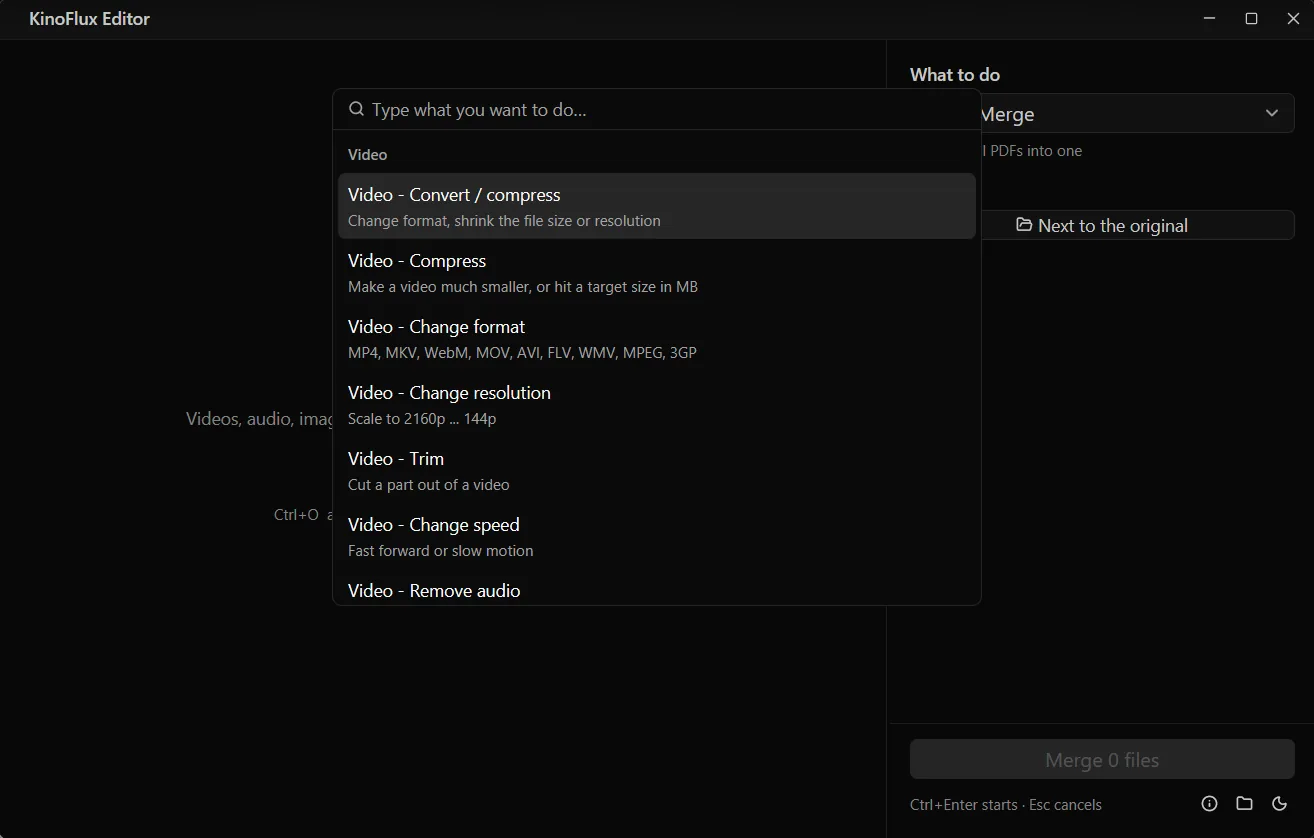
The shortcuts post covers the picker, presets and the results list in more detail.
Offline by design#
The program has no accounts, no telemetry and no update check, and it contains no network code. Your files are not uploaded because nothing in the program can upload them. The privacy post lists what is stored on disk and how the "no network" claim was checked, including the parts that are a design guarantee rather than a sandbox.
What it runs on#
- Windows 10 (version 1809) or 11, 64-bit. The installer includes all the conversion programs, LibreOffice included, so there is nothing else to install.
- macOS 11 or newer on Apple Silicon. The Documents tools need LibreOffice installed separately on the Mac. An Intel Mac build does not exist yet.
- Linux: the code is cross-platform, but no Linux release exists for 0.1.2.
The install post walks through both installers, including the SmartScreen and Gatekeeper warnings, which appear because the 0.1.2 builds are not signed with a paid certificate.
Where to start#
- Compress a video to a target size if you need a file under a size limit.
- Trim a video without re-encoding for quick cuts, including one bug to know about.
- Extract audio from a video for MP3, FLAC and the other formats.
- Convert and resize images in bulk for batches of pictures.
- Merge, split and compress PDFs for everyday PDF chores.
- Convert Word documents to PDF and the other Documents tools.
- kinoflux editor
- offline tools
- windows
- macos