
Free PDF Splitter Offline for Windows — Extract Pages Without Uploading
A straightforward guide to splitting PDF files and extracting pages offline on Windows using free tools, including a command‑line approach and a desktop‑first method that keeps your files completely private.

Nitiksh
June 2026
You have a multi‑page PDF and you only need a handful of pages — maybe a single chapter, an invoice, or a scanned section. You want to split it, keep the result clean, and you don’t want to upload the file anywhere. You’re on Windows, and you need it to cost nothing.
The options below work completely offline, with no account sign‑up and no file‑size ceiling imposed by a remote server.
What people usually try first
pdftk — the command‑line workhorse
If you’re comfortable with a terminal, pdftk handles page extraction natively, without touching the cloud. On Windows you can install it via PDF Labs or a package manager like Chocolatey.
To extract, say, pages 1 to 3 and page 5 from report.pdf and save them as extracted.pdf:
pdftk report.pdf cat 1-3 5 output extracted.pdfThat single line runs entirely on your machine. No internet, no upload, no watermark. The trade‑off is you must be willing to work with a command prompt, and page‑range syntax can trip you up if you need multiple non‑consecutive ranges (though it’s perfectly capable).
Browser‑based splitters
Sites like iLovePDF or Smallpdf let you upload a PDF, select pages, and download the result. They are genuinely useful for one‑off operations on a trusted connection.
Their real limitations show up when:
- The PDF is sensitive (contracts, financial records, medical documents). You’re sending it to a third‑party server, often without a clear data‑retention policy.
- The file is large. Free tiers routinely cap uploads at 100 MB or 200 MB, and some silently compress output.
- You’re on a metered or intermittent connection. Upload → process → download adds latency and burns data.
For quick public documents, they’re fine. For everything else, a local tool removes the guesswork.
Why desktop‑local splitting solves the core problem
When you split a PDF directly on your Windows desktop:
- The file never leaves your drive.
- There is no file‑size limit beyond your own storage.
- Processing speed depends on your hardware, not a server queue.
- You don’t need an account, and you aren’t left with a watermark to clean up afterwards.
The principle is simple: extracting pages is a read‑and‑copy operation, not something that requires outside computation. Keeping it local is the natural architectural fit.
KinoFlux Editor — a free desktop alternative
KinoFlux Editor is a free, offline‑first media processing suite for Windows, macOS, and Linux. It includes a dedicated PDF Page Remover tool that does exactly what the search above asks for: split pages out of a PDF without uploading anything.
We’ll focus on extracting selected pages into a new PDF — the most direct splitting task.
Step‑by‑step: split a PDF using KinoFlux Editor on Windows
-
Open the tool
Launch KinoFlux Editor and navigate to PDF Page Remover from the home screen or sidebar. -
Select your PDF
Click the input area and choose the file you want to split. The application immediately displays the total page count, so you know exactly what you’re working with. -
Define the pages to keep
In the Page Range field, type exactly which pages should end up in the new file. The parser accepts:- Single numbers:
1,3,7 - Ranges:
2-6 - Mixed combinations:
1,3,5-8,10
The tool interprets this notation in real time — no regex guessing required.
- Single numbers:
-
Set output format to PDF
Keep the toggle on PDF. (The tool can also export pages as a ZIP of PNG images if you ever need image‑based extraction, but for a straightforward split, PDF is the way.) -
Choose an output location
By default it saves next to your original file with the suffix_edited.pdf, e.g.report_edited.pdf. You can override the path if you prefer a different folder or name. -
Run the split
Hit the extract button. A progress bar fills — typically in seconds — and the new PDF appears in the location you specified. The app also opens the containing folder automatically.
The result is a clean PDF containing only the pages you listed, with all original formatting, rotation, and metadata preserved. No page numbers shift; no hidden watermarks appear.
Platform and format support
- Windows: fully supported (Windows 10 and later).
- Input: standard PDF files (the backend uses a pure‑Rust PDF engine, so even large documents with complex page trees render correctly).
- Output: PDF (the splitting tool generates a standards‑compliant document). ZIP+PNG mode is an option for image‑based extraction if needed.
- macOS and Linux: the same tool works identically, so workflows travel across machines.
Frequently asked questions
Can I split a PDF offline without an internet connection?
Yes. KinoFlux Editor and the pdftk command-line tool both perform all processing locally. Once installed, they never require internet access to split a PDF.
Do I need to upload my PDF to a website?
No. With a desktop tool like KinoFlux, the file stays on your drive throughout the entire operation. There is no upload step at any point.
Is this PDF splitter free and watermark‑free?
Yes. KinoFlux Editor is free to use, does not add watermarks, and never inserts branding into your output files. The extracted PDF is identical in quality to the original pages.
Does it work on Windows 10 and Windows 11?
Yes. The application runs on both Windows 10 and Windows 11, as well as older versions if they meet the system requirements.
When the task is simply “give me pages 4 through 7 from this document,” the tool you use shouldn’t complicate your life with uploads, logins, or file‑size warnings — it should just produce the file and get out of the way.
Related Posts
How to shrink image file sizes on Windows without uploading anything, without an internet connection, and without paying. Covers real ImageMagick commands and the KinoFlux Editor desktop compressor.
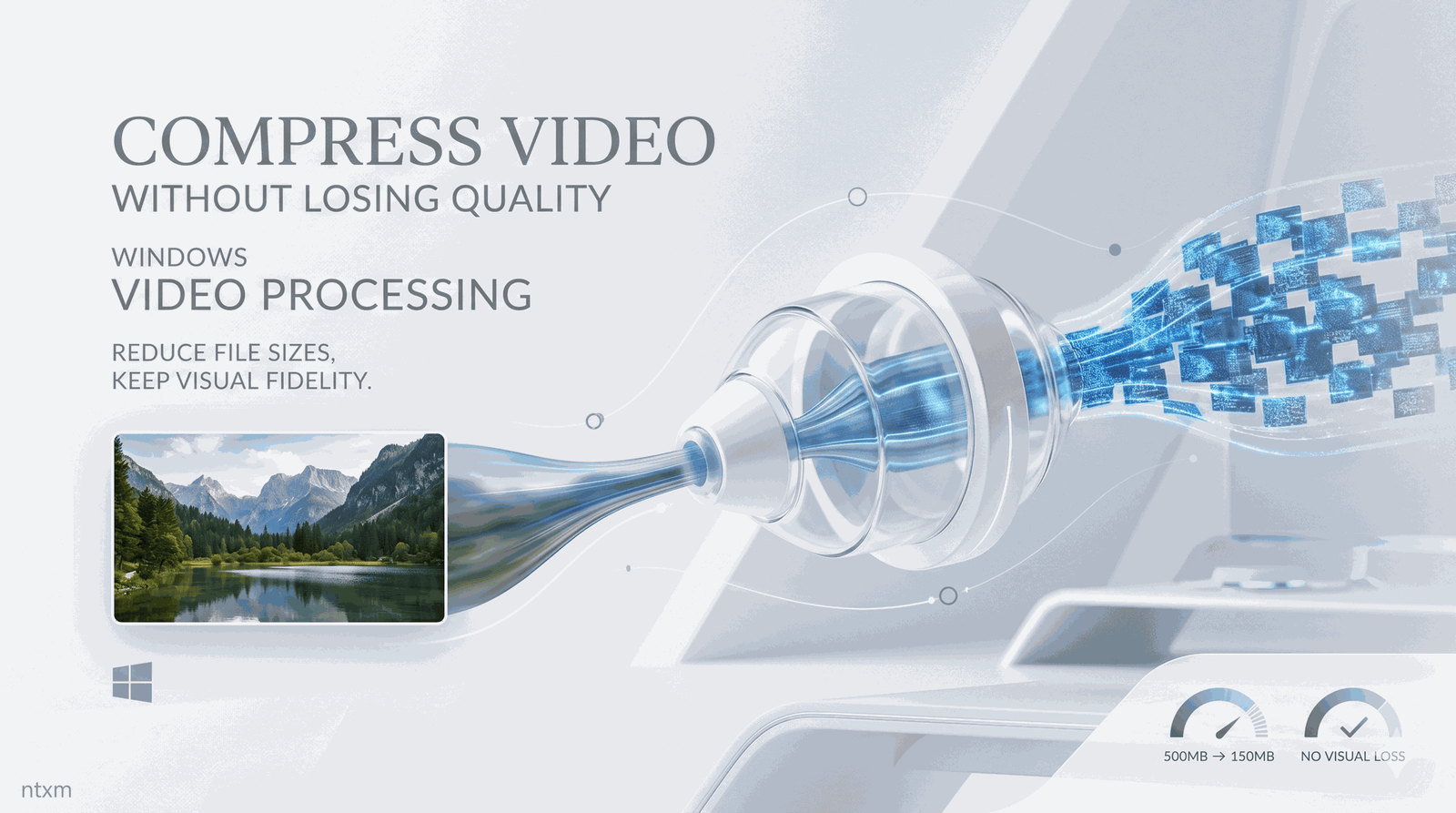
How to reduce video file sizes on Windows without sacrificing visual quality — covering FFmpeg, online tools, HandBrake, and a local‑first desktop compressor that runs entirely offline.
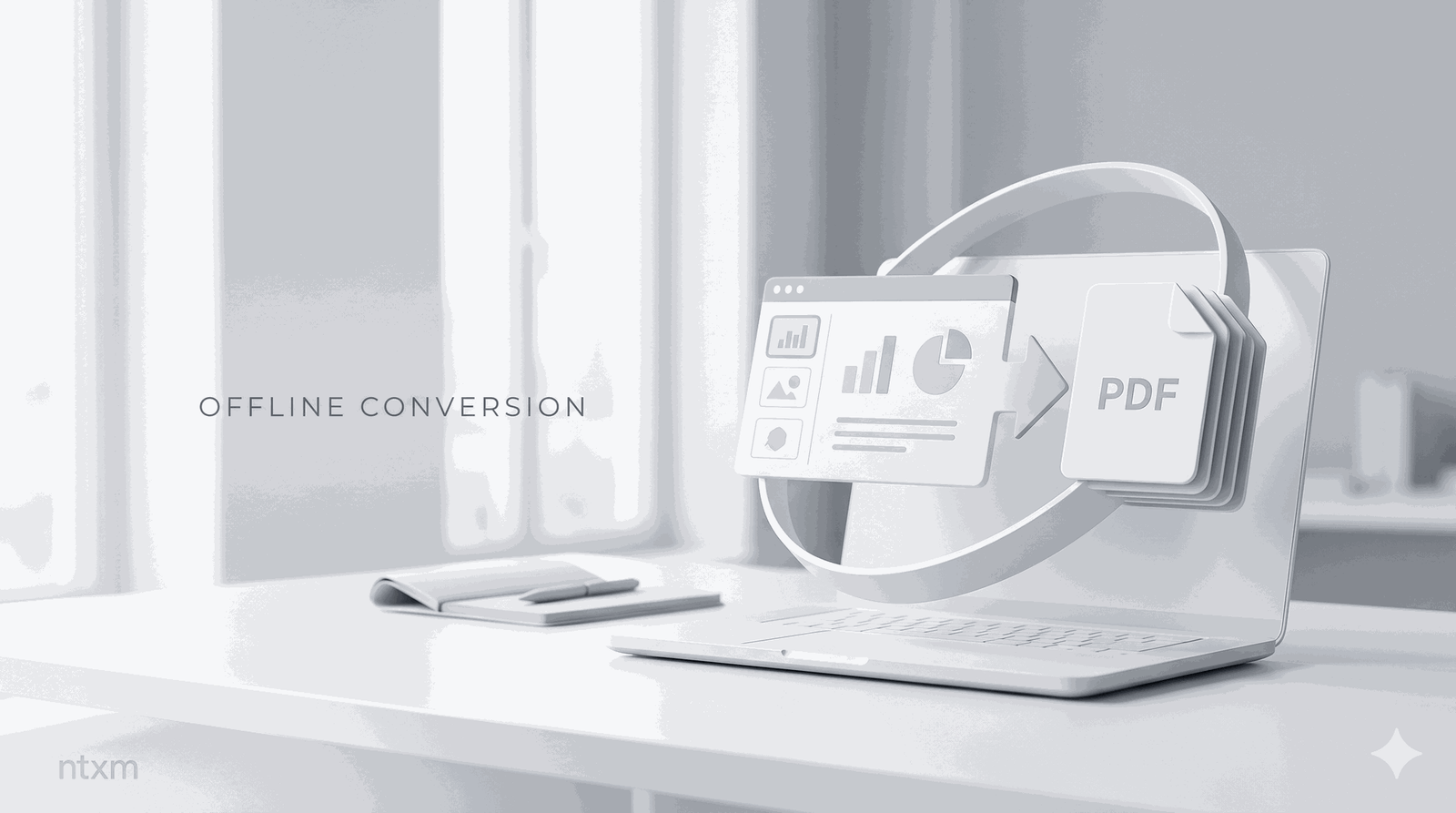
Need to turn a PowerPoint presentation into a PDF without an internet connection or uploading files? This guide covers the offline methods that work on Windows—from a fast command-line approach to a visual desktop tool.
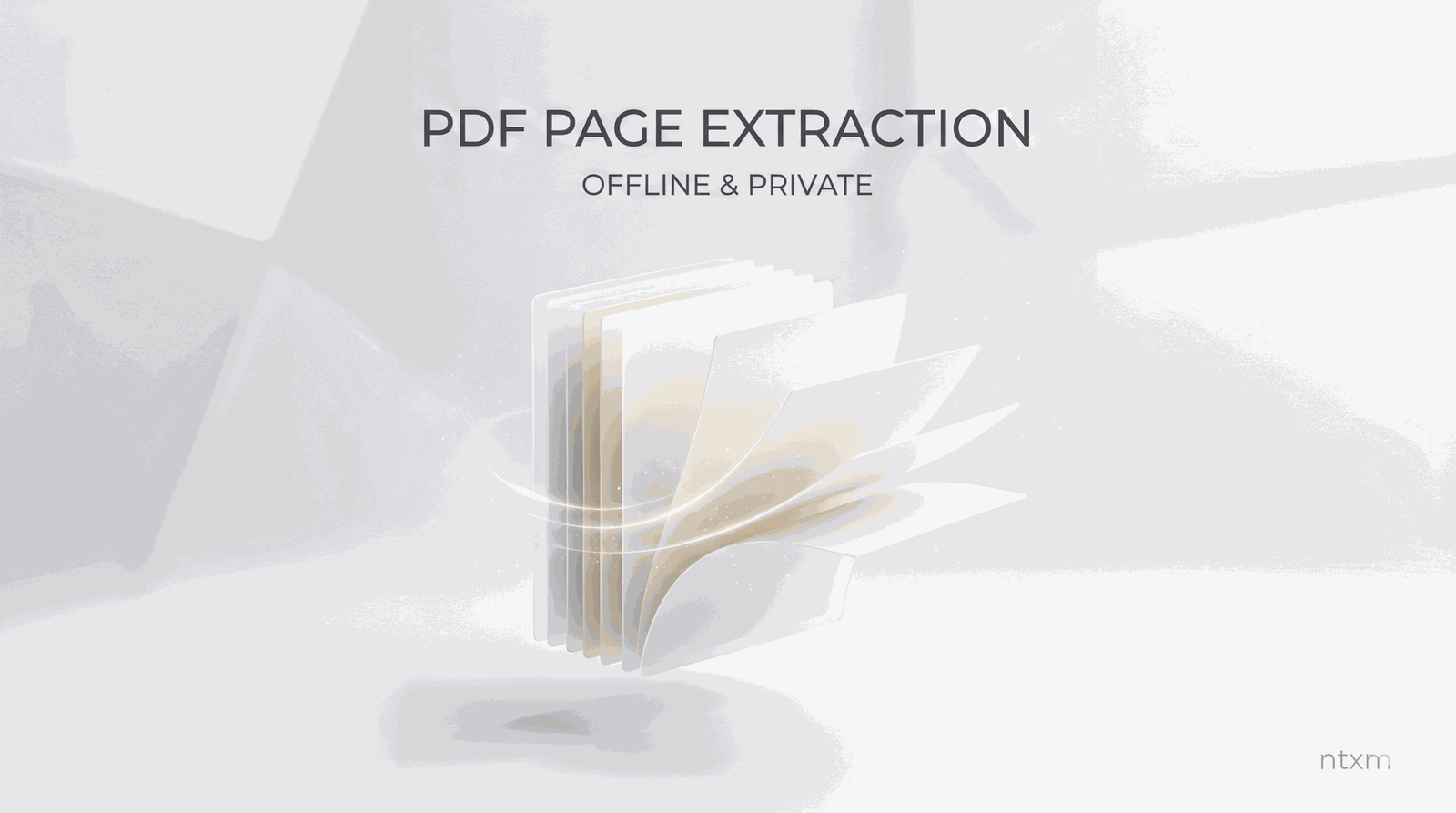
Step-by-step guide to pulling specific pages out of a PDF document using offline tools, command-line utilities, and a desktop application that never uploads your files.