
Convert PowerPoint to PDF Without Microsoft Office — No Uploads, No Account Required
You don't need Microsoft Office to turn a presentation into a PDF. This guide covers free, offline methods — from a simple command-line tool to a dedicated desktop converter — so you can share, archive, or print your slides safely, without uploading files anywhere.

Nitiksh
June 2026
You have a PowerPoint presentation that you need to share, archive, or print — but Microsoft Office isn’t installed on your machine, and you’re not about to buy a license just to export a PDF. You need a way to get from .pptx (or .ppt) to .pdf without touching an Office product.
The good news: reliable, free methods exist that don’t require uploading your file to a third-party server and don’t force you into an account wall. This article walks through the most practical ones, from a fast command-line approach to a dedicated desktop tool built specifically for privacy-conscious offline conversion.
Real options for converting PPT to PDF without Office
Before committing to any solution, it’s worth understanding what actually works — and what trade‑offs each approach carries.
1. LibreOffice command line — free, offline, and scriptable
LibreOffice includes a powerful headless mode that can convert presentation files to PDF without opening its graphical interface. If you’re comfortable with a terminal, this is the most flexible zero‑cost method.
You do need LibreOffice installed on your system (it’s free and available for Windows, macOS, and Linux). Once installed, open a terminal and run:
soffice --headless --convert-to pdf --outdir /output/folder /path/to/presentation.pptxThat’s it. The command works on multiple file types (.ppt, .pptx, .odp, .pps, .ppsx, .pot, .potx) and produces a clean PDF. You can script it for batch processing, and your files never leave the machine.
The downside? It’s a command‑line tool. Not everyone wants to open a terminal, remember the flags, or figure out output directory paths when there’s no visual feedback.
2. Online converters — quick, but with real limits
There’s no shortage of browser‑based PPT‑to‑PDF tools: Zamzar, Smallpdf, ILovePDF, and similar services. They work by having you upload your file, converting it on their servers, and returning a download link.
These tools fill a legitimate gap if you’re on a locked‑down machine and can’t install anything. But they come with consistent limitations:
- File size caps — free tiers often cut off at 50–100 MB.
- Internet dependency — no connection, no conversion.
- Privacy exposure — your presentation content is uploaded and stored temporarily (or longer) on third‑party infrastructure.
- Account prompts — many gate multi‑file or daily conversions behind sign‑up walls.
- Watermarks — a few less‑reputable sites stamp output files without making it obvious.
For a quick one‑off where the presentation contains no sensitive material, an online tool can work. But if you regularly handle business decks, internal documents, or large slide libraries, the upload‑based model introduces friction you don’t need.
Why a local desktop approach eliminates the friction
Running the conversion directly on your computer — without any upload — removes all of the above constraints at once:
- No file size limit beyond your local storage.
- No internet required; works on planes, in secure labs, or during outages.
- No privacy risk because the file never leaves your device.
- No account, no subscription, no unexpected paywalls.
You get a PDF exactly the same way you’d get it from Office’s “Save As” function, minus the Office license.
KinoFlux Editor’s PPT‑to‑PDF converter
KinoFlux Editor includes a dedicated PPT to PDF Converter tool that wraps LibreOffice’s headless conversion engine into a straightforward graphical interface. It’s built on the same offline‑first, privacy‑focused architecture as the rest of the suite: all processing is local, no files are ever uploaded, and no account is required.
The converter bundles its own isolated LibreOffice environment, so you don’t need to install LibreOffice separately — and it won’t interfere with any LibreOffice installation you already have. It also handles batch conversion, giving you a clear progress overview for multiple files at once.
Step‑by‑step: convert PPT to PDF with KinoFlux Editor
- Open KinoFlux Editor and select PPT to PDF from the sidebar tools.
- Add your presentation files. Click the
Add Filesbutton or drag and drop one or more.ppt,.pptx,.odp, or related slide files into the batch queue. - Confirm the output folder. By default, each PDF will be saved in the same folder as its source file, with the same base name (
presentation.pdf). You can change the destination for all files using the output folder selector if needed. - Start the conversion. Click Convert All. The tool spawns a headless LibreOffice process in an isolated temporary workspace — no window pop‑ups, no interference with your desktop session.
- Monitor progress. A real‑time progress bar shows how many files have been processed and which one is currently being converted. You can minimize the window or continue working on something else while the conversion runs in the background.
- Retrieve your PDFs. Once complete, the output folder opens automatically. All PDFs are ready to share, archive, or print.
The process is fully local. There’s no queue on a remote server, no bandwidth waiting, and no file retention policy to worry about.
Supported formats and platform compatibility
Input formats: .ppt, .pptx, .odp, .pps, .ppsx, .pot, .potx
Output format: PDF (no watermarks, no metadata stripped beyond what the conversion handles)
Operating systems: Windows (10+), macOS, and Linux. The bundled LibreOffice binary works cross‑platform, so you don’t need any additional system configuration on any OS.
If you’re on a locked‑down enterprise machine that blocks new executables, the stand‑alone command‑line method with a pre‑approved LibreOffice installation remains a viable fallback.
Frequently asked questions
Can I convert PPT to PDF without an internet connection?
Yes. Both the LibreOffice command‑line method and the KinoFlux Editor converter work entirely offline. No network access is needed.
Are my presentation files uploaded to any server?
No. All conversion happens locally on your device. KinoFlux Editor never transmits your files, and the LibreOffice command‑line tool processes everything in your local filesystem.
Will the output PDF have a watermark?
No. Neither method adds a watermark. The resulting PDF is a clean, standard document that looks exactly like a presentation exported from Microsoft Office.
Does this work on macOS and Linux?
Yes. LibreOffice runs natively on Windows, macOS, and Linux, and the command‑line instructions work across all three. KinoFlux Editor provides a consistent graphical interface on every platform, with the same local conversion behavior.
Whichever approach you choose, you can reliably turn any presentation into a PDF without ever touching Microsoft Office.
Related Posts
A practical guide to downscaling 720p video to 480p on Windows without internet, file uploads, or watermarks. Covers an FFmpeg command, online tool limitations, and a step-by-step walkthrough using KinoFlux Editor’s built‑in resolution converter.
A direct guide to converting MP4 to MP3 on Windows without uploading files. Covers FFmpeg, online tools, and a local desktop app.
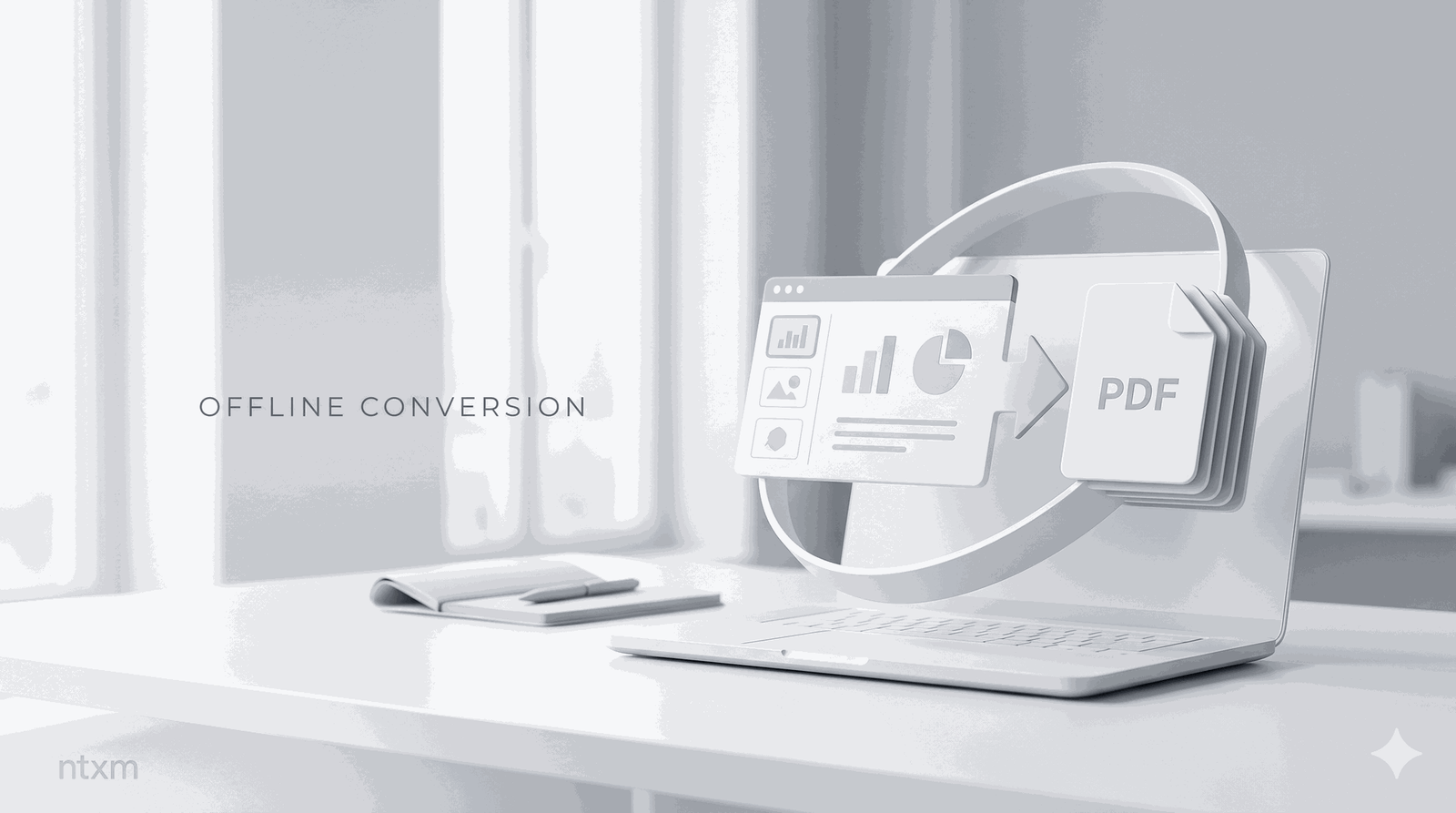
Need to turn a PowerPoint presentation into a PDF without an internet connection or uploading files? This guide covers the offline methods that work on Windows—from a fast command-line approach to a visual desktop tool.
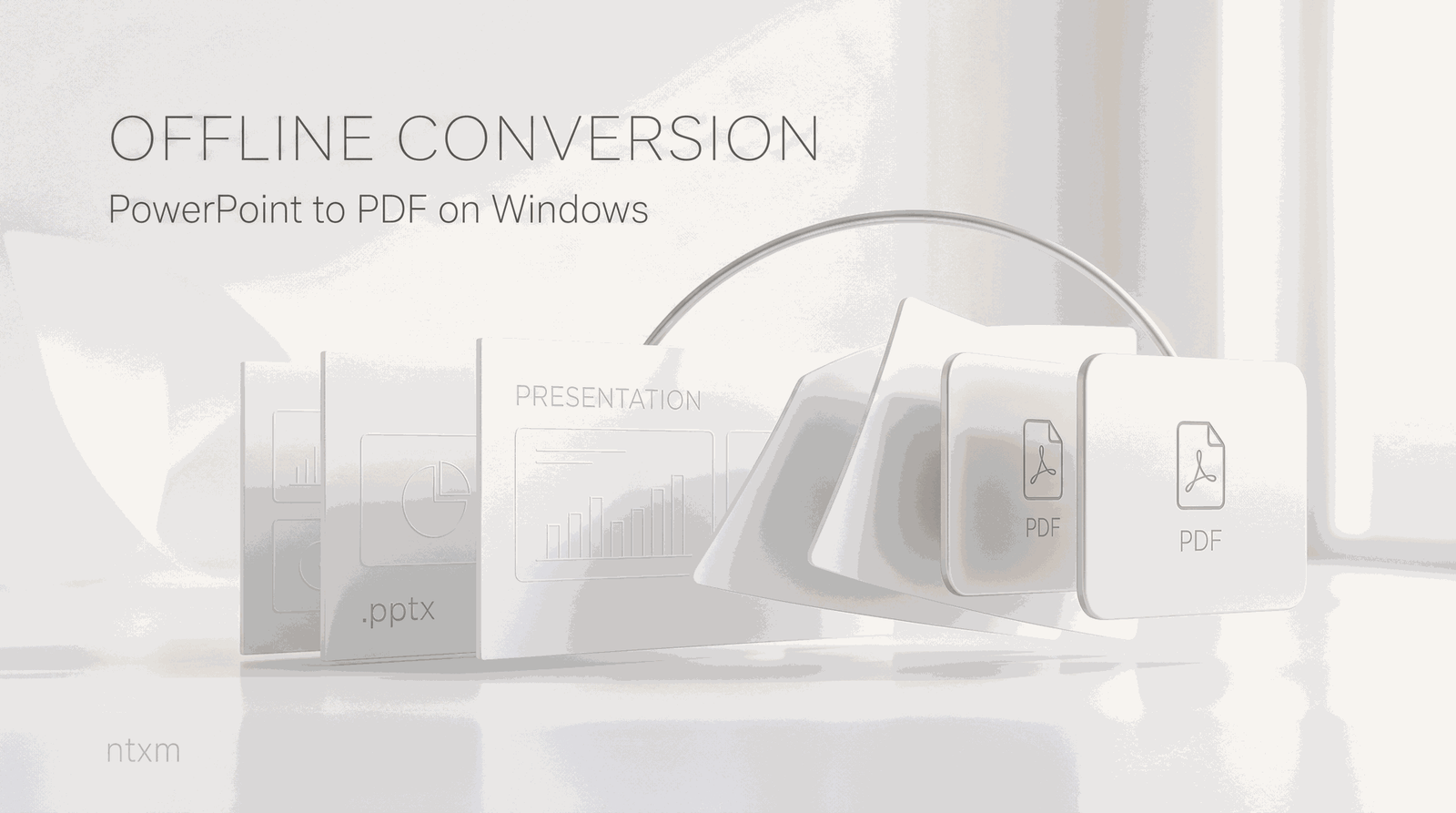
How to turn PowerPoint presentations into PDF files offline on Windows without uploading files or creating accounts. Covers a free command-line method, honest limitations of online converters, and a step-by-step walkthrough using KinoFlux Editor's built-in desktop converter.