
720p to 480p Converter for Windows — Works Offline, No Uploads
A practical guide to downscaling 720p video to 480p on Windows without internet, file uploads, or watermarks. Covers an FFmpeg command, online tool limitations, and a step-by-step walkthrough using KinoFlux Editor’s built‑in resolution converter.

Nitiksh
June 2026
720p to 480p Converter for Windows — Works Offline, No Uploads
You have a 720p video you need in 480p — maybe to shrink a file for a portable device, embed it on a website with a lower bitrate target, or match a specific player’s native resolution. You want to do it on Windows without sending your file anywhere, without signing up for anything, and without a watermark slapped on the output. Here’s what actually works.
What are your options?
Before you download anything, know that you’ve got three broad paths.
1. FFmpeg — the command-line powerhouse
If you’re comfortable with a terminal, FFmpeg handles resolution downscaling in one line. Open PowerShell or Command Prompt and run:
ffmpeg -i input.mp4 -vf "scale=-2:480" -c:a copy output.mp4This takes your source file, scales the video stream to a height of 480 pixels while preserving the original aspect ratio, and copies the audio stream untouched. No quality loss on the sound, no re‑encoding overhead on the audio side.
FFmpeg is free, offline, and gives you full control — but it stays a command‑line tool. If you need to batch‑process dozens of files, remember to script the loop yourself, and if you’ve never touched a terminal, the learning curve is real.
2. Online converters — quick, but with strings attached
Sites like CloudConvert, Online‑Convert, or Convertio let you drop a file in a browser tab and get a 480p version back. They work for small, non‑sensitive clips: a short screen recording, a public‑domain video, a test file. Most cap the input size (often 100 MB to 1 GB on free tiers), require a stable internet connection, and process your file on remote servers. If you’re dealing with anything private — internal training footage, unreleased content, personal recordings — uploading it to a third‑party service is architecturally the opposite of safe. Plus, free tiers frequently embed watermarks, throttle conversion speed, or lock output formats behind a subscription wall.
3. A local desktop tool — no uploads, no size caps
The desktop alternative is a single application that does the work entirely on your machine. No upload, no account, no watermark — just pick your file, select the target resolution, and hit convert. That’s where KinoFlux Editor fits.
Why convert resolution offline?
When the conversion happens locally, three things become non‑issues immediately:
- File size limits — your 5 GB 720p master file isn’t rejected before it even starts.
- Privacy — the video never leaves your disk; not a single frame is transmitted over a network.
- Internet dependency — a spotty connection or no connection at all doesn’t block the task.
On Windows, a desktop tool also taps into your machine’s own hardware (GPU acceleration where available) instead of relying on whatever server a website happens to allocate you.
Step-by-step: downscaling 720p to 480p with KinoFlux Editor
KinoFlux Editor is a cross‑platform media suite built on a local‑first architecture. Everything — video, audio, images, PDFs — is processed on your device. The Video Resolution Converter lives inside the editor and gives you a preset grid for standard resolutions, including 480p. The tool never upscales (it aborts if the target would be larger than the source), so you won’t accidentally degrade a file by stretching pixels.
Download KinoFlux Editor for Windows — free, no account, no telemetry.
Once installed, here’s the exact flow:
- Open KinoFlux Editor and navigate to the Video Resolution Converter from the sidebar (or the Tools menu).
- Select your input video — click the input area and pick the 720p file. Formats like MP4, AVI, MOV, MKV, and WebM are all supported.
- Choose the target resolution — in the preset grid, click 480p. The app automatically calculates the correct width using your video’s aspect ratio (e.g., a 16:9 source becomes 854×480) and rounds dimensions to even numbers for H.264 compatibility.
- (Optional) Adjust the output path — by default, the converted file is saved as
<original_name>_480p.mp4right next to the original. You can type a different location if you prefer. - Click “Convert Resolution” — a real‑time progress bar shows the current status. The audio stream is copied without re‑encoding, so the sound stays identical to the source.
- Done — when the progress bar fills, the output folder opens automatically. Your 480p video is ready.
The whole operation runs offline and uses hardware‑accelerated encoding where available (NVENC, QSV, AMF, VideoToolbox), which keeps CPU usage low even on entry‑level Windows laptops.

A note on formats and platform
- Input: MP4, AVI, MOV, MKV, WebM, and most common video containers.
- Output: always MP4 with H.264 encoding (the safest bet for compatibility).
- Operating system: the converter works on Windows 10 and Windows 11. KinoFlux Editor also runs on macOS and Linux, so the same workflow stays identical if you switch machines.
Frequently Asked Questions
Can I convert 720p video to 480p without an internet connection?
Yes. KinoFlux Editor performs all processing locally, so you can downscale videos completely offline — no Wi‑Fi needed after installation.
Does the converter upload my files anywhere?
No. Every operation runs entirely on your hard drive. No data is sent to a server, and the application doesn’t require an account.
Is there a watermark on the output?
No watermark is added. The converted video is clean, with only the resolution changed.
Does it work on Windows 10?
Yes. KinoFlux Editor supports Windows 10 and 11, with native performance and no compatibility layers.
A local resolution converter doesn’t just save bandwidth; it keeps full control of your media exactly where it belongs — on your own machine.
Related Posts
A direct guide to converting MP4 to MP3 on Windows without uploading files. Covers FFmpeg, online tools, and a local desktop app.
How to turn a video file into a complete HLS streaming package (master .m3u8 playlist, .ts segments, and adaptive bitrates) on a Windows PC — using free command-line tools and a dedicated offline desktop application.
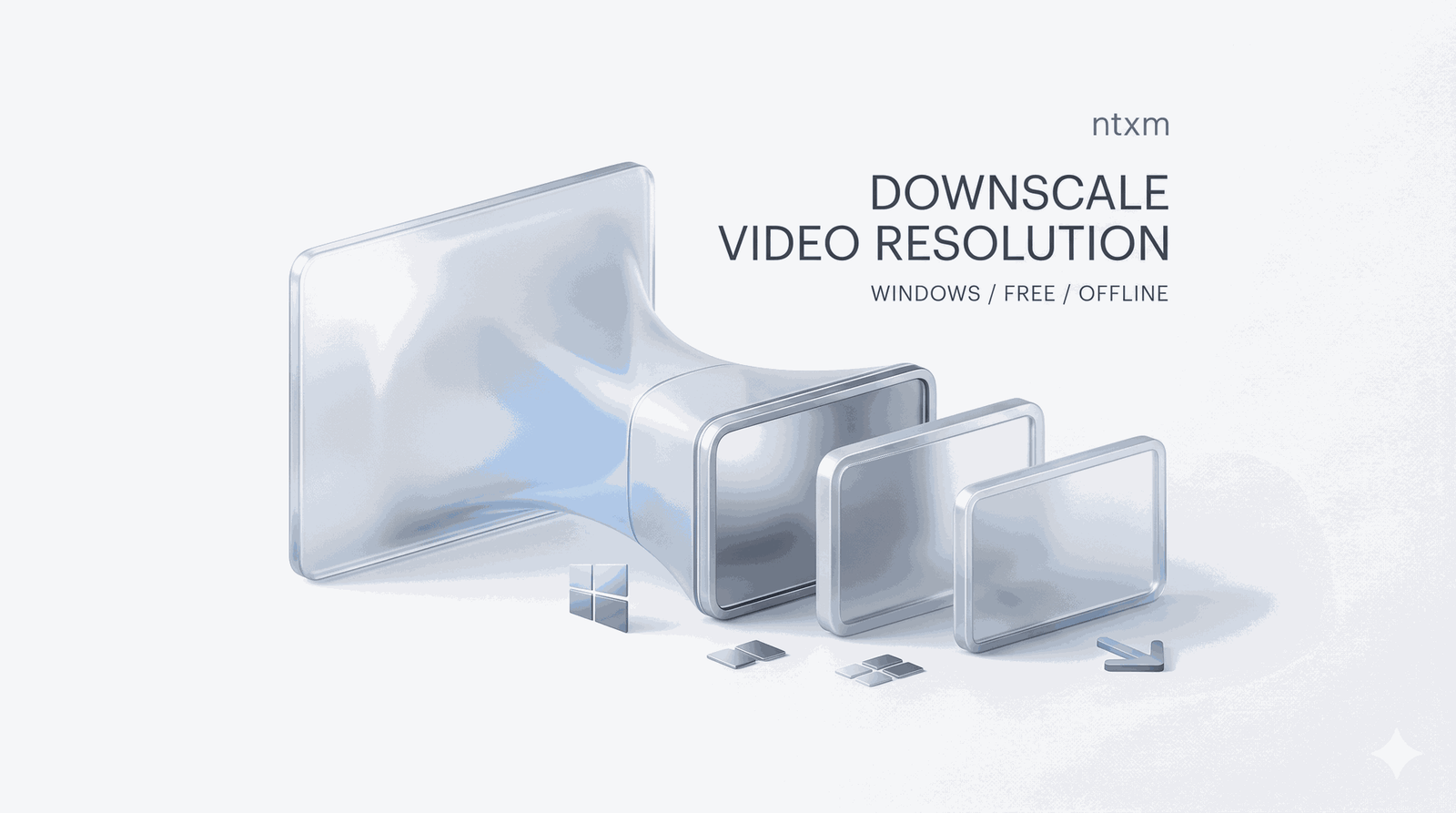
A practical guide to reducing video resolution on Windows using desktop tools, covering everything from FFmpeg commands to a simple interface that keeps files private and avoids watermarks.

Merge multiple video files into one on Windows without an internet connection, without uploading anything, and without watermarks. Covers FFmpeg, online tool limitations, and a step-by-step guide using the free KinoFlux Editor desktop app.